If you’re tired of your crosshair flying all over the place or feeling like your shots are just not landing, this guide is for you. I’m going to walk you through the exact steps to dial in your Free Fire sensitivity settings with the help of a game booster – so you can get smoother, more predictable aim and actually enjoy the game. By the end, you’ll have a setup that feels natural, reduces lag, and gives you a real edge in close- to long-range fights.
Default sensitivity in Free Fire is often way too high (or too low) for most players. Combine that with frame drops or touch lag, and it’s a nightmare. A game booster helps free up system resources and stabilize your frame rate, making your sensitivity adjustments actually work. We’re not chasing pro numbers here – we’re building your personal perfect feel. Let’s get into it.
What You’ll Need
- Free Fire installed on your smartphone (Android or iOS)
- A game booster app – GFX Tool (Android) or Game Turbo (Xiaomi), or any trusted booster
- A phone with at least 4GB RAM and decent GPU (like Snapdragon 660 or better)
- Stable internet connection (WiFi or 4G/5G)
- 10–15 minutes of uninterrupted time to test and tweak
Step 1: Understand Your Current Sensitivity Settings
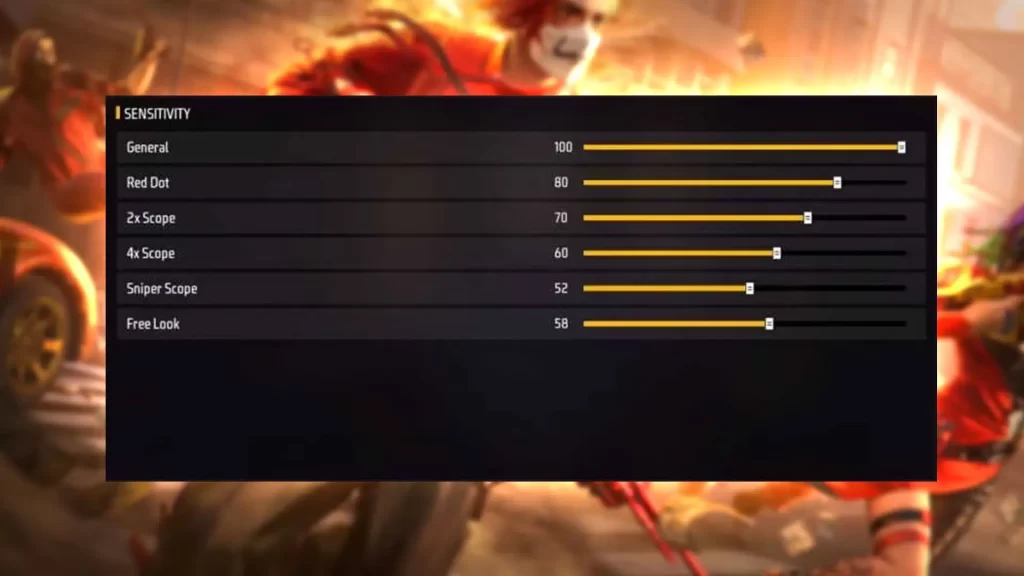
Before changing anything, open Free Fire and go to Settings > Sensitivity. You’ll see sliders for General, Red Dot, 2x Scope, 4x Scope, Sniper Scope, and Free Look. These control how fast your aim moves when you swipe. Most players have a General sensitivity between 70 and 100. If you don’t know yours, take a screenshot now – you can always revert.
Step 2: Choose and Set Up a Game Booster
A game booster reduces background processes, locks your CPU frequency, and sometimes even overrides graphics settings to keep the frame rate steady. I recommend GFX Tool (free with ads) or the built-in Game Turbo on Xiaomi devices. Download it, grant permissions, and add Free Fire to its list. Enable “Gaming Mode”, set resolution to 720p (for balance), and turn on “Threaded Optimization” if available.
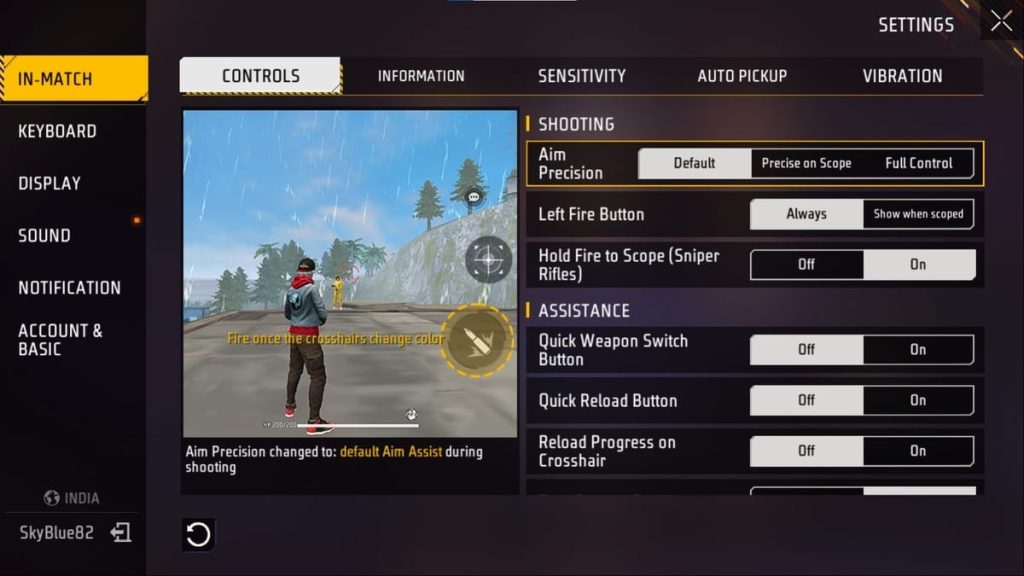
Step 3: Adjust In-Game Sensitivity – Start Here
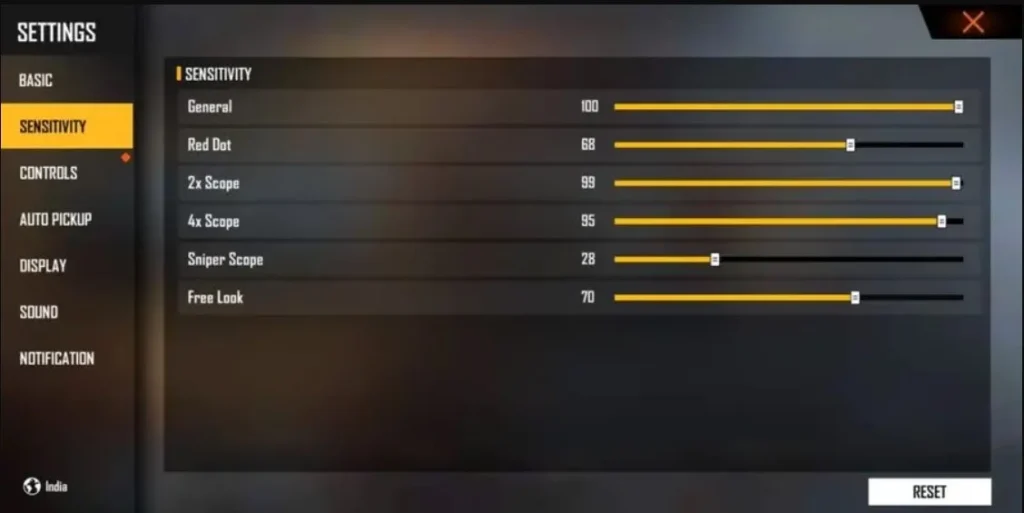
Now we tweak. Go back to Free Fire sensitivity settings. If you’re a beginner, try these starting values:
– General: 85
– Red Dot: 70
– 2x Scope: 60
– 4x Scope: 45
– Sniper Scope: 25
– Free Look: 60
These are moderate – not too fast, not too slow. Then jump into the Training Ground (accessible from the main menu) to test. If you overshoot targets, lower the general. If you can’t track a moving enemy, raise it. Tweak each scope individually until it feels smooth.
Step 4: Fine-Tune the Game Booster for Best Performance
Once your sensitivity feels okay, go back to your booster. In GFX Tool, you can set the graphics to “Smooth” and FPS cap to 60 (or higher if your device supports 90/120Hz). Also enable “Anti-Aliasing” off – it saves battery. Under “Advanced”, set CPU mode to “Performance” and GPU renderer to “OpenGL” for compatibility. Save and launch Free Fire from within the booster.
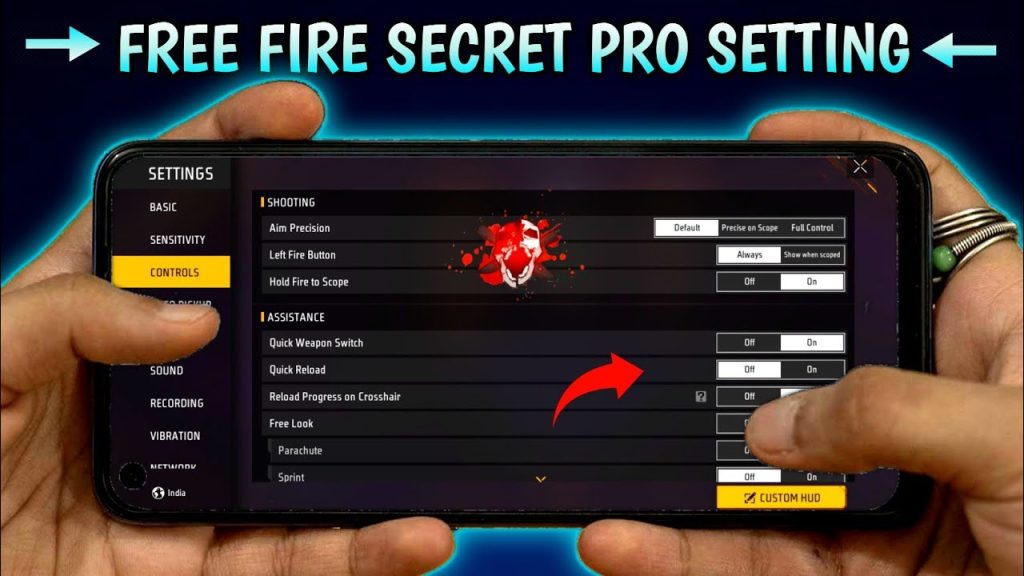
Step 5: Test in Real Matches and Adjust
Now play a few Clash Squad rounds (low pressure) to see how your sensitivity holds up. Pay attention to close-range spray (use general) and long-range taps (use scope sliders). If you feel micro-stutters, increase the booster’s FPS lock or reduce resolution slightly. If you get screen tearing, turn on V-Sync in the booster. Repeat the tweak-test loop until you’re consistently hitting your shots.
Common Pitfalls
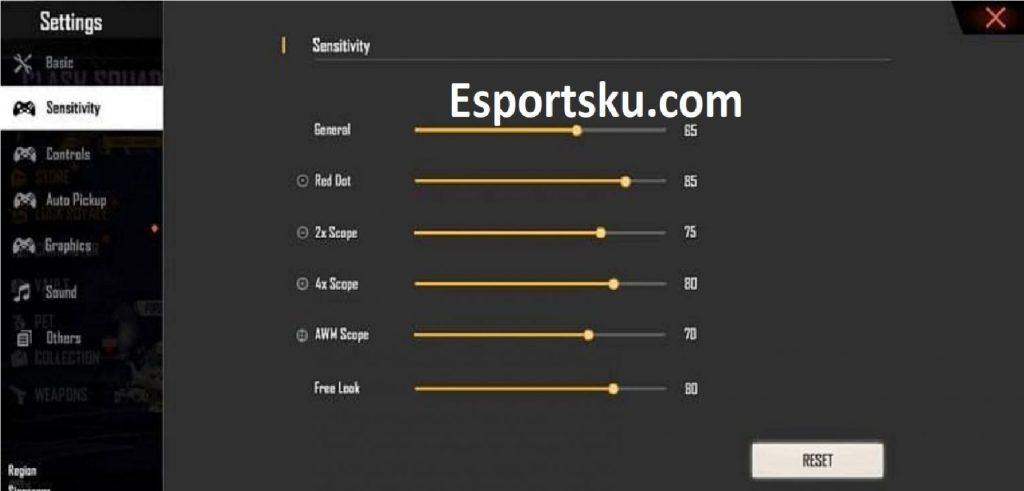
- Copying pro players’ sensitivity exactly – their devices and thumbs are different. Always start from your own feel.
- Ignoring device performance – if your phone has low RAM, a high FPS cap can cause lag. Lower graphics first.
- Using too many booster features – enabling anti-aliasing, HDR, and shadows simultaneously drains battery and heats up your phone, causing thermal throttling that ruins consistency.
Where to Next?
Now that your sensitivity is locked and smooth, work on your crosshair placement and movement. Hit the Training Ground daily for 10 minutes of headshot practice. If you want to compete, join the Free Fire Champions Cup or watch streamers to pick up positioning tricks. And remember – your sensitivity can evolve as you get better, so don’t be afraid to revisit this guide in a month.