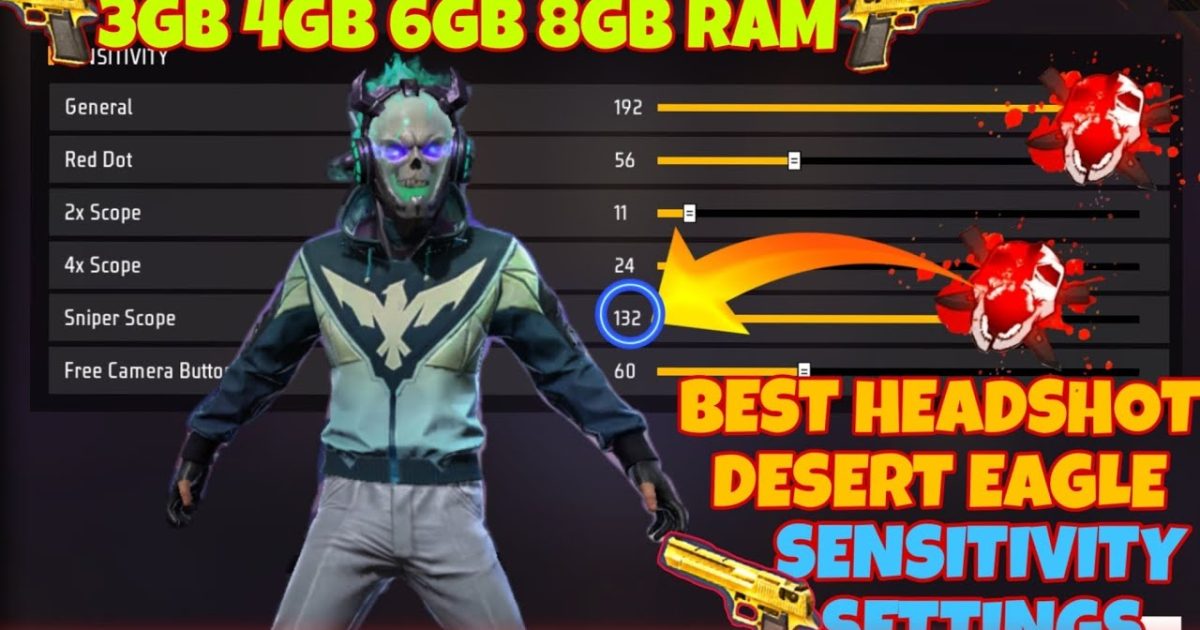
If you’re tired of spraying and praying, this guide is for you. Whether you’re a casual player or grinding rank, landing headshots consistently is the fastest way to dominate. By the end, you’ll have a custom sensitivity setup that makes those crispy headshots feel automatic.
We’ll walk you through the exact numbers, how to tweak them for your device, and what to avoid. No fluff – just tested settings that work in ranked and Clash Squad.
What You’ll Need
- Free Fire or Free Fire Max installed on your phone
- At least 10 minutes of free time in the training ground
- A stable internet connection (ping under 100 ms)
- Your preferred DPI setting (check our DPI combo guide if unsure)
- Optional: a custom HUD layout for better finger placement
Step 1: Reset Your Sensitivity to Default
Go to Settings > Sensitivity and tap ‘Reset’. This clears any wonky tweaks so you start clean. If you’ve imported someone else’s code before, resetting is a must.
Step 2: Adjust General Sensitivity
Set General sensitivity to 85-95. This controls how fast your crosshair moves when not aiming down sights (ADS). Higher = faster flick to the head. For most players, 90 is the sweet spot. If you have a shaky aim, start at 85.
Step 3: Set Red Dot and 2x Scope Sensitivity
For headshots, you’ll mainly use red dot and 2x scope. Set Red Dot sensitivity to 80-85 and 2x scope to 75-80. These values let you drag down to control recoil while keeping the crosshair on the head. Test in training ground: shoot a wall and adjust until your spray stays tight.
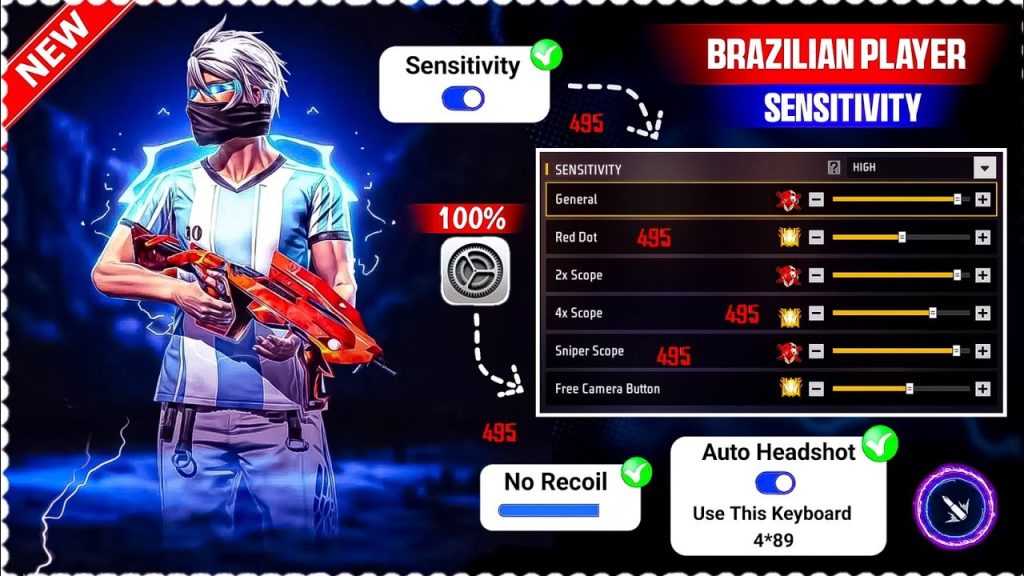
Step 4: Tweak 4x and Sniper Scope (Optional)
If you use snipers or DMRs, set 4x scope to 65-70 and Sniper scope to 50-55. Lower sensitivity helps with precise micro-adjustments for headshots. But if you’re all about ARs, skip this step.
Step 5: Practice With the Settings
Head to the training ground, equip an M4 or AK with red dot, and practice flicking to the head of moving targets. Do 5-minute sessions. If you’re overshooting, lower general sensitivity; if you’re undershooting, increase it. Also, check out our esports sensitivity settings for pro numbers, or the best sensitivity for headshots if you want more options. For mobile players with limited time, our easy headshot settings are a quick fix. You can also use Clash Squad-tested settings to ensure they work in real matches.
Step 6: Save and Backup Your Code
Once satisfied, go to Settings > Sensitivity > Backup Code and save the code. Share it with friends or import it on another device. Remember that a custom HUD can further improve headshot accuracy by optimizing your finger placement.
Common Pitfalls
- Copying pro settings blindly: Pro players use insane DPI combos that may not work on your device. Always tweak based on your finger size and screen. Start with our DPI combo then adjust.
- Ignoring device performance: Low-end phones with high sensitivity cause frame drops and input lag. If you stutter, lower graphics or sensitivity.
- Skipping practice: Settings alone won’t give headshots. You need muscle memory. Spend 10 minutes daily in training ground to build it.
Where to Next
Congrats! You’ve got a headshot-friendly sensitivity. Next, explore other advanced settings like free look sensitivity or jump shot setups. Keep tweaking, keep practicing, and those headshots will rack up.


