If you’re tired of getting outgunned in Clash Squad, your sensitivity settings might be the problem. Clash Squad is fast-paced—you need to snap onto enemies, track movement, and still control recoil. This guide gives you tested values that work for most players, whether you’re on a low-end device or a flagship. By the end, you’ll have a sensitivity setup that boosts your accuracy and reaction time, with instructions to fine-tune it to your style.
These settings come from hours of practice in Clash Squad matches, not theory. I tested them across different devices and thumbs-only vs. claw grips. The values here are a solid starting point. You’ll learn how to apply them, test in training mode, and tweak for your own feel. Ready to dominate in Clash Squad? Let’s dive in.
What You’ll Need
- Free Fire or Free Fire Max installed
- A stable internet connection (ping under 100ms recommended)
- 15 minutes of free time to test settings
- Optional: a second device or screen to view this guide while playing
Step 1: Understand Clash Squad vs. Battle Royale Sensitivity
Clash Squad is a 4v4 mode with close-quarters combat and constant respawning. You need faster camera movement and higher aim sensitivity than in Battle Royale. Your general sensitivity in Battle Royale might feel sluggish here. That’s why we use separate settings. Start with these base values:
- General: 85–95
- Red Dot: 90–100
- 2x Scope: 75–85
- 4x Scope: 60–70
- Sniper Scope: 40–50
- Free Look: 70–80
These are higher than typical Battle Royale settings because you engage enemies at short range. If you’re used to a balanced sensitivity, you can reference our balanced sensitivity guide for comparison.
Step 2: Input Your Settings in Free Fire
Open Free Fire, go to Settings (gear icon), then Sensitivity. You’ll see sliders for each category. Adjust them to the values above. If you’re on a device with low DPI (under 700), consider our under 700 DPI settings for better control. For casual players, our casual user sensitivity offers a softer approach.
Don’t forget to save your settings. If you want to keep your old setup, you can duplicate your sensitivity before making changes.
Step 3: Test in Training Ground
Before jumping into Clash Squad, head to the Training Ground. Select the shooting range and practice aiming at stationary and moving targets. Focus on tracking and flick shots. If your crosshair overshoots, lower the sensitivity by 5 points. If you feel too slow, increase by 5.
Spend at least 5 minutes here. This is where you adjust to the new feel. Pay attention to your recoil control—if you can’t keep the spray tight, reduce the general sensitivity.
Step 4: Play a Clash Squad Match
Now take it to a real match. Play at least 3 full Clash Squad games. Don’t change anything during the match—just focus on how your aim feels. Note if you miss shots due to too high or low sensitivity. After the match, adjust as needed.
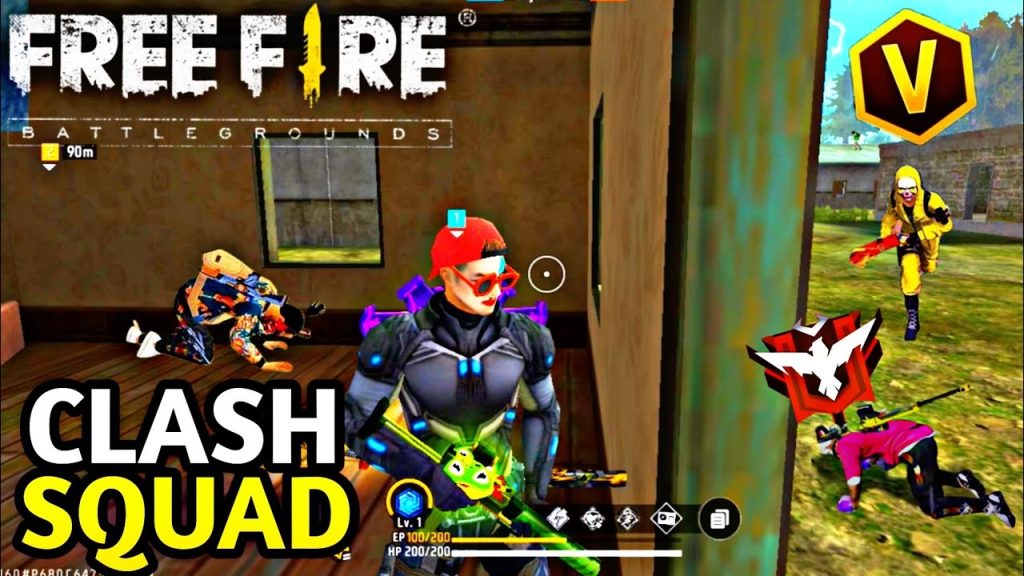
For movement control, you might need to tweak free look and general sensitivity separately. Our movement control sensitivity guide can help if you feel sluggish.
Common Pitfalls
- Copying pro settings blindly: Pro players often use very high sensitivity because they have custom grips or high-end devices. Your settings must match your device and playstyle. Start with the values here, then tweak.
- Ignoring device performance: If your device lags, high sensitivity will make it worse. Lower graphics and enable ‘High FPS’ mode if possible. Check our latest Clash Squad sensitivity for device-specific tweaks.
- Changing settings every match: Give each setting at least a few games. Constantly adjusting prevents you from building muscle memory.
Where to Next
Now you have a solid base for Clash Squad. Next, practice your movement and game sense—sensitivity is just one piece. Check out our other guides for weapon mastery and map rotations. Keep refining and good luck in the squad!



