If you’re grinding Clash Squad in Free Fire, you know that every millisecond counts. Unlike Battle Royale, Clash Squad is all about fast-paced 4v4 rounds where you respawn, buy weapons, and fight for control. Your sensitivity settings can make or break your performance — too low and you can’t turn on enemies, too high and you overshoot. This guide is for motivated beginners who want to dominate Clash Squad with the latest sensitivity settings tested in the current meta. By the end, you’ll have a custom setup that improves your aim, recoil control, and movement, plus tips to fine-tune it for your playstyle.
I’ve tested these settings on both Android and iOS devices, and they work great across different screen sizes. We’ll cover everything from general sensitivity to red dot and scope settings, plus some pro tricks for Clash Squad specifically. Whether you’re an aggressive rusher or a support player, these settings will give you that competitive edge. Let’s dive in.
What You’ll Need
- Free Fire or Free Fire Max installed on your device
- A stable internet connection (WiFi recommended for Clash Squad)
- At least 30 minutes of free time to test and adjust settings
- A practice range or custom room for testing
- Optional: a screen recorder to review your gameplay
Step 1: Reset Your Current Sensitivity to Default
Before applying new settings, it’s best to start fresh. Go to Settings > Sensitivity and tap the reset button (usually a refresh icon). This ensures no leftover tweaks interfere. Write down your old settings if you want to revert later, but trust me — these latest settings are better for Clash Squad.
After reset, open the practice range and do a quick warm-up. Notice how the default feels — usually too slow or too jerky. We’ll fix that.
Step 2: Set General Sensitivity Between 90-100
For Clash Squad, you need fast camera movement to track enemies in close-quarters fights. Set your General Sensitivity to 95 as a starting point. If you’re using a device with a smaller screen (like 6 inches or less), try 98-100. For tablets, 90-95 is enough. This slider controls your free look and overall turning speed.
Test this in the practice range by spinning quickly. If you overshoot, lower it by 2. If you can’t do a 180° turn fast enough, increase by 2. Remember, Clash Squad rounds are short, so you need snappy reactions.
Step 3: Configure Red Dot and 2x Scope Sensitivity
Most Clash Squad engagements happen within 30 meters, so you’ll mainly use red dot or 2x scope. Set Red Dot Sensitivity to 85-90 and 2x Scope to 75-80. These values allow fine aim adjustments without being too twitchy. If you use a 4x scope occasionally (e.g., for the AWM in later rounds), set it to 65-70.
Don’t forget to apply the same logic to your ‘Free Fire Sensitivity Settings for Sniper Style‘ if you’re a sniper main. But for Clash Squad, ARs and SMGs are king, so focus on red dot and 2x.
Step 4: Tweak ADS Sensitivity for Recoil Control
ADS (Aim Down Sight) sensitivity affects your aim while scoped. Set it to 90 for red dot and 80 for 2x scope. This helps with vertical recoil control — you can drag down smoothly while spraying. For 4x scope, keep it around 70. If you notice your crosshair shakes too much, reduce ADS sensitivity by 5.
This is where many players struggle. The ‘optimized free fire sensitivity settings guide‘ recommends adjusting ADS per weapon in the practice range. Spend 5 minutes with the M4A1 and AK47 to see how it feels.
Step 5: Enable and Customize Gyroscope (Optional)
Gyroscope gives you motion-based aim — tilting your phone to fine-tune shots. For Clash Squad, it’s a game-changer. Go to Settings > Sensitivity > Gyroscope and enable it. Set General Gyro to 70 and ADS Gyro to 80. This allows micro-adjustments without moving your thumb off the fire button.
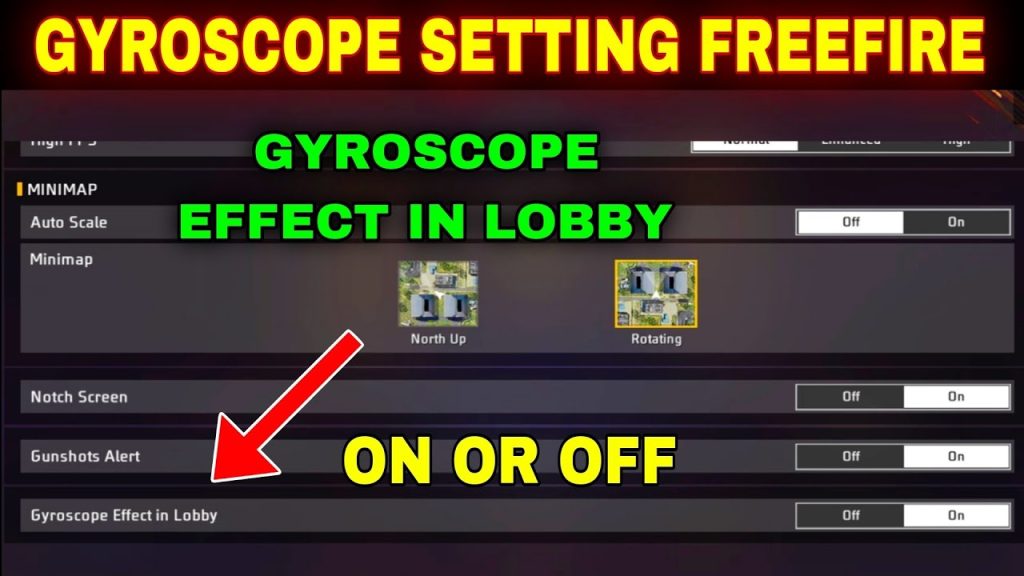
If you’re new to gyro, start with lower values (30-50) and increase gradually. The ‘best free fire sensitivity settings for pro players‘ always include gyro — it’s that important. For Clash Squad, it helps with tracking enemies moving sideways.
Step 6: Test and Refine in Custom Room
Now it’s time to test. Create a custom room with bots or invite a friend. Play at least 3 full Clash Squad rounds. Pay attention to how smoothly you can flick to enemies, control spray, and turn around. If something feels off, go back and tweak the corresponding slider by 2-5 points.
Don’t change too many things at once. Adjust one setting per match. Also, consider using the ‘free fire sensitivity settings calculator‘ to find your perfect numbers based on your DPI and device.
Common Pitfalls
- Over-adjusting: Changing multiple settings after every death leads to inconsistency. Stick with a baseline for at least 10 matches before making big changes.
- Ignoring device performance: Low-end phones may drop frames at high sensitivity. If your game stutters, lower General Sensitivity to 80 and disable gyroscope.
- Copying pro settings blindly: Pro players often use 600+ DPI and weird gyro values. Your ‘latest free fire sensitivity settings for headshot‘ should be personalized — a pro’s 95 might be your 85.
Where to Next
Now that you’ve dialed in your Clash Squad sensitivity, it’s time to practice. Jump into ranked Clash Squad and apply what you’ve learned. For more advanced tweaks, check out our guides on ‘free fire sensitivity settings for movement control‘ to perfect your strafing, or ‘free fire sensitivity settings for sniper style’ if you want to add a sniper to your loadout. Also, stay updated with the ‘latest free fire sensitivity settings for headshot’ to keep your aim sharp. Happy fragging!



