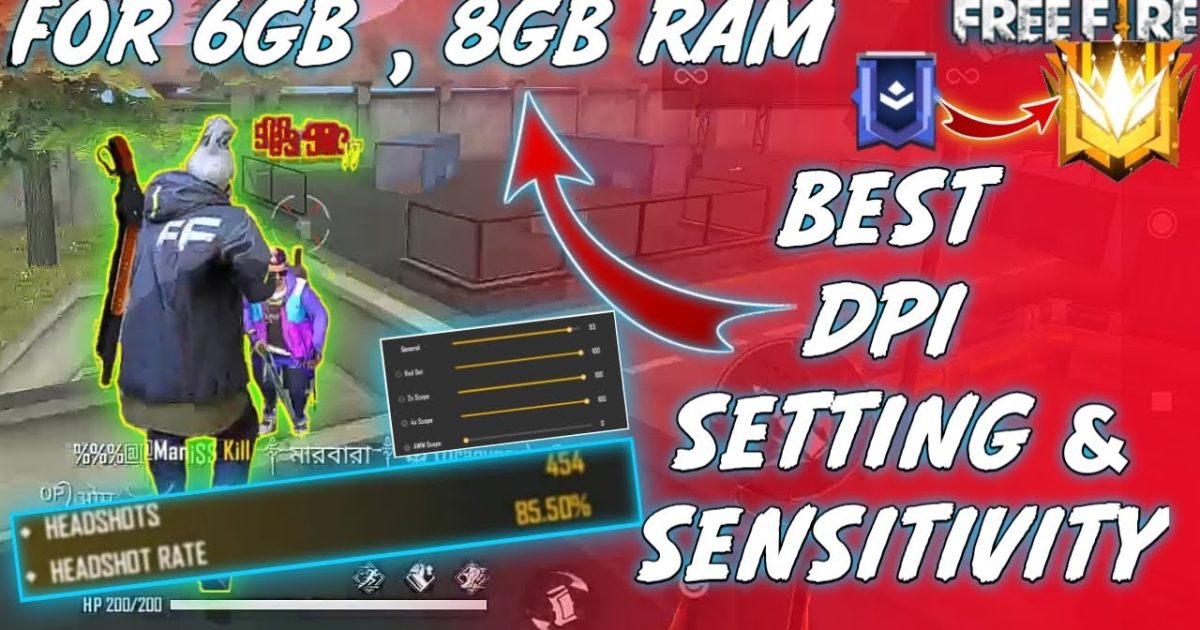
If you’re playing Free Fire on a PC emulator (like Gameloop) with a mouse set to 800 DPI, you know that finding the right sensitivity is a game-changer. This guide is for you – the motivated beginner who wants to stop overshooting and start hitting those headshots. By the end, you’ll have a baseline sensitivity setup that feels natural at 800 DPI, plus a method to fine-tune it for your personal playstyle. We’ll cover general sensitivity, red dot, 2x, 4x, and sniper scopes, so you’re ready for any fight.
Why 800 DPI? It’s a sweet spot for many gamers – fast enough for quick flicks but not so high that you lose control. Combined with in-game sensitivity, you get precision aiming. Let’s dive in.
What You’ll Need
- A PC or laptop running Free Fire via an emulator (Gameloop recommended).
- A gaming mouse with adjustable DPI (set to 800 DPI).
- Windows mouse pointer speed set to the 6th notch (default).
- Enhance pointer precision disabled in Windows mouse settings.
- A training ground or Clash Squad mode to test settings.
- Patience – expect to spend 20-30 minutes tweaking.
Step 1: Understand DPI and In-Game Sensitivity
DPI (dots per inch) measures how far your cursor moves per inch of mouse movement. At 800 DPI, moving your mouse one inch moves the cursor 800 pixels. In Free Fire, your sensitivity settings multiply this movement. The formula is: effective DPI = mouse DPI × in-game sensitivity. So if your in-game general sensitivity is 50, your effective DPI is 800 × 0.5 = 400. Most pro players on 800 DPI use general sensitivity between 40 and 60. We’ll start with 50 and adjust.
Step 2: Access Sensitivity Settings in Free Fire
Launch Free Fire on your emulator and go to the main lobby. Tap the gear icon (Settings) in the top-right corner, then select the ‘Sensitivity’ tab. You’ll see sliders for General, Red Dot, 2x Scope, 4x Scope, Sniper Scope, and Free Look. We’ll adjust each.
Step 3: Adjust General Sensitivity
Set General sensitivity to 50. This controls hip-fire and overall camera movement. At 800 DPI, this feels snappy but controllable. If you tend to overshoot, lower it to 45; if you feel sluggish, bump it to 55. Test by moving your mouse across your mousepad – you should be able to do a 180-degree turn with a comfortable swipe (about 20-30 cm).
Step 4: Adjust Red Dot and 2x Scope Sensitivity
For scopes, you need lower sensitivity to maintain precision. Start with Red Dot at 45 and 2x Scope at 40. These allow for accurate tracking without jitter. Test by aiming at a wall and strafing – your crosshair should stay on the same pixel. Adjust in increments of 2 until it feels locked.
Step 5: Adjust 4x and Sniper Scope Sensitivity
Higher magnification needs even lower sensitivity. Set 4x Scope to 30 and Sniper Scope to 25. Snipers at 800 DPI benefit from low sens to micro-adjust for headshots. If you use a 6x or 8x scope, treat them like Sniper. Pro tip: many players set Sniper at 15-20 for ultimate control, but 25 is a good starting point.
Step 6: Test and Fine-Tune in Training Ground
Head to the training ground (click ‘Training’ from the lobby). Practice flicking to static targets, tracking moving targets, and switching between scopes. Use the ‘Free Look’ to check your surroundings – set Free Look to 50 as well. If you feel any scope is too fast or slow, adjust it by 2-5 points. Spend at least 10 minutes here. For more structured testing, check out the free fire sensitivity settings calculator to dial in your perfect numbers.
Common Pitfalls
- Screen Shake: If your crosshair vibrates, your sensitivity is too high. Lower General or scope sliders by 5 and test again.
- Overshooting Targets: You aim past enemies because your sens is too fast. Try reducing General or Red Dot sensitivity. A good baseline for 800 DPI is General around 45-50.
- Ignoring Your Mousepad: A small mousepad forces high sensitivity, leading to inconsistency. If you only have a small pad, consider a larger one or increase DPI to 1000 and lower in-game sens accordingly.
Where to Next
Now that you have a solid foundation, explore other resources to refine your skills. Check out the optimized free fire sensitivity settings guide for more advanced tweaks, or the best free fire sensitivity settings for pro players for inspiration. If you prefer community-tested combos, the free fire sensitivity settings community has plenty of shared presets. For snipers, dive into free fire sensitivity settings for sniper style. And don’t forget to test your new settings in Clash Squad with the latest free fire sensitivity settings for clash squad. Happy gaming!



