If you’re a Free Fire player who’s ever switched phones or wanted to use the same sensitivity on a second account, you know the pain of tweaking sliders all over again. This guide is for you. By the end, you’ll have your exact sensitivity settings duplicated onto another device — whether it’s a new phone, a friend’s device, or an emulator. No more guessing, no more hours in the training room.
We’ll cover three methods: the official cloud save feature, a manual file backup for Android users, and a screenshot-based approach for cross-platform copying. Each method is tested and works with the latest Free Fire update. You’ll walk away with a perfect copy of your sensitivity setup, so you can focus on what matters — winning.
What You’ll Need
- The device with your current sensitivity settings (Source device)
- The target device where you want to duplicate the settings
- Free Fire installed on both devices (logged in with any account)
- A stable Wi-Fi connection (for cloud save method)
- A file manager app (for Android manual method; e.g., Solid Explorer, CX File Explorer)
- Optional: a Google Drive or other cloud storage account for transferring files
Step 1: Use the In-Game Cloud Save (Official & Easiest)
Garena provides a built-in cloud save feature that backs up your controls, HUD layout, and sensitivity settings. This is the cleanest method and works on both Android and iOS. However, it only restores settings to the same account on another device. So if you’re switching accounts, skip to Step 2 or 3.
On your source device, open Free Fire and go to Settings > Cloud Save. Tap “Backup” to upload your current configuration. Wait for the confirmation message. On the target device, log into the same account and go to the same Cloud Save menu. Tap “Restore” and choose the latest backup. That’s it — your sensitivity will be identical.
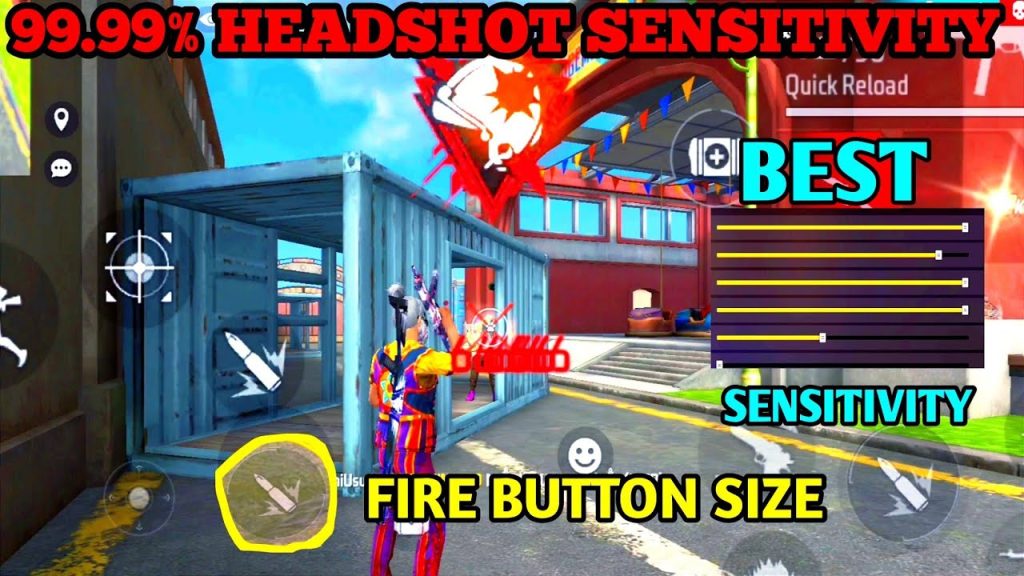
One thing to note: this backs up all settings, not just sensitivity. If you have different control layouts on each device, you might want to use a more selective method. For most people, though, this is the quickest path.
Step 2: Manual File Backup (Android Only, No Root Needed)
If you want to copy settings between different accounts or devices without relying on the cloud, you can grab the raw config files. Free Fire stores its user data in the app’s private folder. You’ll need a file manager that can access the Android/data directory (most modern file managers can, but some Android 11+ restrictions may require a third-party app like CX File Explorer).
On your source device, navigate to: Internal Storage > Android > data > com.dts.freefireth (or com.dts.freefiremax) > files > shared > configs. You’ll see a folder with random characters (your user ID). Copy that entire folder to your Google Drive, or send it via Bluetooth/email. On the target device, paste the folder into the same path (overwrite the existing one). Then restart Free Fire — your sensitivity settings should now match.
This method is ideal if you want to share your sensitivity with a friend or transfer between accounts. Just be careful not to mess with other files — only copy the folder named with your user ID. For more detailed file paths, check out our guide on optimized free fire sensitivity settings, which explains the config structure in depth.
Step 3: Screenshot & Manual Entry (Cross-Platform, Works Everywhere)
If you’re moving from Android to iOS, or vice versa, file backup won’t work because the config formats are different. In that case, you have to manually copy the numbers. Go to your source device’s Sensitivity settings and take a screenshot of each category (General, Red Dot, 2x Scope, etc.). On the target device, open the same sensitivity settings and match every slider exactly. It’s tedious but 100% reliable.
To make this faster, use a second device to view the screenshot while you adjust on the target. If you need a starting point, our free fire sensitivity settings for daily players post has a table you can reference. For aggressive playstyles, check the best free fire sensitivity settings for pro players for finer tuning.
Pro tip: write down your values in a notes app before entering them. This way you won’t lose them if you accidentally close the settings menu.
Common Pitfalls
- Cloud save not appearing on target device: You must be logged into the exact same account. Double-check your login method (Facebook, Google, VK, etc.). Also ensure both devices are on the same Free Fire version (update the game if needed).
- Android manual backup fails due to permissions: On Android 11+, the data folder is often restricted. Use a file manager that has the “All files access” permission granted. Alternatively, connect the phone to a PC to copy the folder. If you still can’t see the folder, your device might have removed the file path in a recent update — try using ADB commands.
- Accidentally overwriting your target’s settings: Before pasting the new config folder, rename the existing one on the target device as a backup. For example, add “_backup” to the folder name. If something goes wrong, you can revert by deleting the new folder and renaming the backup back.
Where to Next?
Now that you have your sensitivity duplicated, you might want to fine-tune it for specific modes. Check out our guide on custom room free fire sensitivity settings for tweaks in custom matches. If you play on Garena servers, our free fire sensitivity settings for garena servers article has region-specific recommendations. For those who love aggressive rushes, the free fire sensitivity settings for fast movement post will help you optimize your look speed. Happy hunting!



