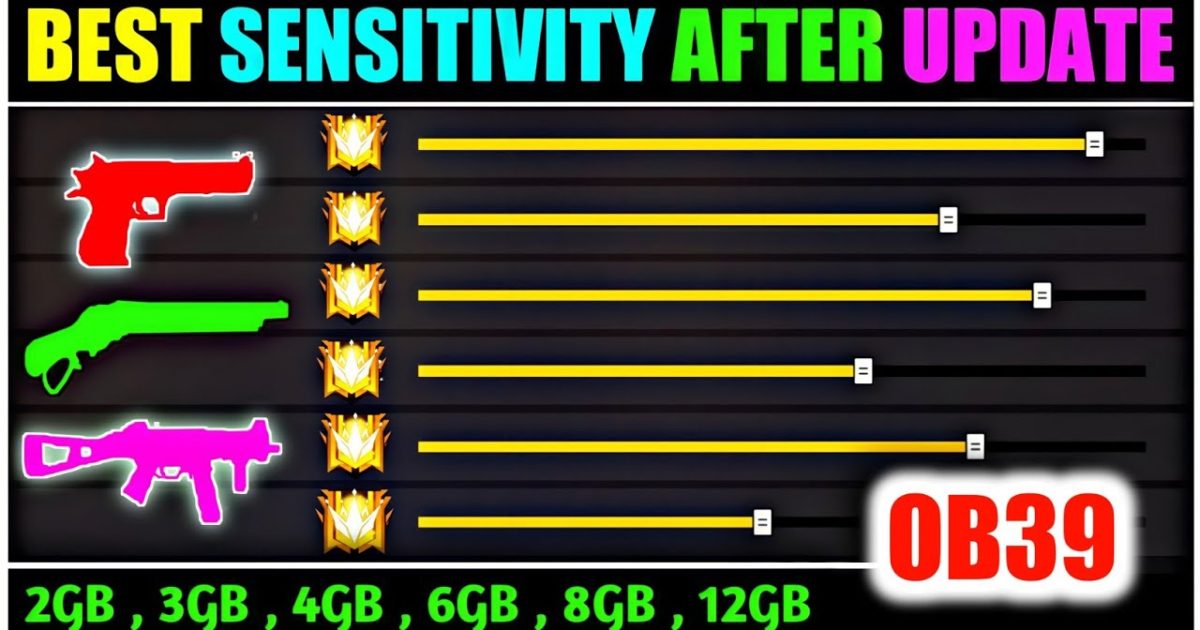
If you’ve logged into Free Fire after the latest update and felt like your aim is off, you’re not alone. Every patch tweaks something under the hood—recoil patterns, movement physics, or even how sensitivity values translate. This guide is built for players who want to get their settings dialed in fast, whether you’re a casual or a ranked grinder. By the end of these steps, you’ll have a custom sensitivity profile that feels crisp, responsive, and suited to your playstyle.
We’ll cover the essential adjustments for general, scope, and free look sensitivity, plus share a few pro tips to avoid over-correcting. No fluff—just actionable steps you can follow inside the game right now. If you prefer a visual walkthrough, check out the linked resources for the latest Clash Squad sensitivity or an optimized sensitivity settings guide created by top players.
What You’ll Need
- A device running Free Fire (mobile or emulator) with the latest update installed
- Access to the in-game settings menu (gear icon on the lobby screen)
- At least 10–15 minutes of uninterrupted practice time in the Training Ground
- Optional: a trusted sensitivity settings file from a pro or from sources like the community settings we linked
Step 1: Open Settings and Navigate to the Sensitivity Tab
From the main lobby, tap the gear icon in the top-right corner. Then tap on ‘Sensitivity’ in the left sidebar. You’ll see sliders for General, Red Dot, 2x Scope, 4x Scope, Sniper Scope, and Free Look. If the update reset your values, they’ll be at default—usually around 40–50 for most sliders.
Before changing anything, take a screenshot of the current values so you can revert if needed. This is especially helpful if you want to compare with your old setup or with a trusted sensitivity settings profile from a friend.
Step 2: Adjust General and Red Dot Sensitivity
General sensitivity controls your hip-fire and overall camera movement. For most players, starting at 70–80 works well. Red Dot sensitivity should be slightly lower, around 60–70, since the red dot sight gives you more precision. Tap the slider and slide left or right to adjust. A good rule: if you overshoot while tracking a moving target, lower the value; if you can’t keep up, raise it.
For a more aggressive playstyle, consider using the one tap sensitivity settings from our guide—those values are tuned for quick flicks.
Step 3: Tweak 2x and 4x Scope Sensitivity
Scoped sensitivity depends on your engagement distance. For 2x scope, try 50–60; for 4x scope, 40–50. These numbers help you stabilize mid-range spray and control recoil. If you play a lot of Clash Squad, check out the latest Clash Squad sensitivity guide—it has values that work well in short, intense rounds.
Remember: the higher the zoom, the lower the sensitivity should be. This prevents your crosshair from flying off the target when you aim down sights.
Step 4: Set Sniper and Free Look Sensitivity
Sniper scope sensitivity should be low—25–35—to make fine adjustments easier. Free Look sensitivity (when you use the eye icon to look around while running) can be higher, 75–85, so you can quickly scan your surroundings without moving your character.
If you’re a dedicated sniper, the optimized sensitivity settings guide has a tailored setup for long-range players.
Step 5: Save and Test in Training Ground
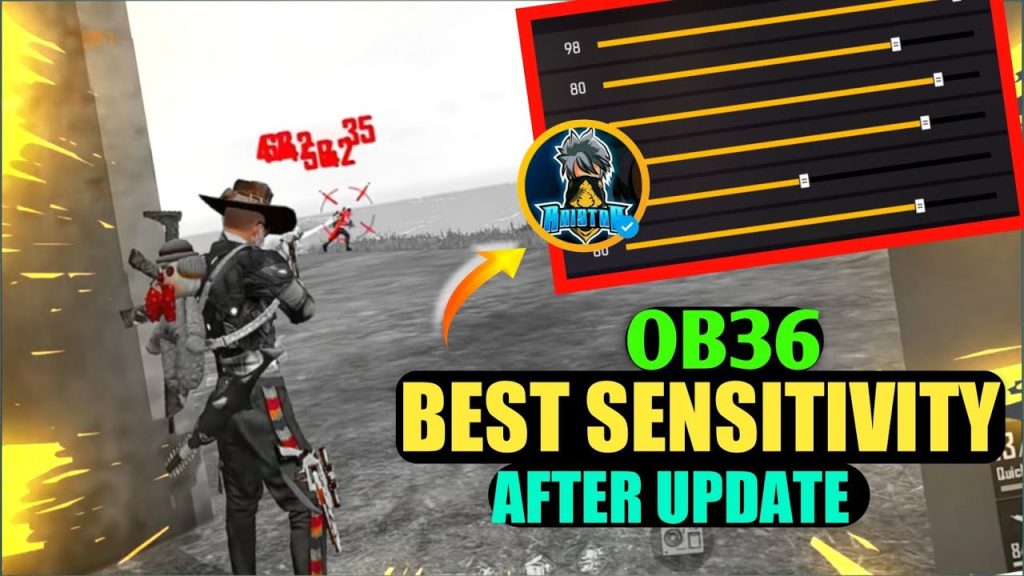
After adjusting all sliders, tap ‘Save’ and head to the Training Ground (from the lobby, tap ‘Training’ > ‘Training Ground’). Practice spraying at the dummy targets while strafing. Check if your crosshair stays on target. If you feel any jitter, go back and fine-tune by 5 points at a time.
Spend at least 10 minutes here. This is where you’ll really feel whether the settings match your muscle memory. Compare your results with the trusted sensitivity settings from the guide to see if you’re in the right ballpark.
Common Pitfalls
- Changing too many values at once: Adjust one slider per test session. If you tweak everything, you won’t know what helped or hurt.
- Copying pro settings blindly: Pros have different devices, grips, and playstyles. Use them as a baseline, then personalize.
- Ignoring device performance: If your phone stutters, even perfect sensitivity won’t help. Lower graphics or enable Game Booster mode first.
Where to Next
Now that your sensitivity is set, practice makes perfect. Drop into a few ranked matches and notice how your aim feels. If you want to dive deeper, check out our one tap sensitivity settings for close-range domination or the latest Clash Squad sensitivity to dominate that mode. Happy hunting!



