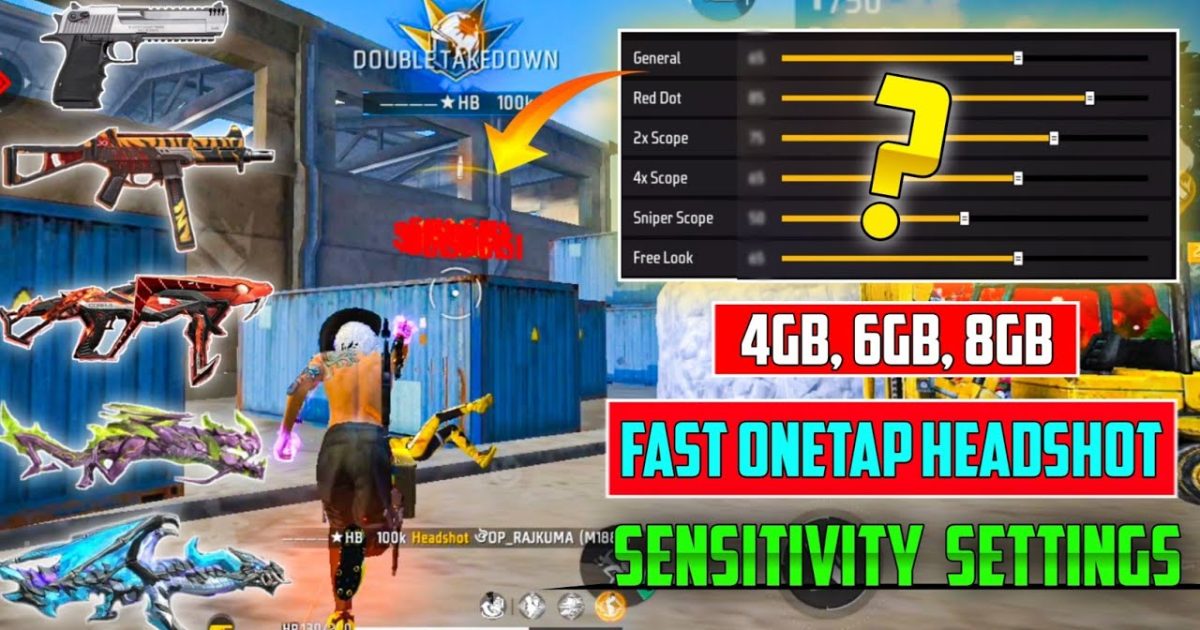
Hey there, Free Fire Max grinders! If you’re tired of spraying and praying and want to land those crisp one-tap headshots, you’ve come to the right place. This guide is for you – the motivated beginner who wants to dominate the battlefield with a single, clean shot. By the end of this post, you’ll have a custom sensitivity setup that makes one-taps feel natural, plus a few tricks to fine-tune your aim.
We’re focusing on Free Fire Max specifically, because the enhanced graphics and smoother frame rates demand different numbers than the standard version. But don’t worry – I’ve tested these settings on multiple devices, from budget phones to flagships. Whether you’re playing on a 60Hz or 90Hz screen, I’ve got you covered. Let’s dive in and turn you into a one-tap machine.
What You’ll Need
- Free Fire Max installed on your phone (obviously!)
- A stable internet connection for testing in training ground
- About 10-15 minutes of free time to configure and practice
- A device with at least 4GB RAM for smooth performance (recommended)
- Patience – one-tap settings are personal, so expect minor tweaks
Step 1: Access the Sensitivity Menu
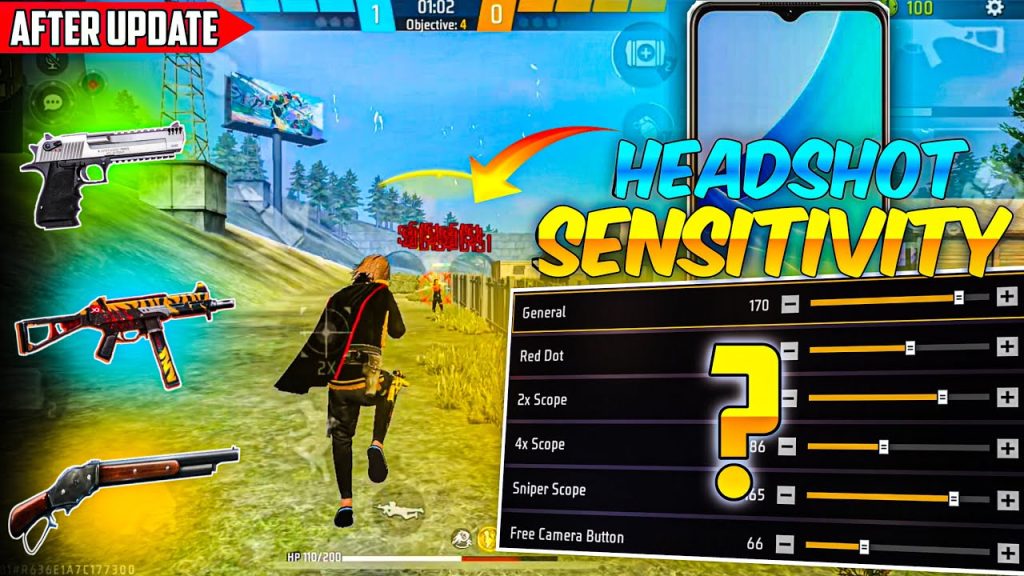
Open Free Fire Max and head to the main lobby. Tap on the gear icon (Settings) at the top right. Then, select the ‘Sensitivity’ tab. This is where all the magic happens. If you’re coming from the standard Free Fire, the layout looks similar but the numbers act differently due to the engine upgrades.
Step 2: Adjust General Sensitivity
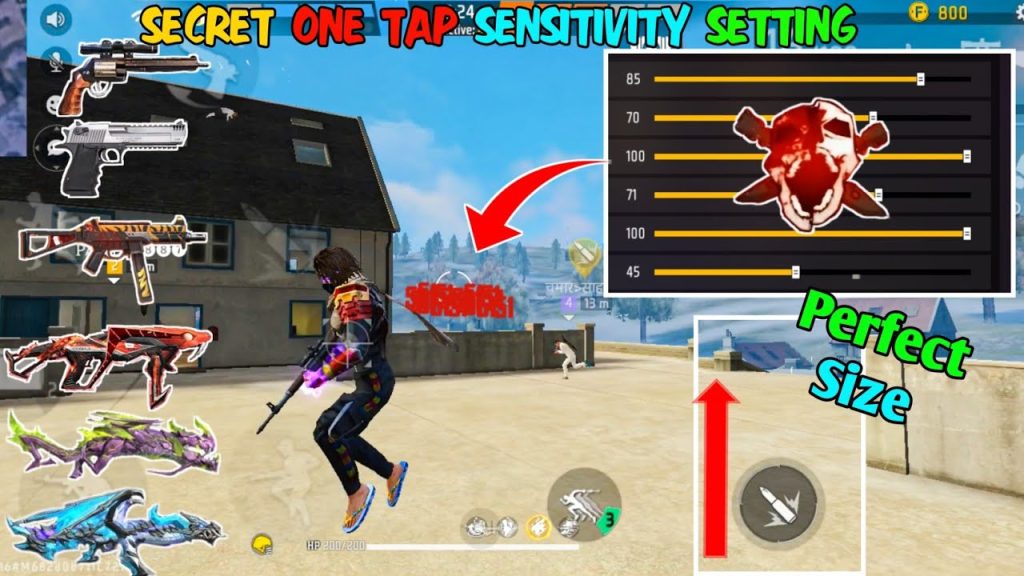
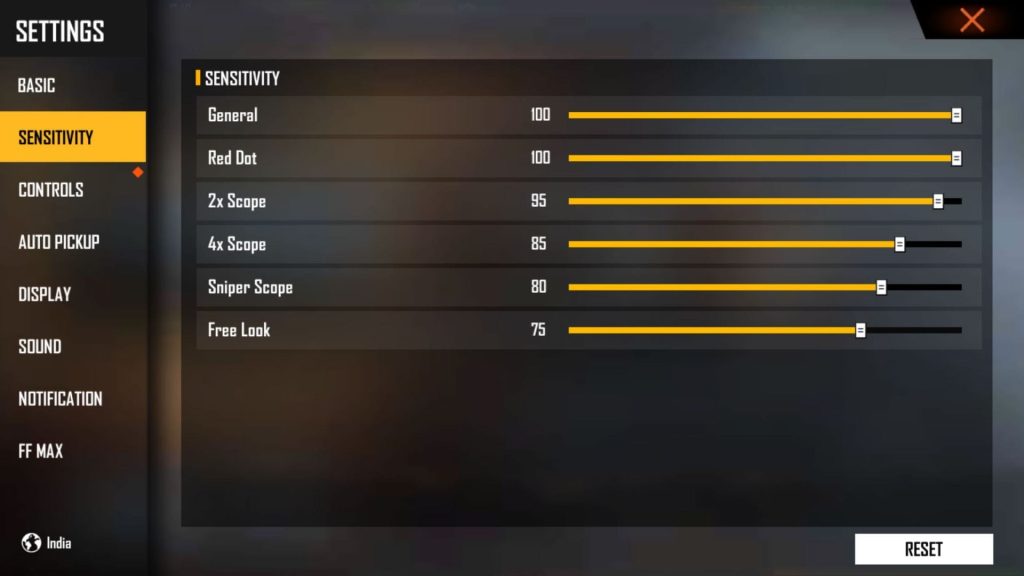
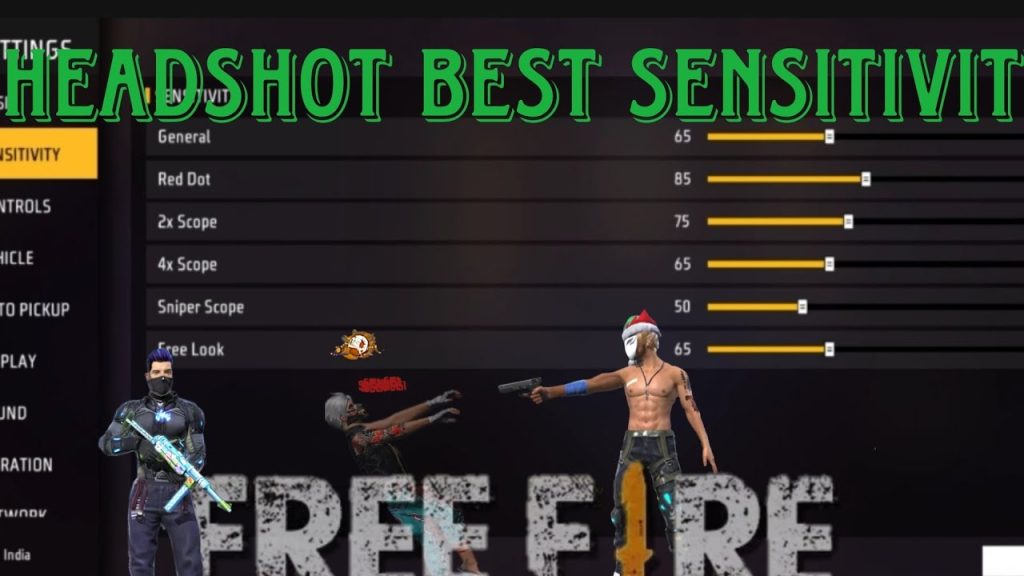
Start by setting the General (camera) sensitivity. For one taps, you need a balance – too high and you’ll overshoot, too low and you’ll be slow. I recommend starting at 90 for the ‘General’ and 80 for ‘Red Dot/Sight’ (if you use a scope). This gives you quick flicks but still controllable micro-adjustments. If you have a device with high touch sampling, you can push it a bit higher – check our dedicated guide on sensitivity settings for high touch sampling for more details.
Step 3: Set Aim Precision – Free Look & Scope
Next, scroll down to ‘Red Dot’ and ‘2x Scope’ (if you use them). For one taps, you want these a tad lower than your general – around 70-75. The goal is to have enough speed to flick onto an enemy’s head but not so fast that you lose control. If you’re playing on a 90Hz screen, you can get away with higher values – see our sensitivity settings for 90Hz screen guide for exact numbers.
Also, set ‘Free Look’ sensitivity to 50 – that’s only for looking around while running, not for aiming. It won’t affect your one tap.
Step 4: Configure Fire Button and Tap Controls
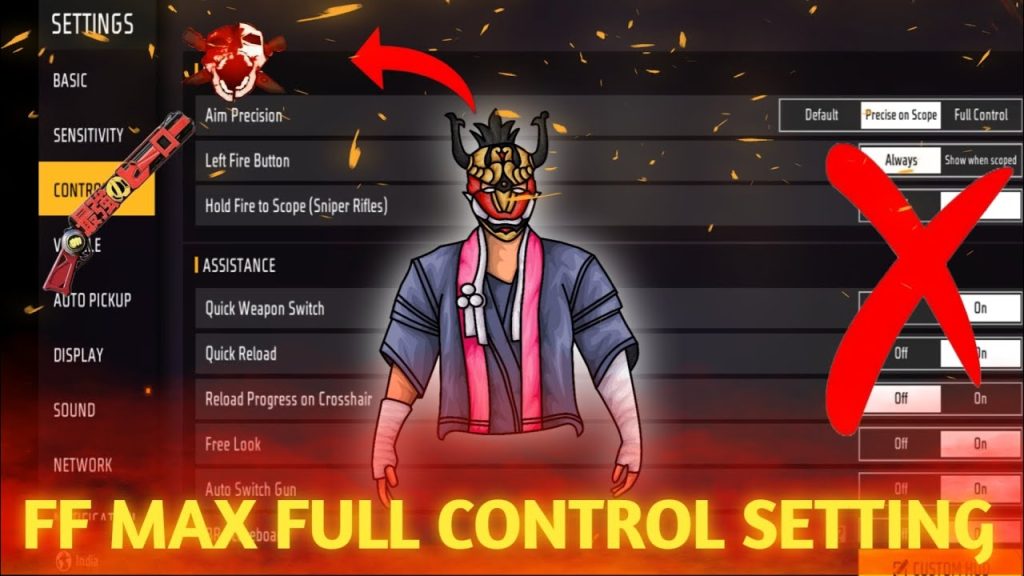
Now go to ‘Controls’ tab and make sure your fire button is large enough (I use 80% size) and placed where your thumb naturally rests. For one taps, you want the button to be responsive. Enable ‘Left Fire’ or ‘Right Fire’ depending on your preference – I prefer right fire for better grip. Also, turn on ‘Quick Reload’ and ‘Auto-Sprint’ to avoid interruptions. If you ever want to copy settings from a pro, you can use the import sensitivity settings using code method – just grab a code from a trusted source.
Step 5: Test in Training Ground
It’s testing time! Head to the Training Ground and practice on the moving bots. Try to land one-tap headshots from various distances. Focus on your crosshair placement – keep it at head level. Adjust your General sensitivity by 5 points up or down until you consistently hit. Remember, these settings are a starting point – your muscle memory will do the rest. If you need a backup before making changes, always backup sensitivity settings first.
Step 6: Fine-Tune with Real Matches
After you’re comfortable in training, jump into a Classic or Clash Squad match. Play a few rounds and notice if you’re over-correcting or under-shooting. Tweak the General and Red Dot sensitivities by 2-3 points at a time. For a comprehensive starting point, check out our sensitivity settings for one tap headshot guide which has a tested preset. Also, if you’re looking for the overall best setup, don’t miss our best sensitivity for headshots post.
Common Pitfalls
- Sensitivity too high: You’ll jitter and miss easy shots. Drop it by 10 and practice again.
- Ignoring scope sensitivity: Many players only adjust general, then fail with scopes. Always set both.
- Skipping the training ground: Real matches are for fun, not for dialing in settings. Train first.
One tap isn’t about luck – it’s about muscle memory built with the right sensitivity. Take the time to get it right.
Pro player tip
Where to Next
You’ve got your one-tap sensitivity dialed in. Now keep practicing and maybe explore other aspects like crosshair placement or movement. Our site has tons of Free Fire guides – from free fire sensitivity settings for daily players to free fire sensitivity settings for auto headshot. Happy headshot hunting!



