If you’re a casual Free Fire player, you probably don’t want to spend hours tweaking every slider. You just want settings that feel good and help you hit your shots more consistently. This guide is for you. By the end, you’ll have a simple sensitivity setup that improves your aim without overcomplicating things.
Forget about pro-level configurations and complicated DPI calculations. We’ll focus on the basics: general sensitivity, scope adjustments, and a little practice. These settings are tested for casual play in Battle Royale and Clash Squad modes. Let’s dive in.
What You’ll Need
- Free Fire installed on your phone (any version)
- 10–15 minutes of free time
- Access to the Training Ground (in-game)
- A friend to test in a custom room (optional but helpful)
Step 1: Reset Your Sensitivity to Default
If you’ve changed settings before, start fresh. Go to Settings > Sensitivity and tap “Reset to Default.” This gives you a clean slate. Default settings are too slow for most players, but they’re a safe starting point.
Step 2: Adjust General Sensitivity
General sensitivity controls how fast your screen moves when you swipe. For casual use, set it between 80–90%. This gives you a good balance of speed and control. Too high and you’ll overshoot; too low and you’ll feel sluggish. Test by swiping left and right in the Training Ground.
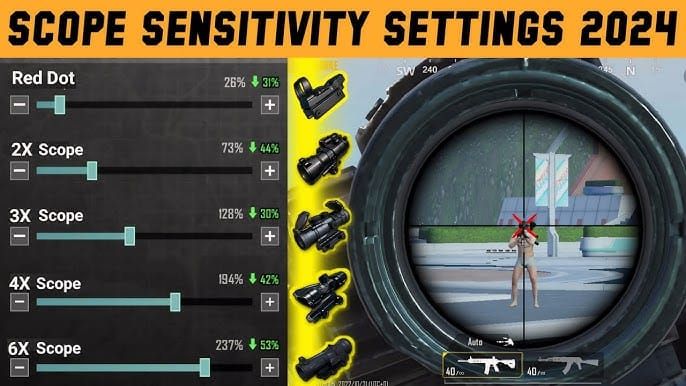
Step 3: Fine-Tune Scope Sensitivity
Different scopes need different speeds. Start with these values and adjust from there: Red Dot – 75%, 2x Scope – 65%, 4x Scope – 55%, Sniper Scope – 45%. These values help you track targets without losing control. If you prefer a faster scope, increase by 5% at a time.
Step 4: Practice in Training Ground
Head to the Training Ground and practice on the moving targets. Try to keep your crosshair on the target as it moves. If you’re overcorrecting, lower your sensitivity. If you’re struggling to keep up, increase it. Spend at least 5 minutes here until it feels natural.
Step 5: Test in a Real Match
Play a few Clash Squad or Battle Royale matches with your new settings. Don’t change anything during the match. After 2–3 games, decide if it feels right. If you’re missing shots often, tweak general or scope sensitivity by 5% increments. Remember: small changes make a big difference.
Common Pitfalls
- Copying the best sensitivity for pro players without adjusting. Pro settings are often too high for casual players, leading to shaky aim. Start with lower values and work up if needed.
- Changing too many settings at once. Adjust only general and scope sensitivity first. Leave other options like gyroscope and aim assist at default until you’re comfortable.
- Not testing in real matches. Training Ground is useful, but actual gameplay reveals issues. Always test your settings in a live match before sticking with them.
Where to Next?
Once you’re happy with your general sensitivity, you can explore other tweaks. Check out our optimized sensitivity settings guide for a deeper dive. If you want to specialize in sniping, try the sniper sensitivity settings. For faster gameplay, the fast movement sensitivity guide can help. And if you ever want to try something new, browse community sensitivity settings shared by other players. Happy gaming!



