If you’re tired of Free Fire stuttering right when you’re about to land that perfect headshot, this guide is for you. We’re talking about sensitivity settings that actually work without causing lag. By the end, you’ll have a custom setup that keeps your frame rate high and your aim on point.
We’ll walk through adjusting in-game sensitivity, tweaking graphics, and clearing background junk. Even if you’re a complete beginner, these steps are easy to follow. Let’s get you that buttery-smooth gameplay.
What You’ll Need
- Free Fire or Free Fire Max installed on your device
- Stable internet connection (Wi-Fi recommended)
- A few minutes to tweak settings
- Optional: a game booster app (like Game Turbo or GFX Tool)
Step 1: Reset and Adjust In-Game Sensitivity
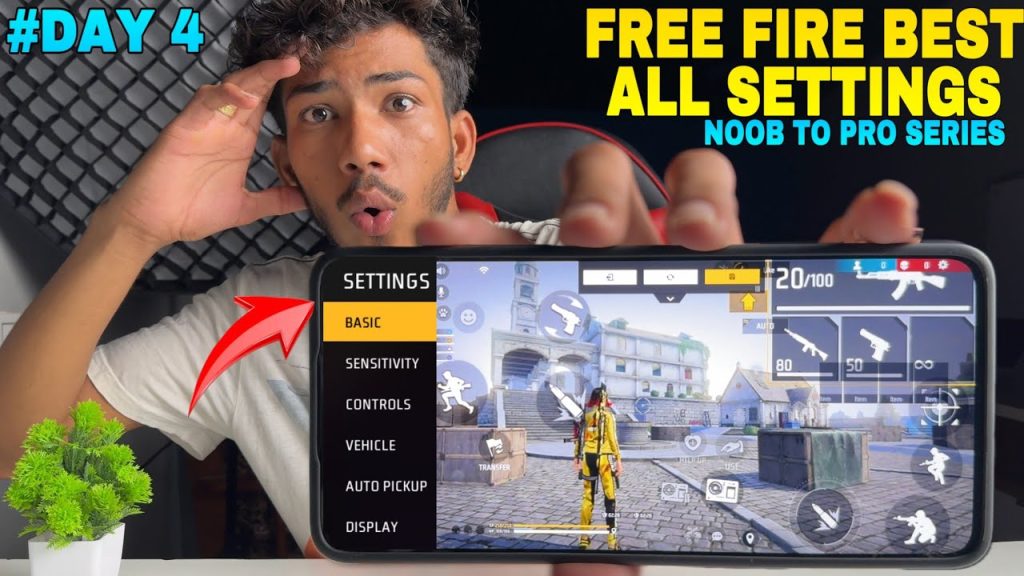
First, open Free Fire and go to Settings > Sensitivity. Reset to default if you’ve messed around before. Now apply these numbers for a lag-free combo: General: 85, Red Dot: 75, 2x Scope: 55, 4x Scope: 40, Sniper Scope: 25, Free Look: 60. These values give you smooth aim without overloading your processor.
Step 2: Lower Graphics Settings
Go to Settings > Graphics. Set everything to Low or Smooth. Turn off Shadows, Anti-Aliasing, and High Frame Rate if you see lag. Keep Frame Rate at High if your device can handle it, otherwise stick with Medium. This reduces GPU load significantly.
Step 3: Clear Cache and Close Background Apps
Every few days, clear Free Fire’s cache in your phone’s App Info. Also, before playing, close all other apps. On Android, use the recent apps button and swipe away. On iOS, double-click home and swipe up. This frees up RAM for smoother gameplay.
Step 4: Use a Game Booster (Optional)
Apps like GFX Tool or Game Turbo can force Free Fire to use lower resolution and disable background processes. Set the resolution to 1280×720 or lower, and enable ‘No Lag’ mode. This gives you a significant fps boost.
Step 5: Test in Training Ground
Head to the Training Ground and try moving, aiming, and shooting. If you still notice lag, try lowering sensitivity by 5-10 points. The goal is smooth tracking with no jitter. Save your settings once satisfied.
Common Pitfalls
- Copying pro settings blindly – they run on high-end phones. Always adjust for your device.
- Ignoring device temperature – if your phone overheats, performance drops. Take breaks.
- Skipping software updates – keep Free Fire and your OS updated for bug fixes.
Where to Next
Now that you’ve got a lag-free foundation, explore more refined setups. Check out our casual sensitivity settings for a relaxed playstyle, or dive into optimized settings for competitive matches. For advanced control, try our movement control settings or pro player settings. And if you love quick scoping, our one tap settings will perfect your shot.



