If you’re tired of feeling like your character moves through molasses or you over-aim every time an enemy appears, you’ve come to the right place. This guide is for motivated beginners who want to dial in their Free Fire sensitivity settings specifically for movement control—strafing, turning, looting, and reacting quickly. By the end, you’ll have a solid baseline setup that you can fine-tune to match your playstyle.
Getting movement right is the foundation of every good fight. With the right sensitivity, you’ll glide around obstacles, flick to opponents with ease, and maintain control during close-range encounters. We’ll walk through each setting step by step, so you can jump into training mode and feel the difference immediately.
What You’ll Need
- A device running Free Fire (or Free Fire Max) with a stable internet connection.
- Pen and paper or a notes app to record your current settings and new values.
- 15–20 minutes of uninterrupted time in Training mode.
- Optional: a friend for custom room tests, but solo is totally fine.
Step 1: Access the Sensitivity Menu
Open Free Fire and tap the gear icon in the top-right corner to open Settings. Navigate to the Sensitivity tab. You’ll see a list of sliders: General, Red Dot, 2x Scope, 4x Scope, Sniper Scope, and Free Look. For movement control, the most important sliders are General (hip-fire) and Red Dot, because most of your combat happens without a scope or with a basic sight.
If you haven’t already, take a screenshot of your current settings so you can revert if needed. Now, let’s reset everything to a medium baseline.
Step 2: Set a Baseline for General Sensitivity
Set your General sensitivity to a value between 80 and 90. This is your hip-fire sensitivity—the one you use when running, jumping, and shooting without a scope. If you’re on a small screen (like a 6-inch phone), start at 85. For larger tablets, you might want 80. This range lets you turn around quickly without overshooting.
Pro tip: If you find yourself dragging too far past enemies, lower it by 5. If you can’t keep up with fast-moving targets, raise it by 5. This is the single most important slider for movement control.
Step 3: Adjust Red Dot Sensitivity for Quick Scoping
Red Dot sensitivity affects your aim when using any 1x scope (including the default holo). Set it to around 70–80. This is slightly lower than General because the scope magnifies your movement. A good starting point is 75. Test by aiming at a target in training mode and strafing side to side—your crosshair should stay on target with minimal correction.
Tip: If your aim jitters when you move, lower it. If you have to drag too much, raise it.
Step 4: Fine-Tune Aim Assist and Free Look
Go to the Controls section and make sure Aim Assist is turned ON (recommended for movement control—it helps your aim stick to enemies slightly as you strafe). Then go back to Sensitivity and set Free Look sensitivity to 70–80. Free Look controls how fast you can look around while running (without aiming). Higher values let you scan the environment quicker, which is crucial for movement.
Test this by running in training mode and swiping on the right side of the screen (the eye icon). You should be able to quickly check your surroundings without stopping.
Step 5: Practice in Training Mode
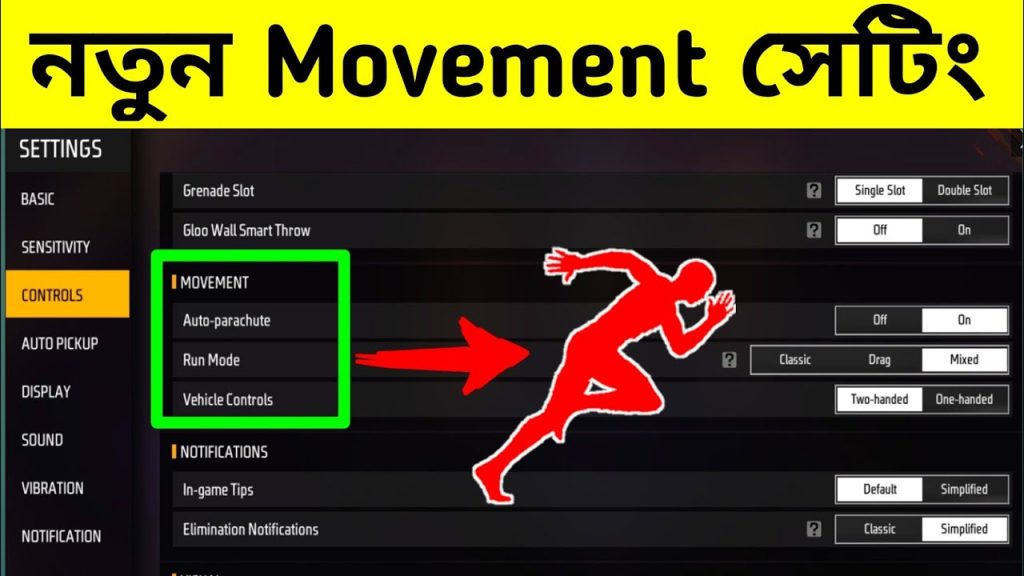
Now it’s time to test your new settings. Go to Training mode and move around. Practice strafing left and right while shooting at a stationary target. Then try running in zigzags. Your crosshair should stay relatively stable. If you feel like you’re fighting the controls, adjust General up or down by 3–5 points.
Also practice drag shots—swipe quickly to turn 180° and shoot. If you overshoot, lower General; if you undershoot, raise it.
Step 6: Save and Test in Real Matches
Once you’re comfortable in training, play a few unranked matches. Focus on your movement: peeking around corners, sliding, and turning to engage enemies. Take mental notes. Many players find that after just one or two matches, they want to tweak the sensitivity further. That’s normal—just adjust by small increments (3–5) and rematch.
If you’re still struggling, check our fast movement sensitivity guide for alternative setups, or browse trusted pro settings for inspiration. Remember, there’s no one-size-fits-all; your device and finger size matter.
Common Pitfalls
- Too high sensitivity: You’ll constantly overshoot and feel jittery. Reduce General by 10–15 and work your way up slowly.
- Too low sensitivity: You’ll be slow to turn and get caught off guard. Increase General and Free Look gradually.
- Ignoring device performance: If your game lags, even perfect sensitivity won’t help. Use Game Booster apps and lower graphics settings if needed.
Where to Next?
You’ve got the basics down. From here, you can explore advanced techniques like the one tap sensitivity for faster kills, or our daily player settings for a balanced all-round setup. Don’t forget to backup settings guide so you never lose your hard work.
Movement control is a journey—keep experimenting and you’ll see your rank climb. Happy hunting!



