If you feel like your aim is a little sluggish in Free Fire, you’re probably running the wrong sensitivity settings. Fast aim is all about finding that sweet spot where your crosshair moves quickly enough to snap onto enemies but not so fast that you overshoot. This guide is for players who want to improve their reaction time and win more close-range fights. By the end, you’ll have a complete set of sensitivity values that prioritize speed while keeping control.
We’ve tested these settings on various devices and they work great for fast aim. Whether you’re a rusher or an aggressive player, these values will help you flick onto targets faster. If you prefer a more controlled style, check out our stable crosshair sensitivity guide instead. Ready to speed up your aim? Let’s go!
What You’ll Need
- Free Fire or Free Fire Max installed on your device
- A device with at least 4 GB RAM (recommended for smooth gameplay)
- 10 minutes of uninterrupted time to test settings in Practice Mode
- Optional: a screen recorder to compare before/after aim speed
Step 1: Access the Sensitivity Settings Menu
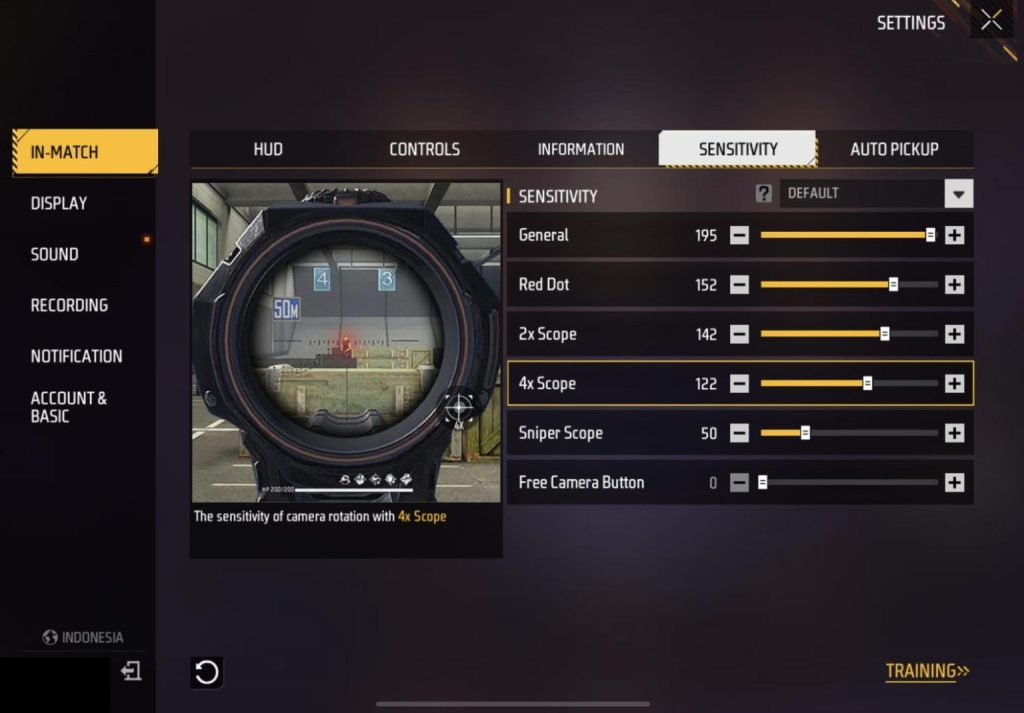
Open Free Fire and tap the gear icon (Settings) on the top-right corner of the lobby screen. Then go to the “Sensitivity” tab. This is where you’ll see all the sliders for General, Red Dot, 2x Scope, 4x Scope, Sniper Scope, and Free Look. Take a screenshot of your current values so you can revert if needed.
Step 2: Reset to Default (Optional)
If you’ve changed your settings before and want a clean slate, tap “Reset” at the bottom. This sets everything to default values. Don’t worry — we’re going to push them up for fast aim.
Step 3: Set General Sensitivity to High
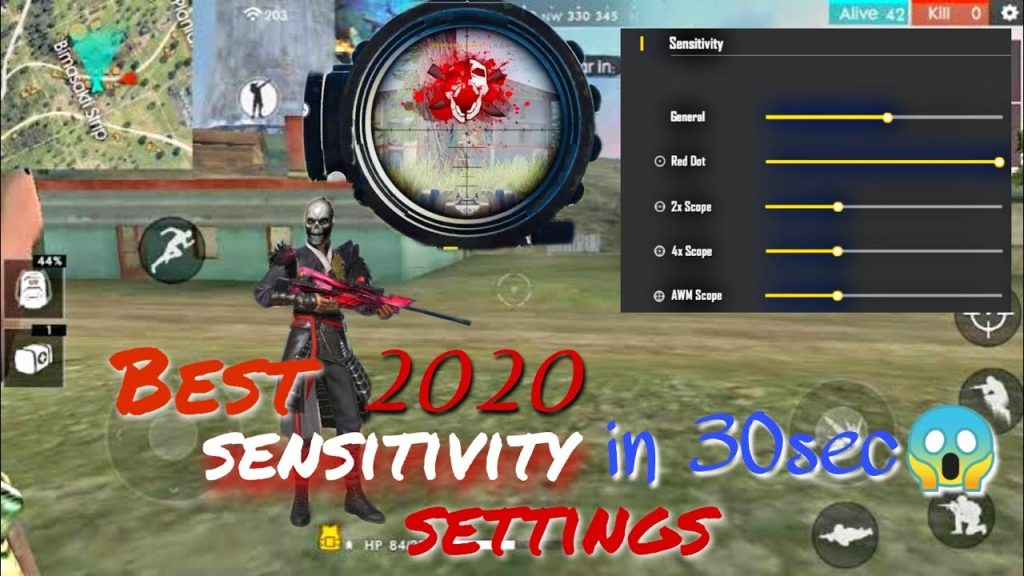
For fast aim, your general sensitivity needs to be high. This controls your overall camera movement. Set it to 90. If that feels too fast, drop it to 85. The goal is to be able to do a 180-degree turn without lifting your finger. Combine this with our top sensitivity settings for an even faster response.
Step 4: Boost Red Dot and 2x Scope Sensitivity
These scopes are used in most close-to-mid range fights. For fast aim, set Red Dot to 85 and 2x Scope to 80. This lets you snap onto enemies quickly when they appear in your peripheral vision. If you’re using a 1x scope (like the digital scope), treat it like Red Dot. These values are higher than our current season sensitivity defaults because we’re prioritizing speed.
Step 5: Lower Scope Sensitivities for Control
Even for fast aim, long-range scopes need to be a bit lower to avoid jitter. Set 4x Scope to 50 and Sniper Scope to 40. Free Look (used when parachuting or running) can stay at 70. These settings ensure you can still hit shots at distance without over-aiming. For more controlled settings, see our smooth sensitivity settings.
Step 6: Fine-Tune in Practice Mode
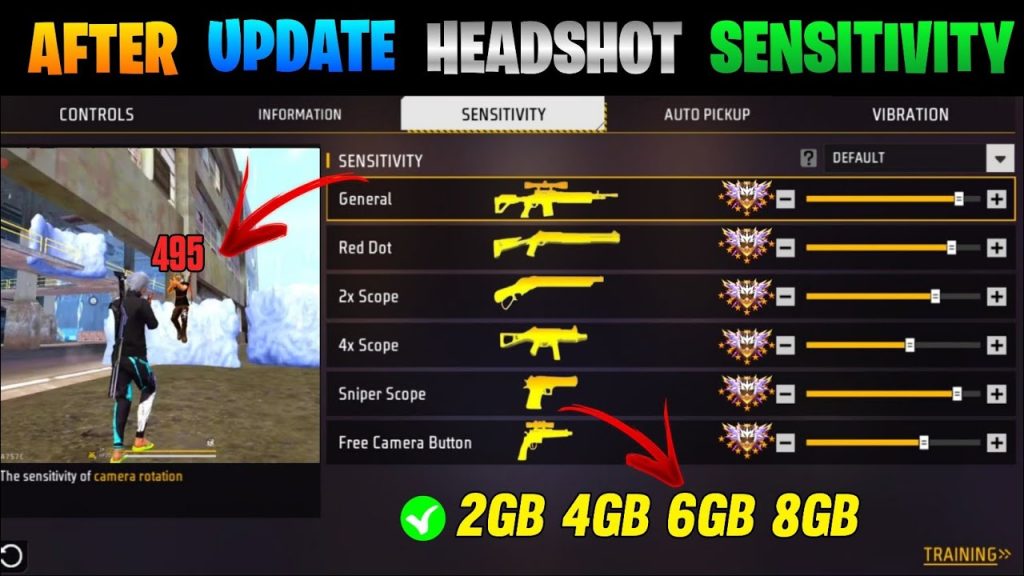
Go to the Training Ground (Practice Mode) and grab a weapon. Start moving and flicking onto the dummy targets. If you’re overshooting, lower the General sensitivity by 5 points. If you’re undershooting (not reaching the target fast enough), increase it. Spend at least 5 minutes here. This step is crucial — don’t skip it! Use our practice mode sensitivity settings guide for more detailed drills.
Step 7: Test in Real Matches
Once you’re confident in practice, jump into a Clash Squad or Classic match. Play a couple of games without changing anything. Pay attention to how quickly you can turn on enemies and how accurate your first shot is. If you feel like your aim is too twitchy, reduce General sensitivity by 2-3 points. Remember, fast aim is about speed and control together. Check out our grandmaster sensitivity settings for pro-level values.
Common Pitfalls
- Setting sensitivity too high: This makes your crosshair jump all over the place, especially at mid-range. Always test in practice mode before going into a ranked match.
- Ignoring device performance: Low-end devices (under 4GB RAM) may not handle high sensitivity well due to frame drops. Try reducing graphics quality first, then adjust sensitivity.
- Copying settings without testing: Every player’s finger movement and device touch response is different. Use our values as a starting point, but fine-tune them yourself.
Where to Next
Got your fast aim dialed in? Great! Now work on your movement and positioning. Check out our guides on advanced movement techniques and map rotations. And if you ever feel your aim getting shaky, revisit this guide or try our smooth sensitivity settings for a more consistent crosshair. Keep practicing, and you’ll be snapping onto enemies like a pro in no time.