Hey Free Fire player, if you’ve ever felt like your crosshair is jittery or all over the place, you’re not alone. This guide is for anyone who wants a stable crosshair – whether you’re a beginner or grinding ranks. By the end, you’ll have a set of sensitivity settings that keep your aim smooth and under control.
We’ll walk through each sensitivity slider, explain what it does, and give you exact numbers to copy. Plus, you’ll learn how to fine-tune for your own phone and playstyle. Let’s get that crosshair steady! If you’re looking for something quicker, check out our easy free fire sensitivity settings for a no-sweat aim.
What You’ll Need
- Free Fire installed on your phone (any Android or iOS device works)
- Access to the in-game settings menu
- Training ground unlocked (practice mode)
- Optional: a friend to help test in a custom room
Step 1: Understand Sensitivity Types
Free Fire has several sensitivity categories: General (hip-fire), Red Dot, 2x Scope, 4x Scope, Sniper Scope, and Free Look. Each controls how quickly your crosshair moves when using that sight. A stable crosshair usually means lower sensitivities for scoped modes, while keeping general high enough to turn quickly. For a reference, check out our top free fire sensitivity settings that many pros use.
Step 2: Set Your DPI Settings
Before touching in-game sliders, check your phone’s DPI (dots per inch) or touch sensitivity. Some phones have a built-in setting (like ‘Touch Sensitivity’ or ‘Pointer Speed’). Lower DPI makes your crosshair less twitchy. If you can adjust it, set it between 300-500. If not, don’t worry – we’ll compensate with in-game values. For more tailored advice, see our free fire sensitivity settings for budget phones.
Step 3: Configure General Sensitivity
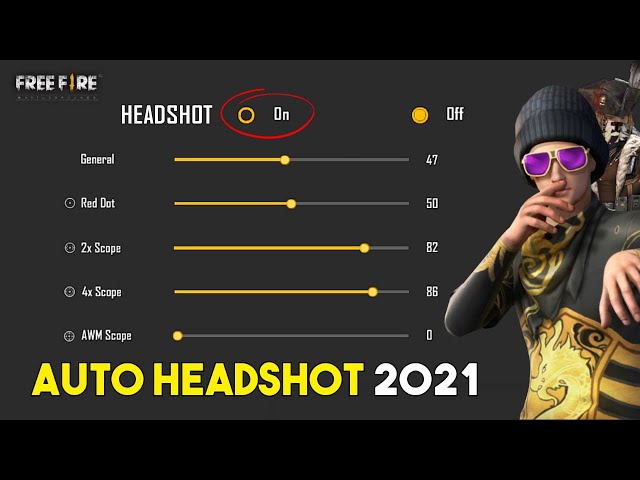
Now dive into the in-game sensitivity menu. Start with these baseline numbers for a stable crosshair:
– General: 80-90
– Red Dot: 70-75
– 2x Scope: 55-65
– 4x Scope: 40-50
– Sniper Scope: 20-30
– Free Look: 50
These values balance control and speed. If your crosshair still wobbles, lower each by 5 until it feels solid. For advanced tuning, refer to our free fire sensitivity settings for accurate aim.
Step 4: Fine-Tune Using Practice Mode
Head to the training ground and pick a variety of weapons – ARs, SMGs, and snipers. Practice tracking moving targets and snapping between dummies. Make small adjustments (5% increments) and test each change. Focus on keeping the crosshair on target while strafing. It may take 10-15 minutes to find your sweet spot.
Step 5: Save and Backup Your Settings
Once you’re happy, use the in-game ‘Saved Code’ feature to export your settings. This lets you restore them if you switch phones or reset settings. Simply go to Settings > Sensitivity > Saved Code > Copy Code. Keep it in a notes app. If you lose your code, check our guide on free fire sensitivity settings saved code for recovery tips.
Common Pitfalls
- Copying settings blindly without adjusting to your phone – every device is different, so always tweak the numbers to fit your screen size and touch response.
- Setting sensitivity too high – high sensitivity makes your crosshair shaky and hard to control, especially at mid-to-long range. Stick to lower values for snipers and scopes.
- Ignoring DPI – if your phone has a high DPI, reduce in-game sensitivity accordingly. Otherwise, even low settings can feel twitchy.
Where to Next
You’ve got your stable crosshair settings – now keep practicing! For more specific setups, dive into our guides on easy free fire sensitivity settings for quick start, or check out top free fire sensitivity settings for pro-level aim. Also, don’t miss our free fire sensitivity settings for accurate aim to land those headshots. Remember, consistency beats copying – keep refining your own style. Good luck in the battlegrounds!



