You know that feeling when you’re in a close fight, you swipe to aim, and your crosshair flies past the enemy? Or it jitters so bad you can’t control it? That’s not your device – it’s your sensitivity. This guide is for anyone who wants smooth, controlled aim without the jitter. By the end, you’ll have a set of sensitivity values that feel like butter, whether you’re on a flagship or a budget phone.
Smooth sensitivity means your crosshair moves exactly how you want – no skipping, no overcorrecting. We’ll tweak general sensitivity, scope sensitivities, and aim precision. You’ll also learn why some settings cause jitter and how to fix them. Let’s get your aim silky smooth.
What You’ll Need
- Free Fire installed on your device
- Practice mode unlocked (reach level 5 or play a few matches)
- 10–15 minutes of uninterrupted time
- A stable internet connection (lag can mess with sensitivity perception)
- Patience – small tweaks make a big difference
Step 1: Reset to Default Sensitivities
Before we start, clear your existing settings. Go to Settings > Sensitivity and tap “Reset to Default.” This gives you a clean slate. Starting from default prevents old bad values from interfering.
Step 2: Set General Sensitivity
General sensitivity controls your overall look speed. For smoothness, we want a moderate value that lets you track targets without overshooting. Start at 70–80 if you’re on a high-end phone, or 65–75 on a budget device. Adjust by 5 until your 90° swipe feels natural. For device-specific tweaks, check our budget phone sensitivity guide.
Step 3: Tune Scope Sensitivities (Red Dot, 2x, 4x, etc.)
Each scope behaves differently. Set red dot and 1x scope to around 65–75 to keep them consistent with general. For 2x, drop to 55–65. For 4x, go 45–55. For 6x and 8x, use 30–40. The goal is slower zoom scopes to avoid jitter at range. Remember, these are starting points – fine-tune based on your playstyle.
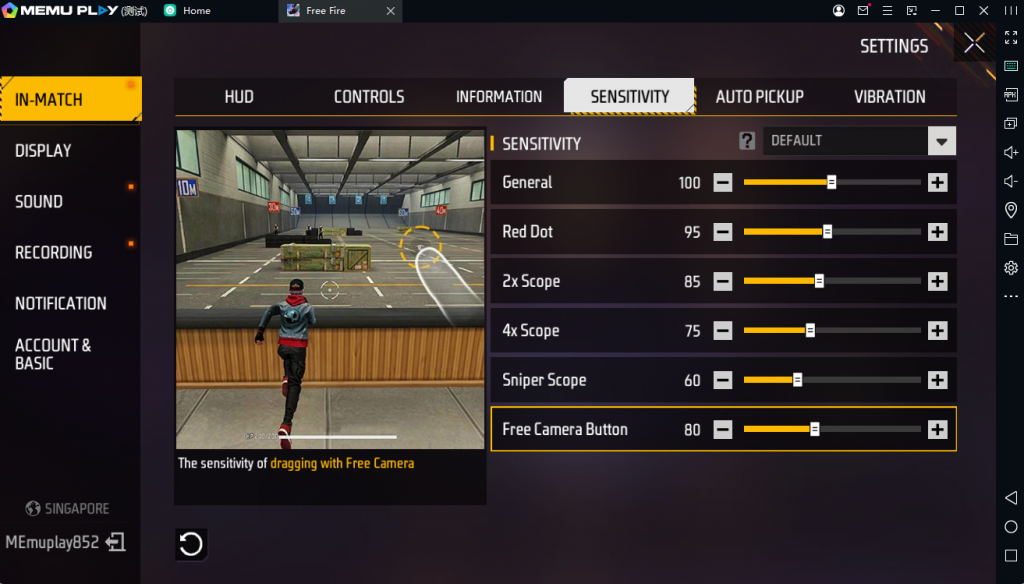
Step 4: Test in Practice Mode
Now head to Practice Mode. Shoot at moving targets, drag shot dummies, and practice quick 180° turns. If your crosshair overshoots, lower sensitivity; if you feel sluggish, raise it a bit. Spend at least 5 minutes here. For a structured routine, follow our practice mode settings guide.
Step 5: Adjust Aim Precision and Fire Button Sensitivity
Back in Sensitivity settings, find “Aim Precision” and set it to 0% – this disables aim assist that sometimes causes jitter. Also check “Fire Button Sensitivity” – keep it at 100% for immediate response. Small tweaks here can eliminate micro-jitter. For more on reducing shake, see our stable crosshair settings.
Step 6: Save Your Settings and Copy the Code
When you’re happy, tap “Save” and note the code shown. You can share this code with friends or back it up. If you ever reset, just enter the code to restore. For a detailed walkthrough on saving, refer to our easy sensitivity settings article.
Common Pitfalls
- Copying pro settings without adjusting for your device – pros often use high sensitivities that might cause jitter on your phone. Always tweak after copying.
- Ignoring your device’s touch sampling rate – if your phone registers touches slower, high sensitivity can feel choppy. Lower sensitivity to match your device’s capabilities.
- Changing too many settings at once – adjust one slider per test session. Otherwise you won’t know what fixed the jitter.
Where to Next?
You’ve got smooth settings now! Next, check out our smooth FPS sensitivity guide for lag-free gameplay, or our top sensitivity settings for advanced tricks. If you’re on a tight device, our budget phone sensitivity article will help you squeeze out more control. Happy beaming!



