If you’re tired of your aim feeling jerky or your game stuttering in close fights, you’re in the right place. This guide is built for Free Fire players who want buttery-smooth FPS without sacrificing accuracy. By the end, you’ll have a sensitivity setup that keeps your crosshair steady and your frames stable — even on older phones.
We’ll cover everything from in-game sensitivity sliders to phone-level graphics tweaks. You don’t need to be a tech wizard; just follow each step, test in the training ground, and tweak as you go. Let’s get you that smooth, pro-level feel.
What You’ll Need
- Free Fire or Free Fire MAX installed (latest version)
- A phone (any brand, but lower-end devices will benefit most)
- Stable internet connection (WiFi or 4G/5G)
- Game Booster app (optional, but helps reduce lag)
- 5–10 minutes of free time to test in Training Ground
Step 1: Optimize Your Phone’s Performance
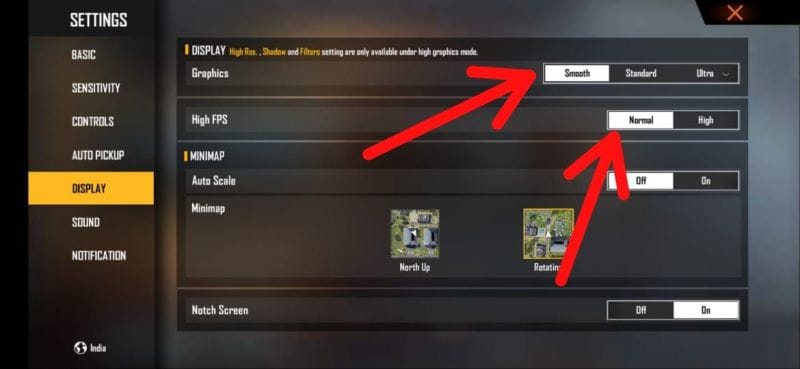
Before touching in-game settings, make your phone run as lean as possible. Close all background apps, enable ‘Do Not Disturb’, and set the game to ‘High FPS’ mode if your device supports it. For budget phones, turn off any battery-saving modes that throttle performance.
Step 2: Adjust In-Game Graphics for Maximum FPS
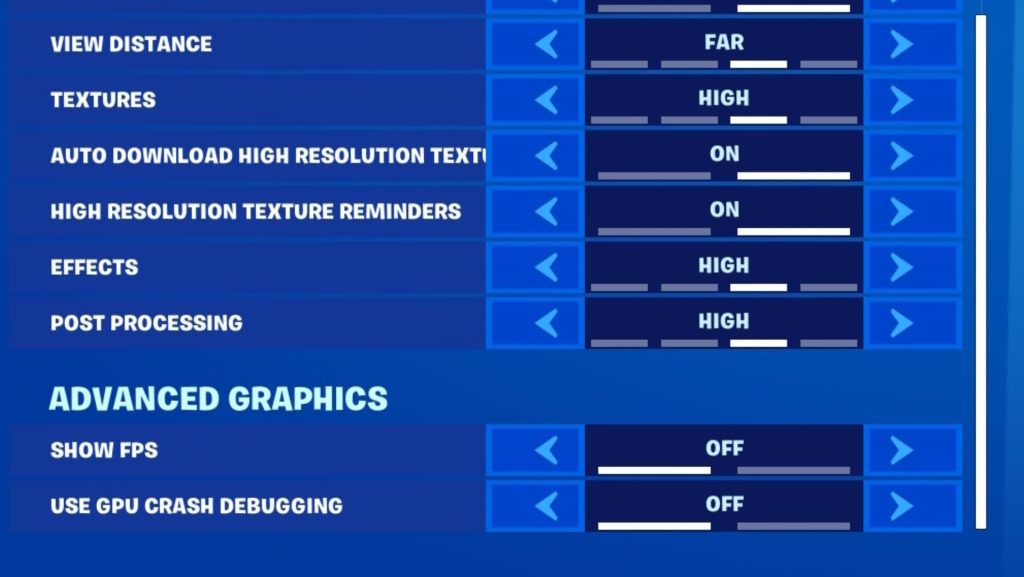
Go to Settings → Graphics and set everything to ‘Smooth’ and ‘High FPS’. If your phone still lags, drop to ‘Medium’ FPS. Disable shadows and any post-processing effects — they eat frames without giving any aiming advantage. This is the foundation for a smooth experience.
Step 3: Set Your Sensitivity Values
Now enter the Sensitivity tab. Start with a balanced setup that works for most players. Use the table below as a baseline, then fine-tune in Training Ground. Remember: sensitivity is personal, so feel free to adjust ±5 points.
- General: 90–100
- Red Dot: 85–95
- 2x Scope: 80–90
- 4x Scope: 65–75
- Sniper Scope: 40–50
- Free Look: 80–85
These values keep your aim snappy without being too twitchy. If you prefer a slower, more controlled aim, reduce each by 10–15 points. For a faster drag shot style, increase the General sensitivity toward 100.
Step 4: Enable and Tweak the Gyroscope (Optional)
Gyro helps with fine-tuning aim, especially for long-range shots. Turn it on in Settings → Sensitivity → Gyroscope. Set it to 50% and test in Training Ground. If it feels too sensitive, drop to 30%. Many pros use gyro as a supplement to touch aim.
For a more detailed gyro setup, check out our guide on free fire sensitivity settings and gyro combo. It pairs well with these FPS settings.
Step 5: Test in Training Ground
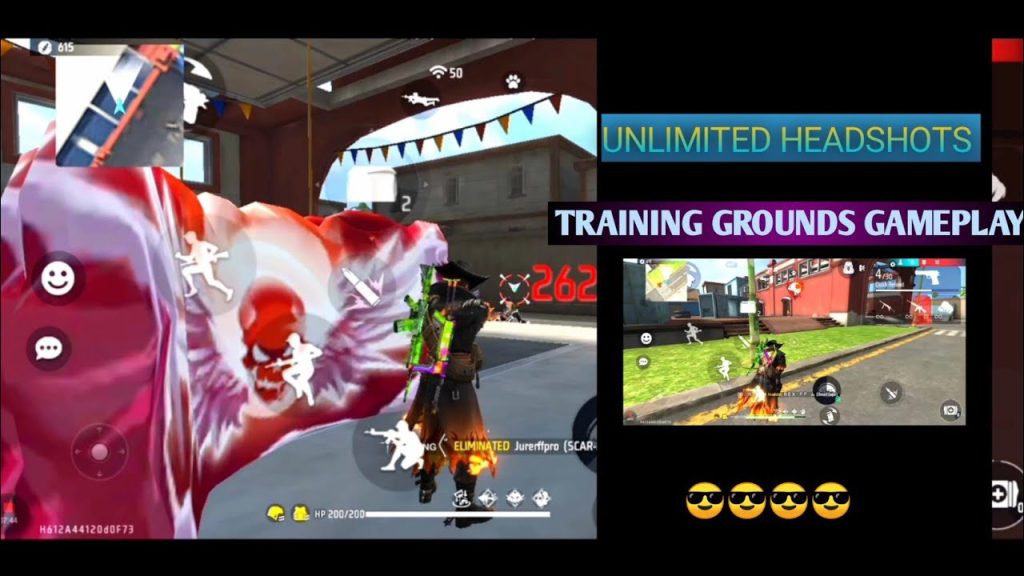
Head to the Training Ground and practice your aim. Try flicking between bots, tracking moving targets, and doing quick scope shots. Pay attention to how your crosshair moves. If it feels laggy or jumps too much, go back and adjust the Graphics settings to a lower quality or reduce sensitivity.
Step 6: Use a Game Booster App
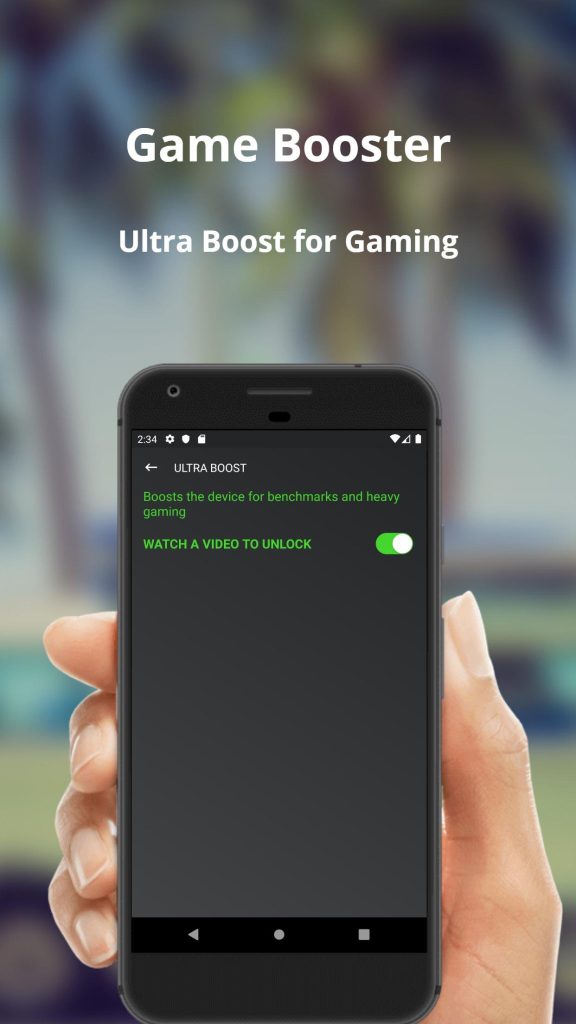
A game booster can allocate more CPU/GPU resources to Free Fire, reducing stutter. Apps like Game Turbo (Xiaomi), Game Launcher (Samsung), or third-party boosters (e.g., GFX Tool) help. Set the booster to ‘Performance’ mode and add Free Fire to its list.
Common Pitfalls
- 1. Cranked sensitivity too high – High sensitivity with low FPS adds input lag. Keep it moderate until your FPS is stable.
- 2. Forgetting to save settings – Always hit the ‘Save’ button in the sensitivity menu or your changes won’t apply.
- 3. Ignoring phone temperature – Overheating causes throttling and drops FPS. Play in a cool environment and take breaks.
If you hit any snags, revisit our article on budget phone sensitivity settings — it covers fixes for overheating and stutter.

Where to Next
You’ve got the foundation for a smooth FPS experience. Now it’s time to master your aim. Check out our guide on sensitivity for accurate aim to tighten your shot, or explore viral sensitivity settings for more aggressive styles. For a overall smoother experience, don’t miss the general sensitivity settings article.
If you’re on a device with low touch sampling, we’ve got a dedicated post on low touch sampling settings that can save your aim. And for those using high DPI mice (yes, some players use OTG mice), the DPI 1000 sensitivity guide is a must-read. Happy hunting!



