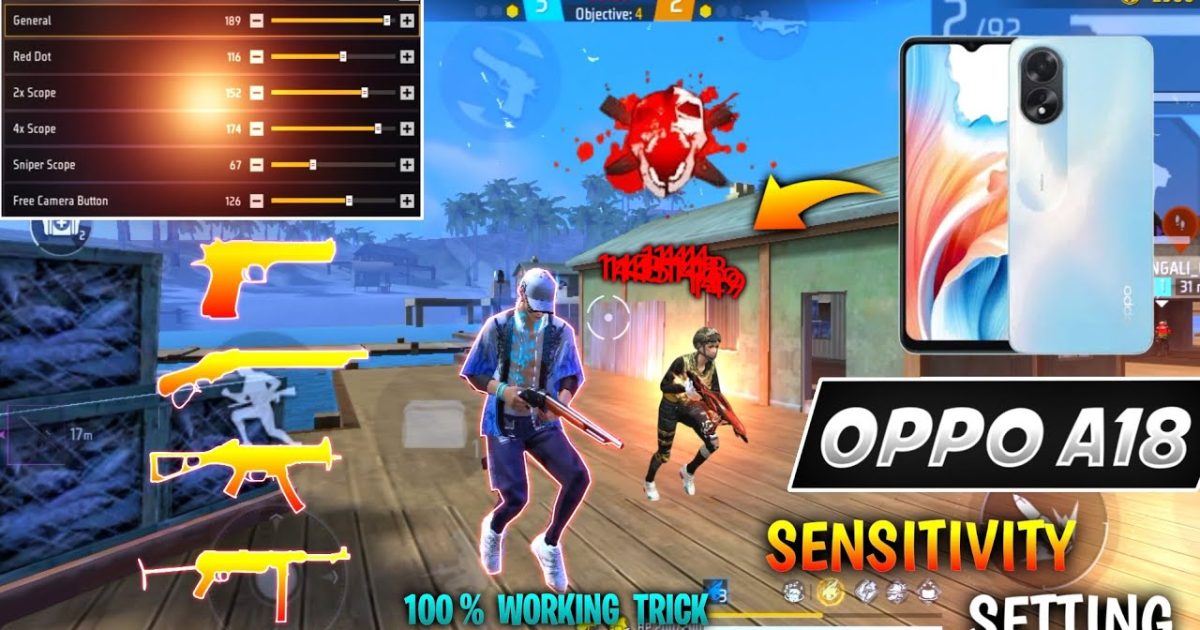
If you’re playing Free Fire on an Oppo phone, you know the touch response is generally solid. But to really pop heads and climb ranked, you need sensitivity settings that match your device’s touch sampling rate and screen size. Whether you’re a 2-finger casual or a claw tryhard, this guide will give you a tested starting point that you can fine-tune for your own Oppo model.
By the end of this post, you’ll have a set of sensitivity values for general, red dot, and scope that feel snappy and accurate on Oppo phones. You’ll also know how to test them in the training ground and avoid common mistakes that mess up your aim.
What You’ll Need
- An Oppo phone (any model – settings work across F series, Reno, etc.)
- Free Fire installed (latest version – OB36 or newer)
- A stable internet connection (ping below 100ms for accurate testing)
- 5-10 minutes in the Training Ground to test and adjust
Step 1: Open Sensitivity Settings in Free Fire
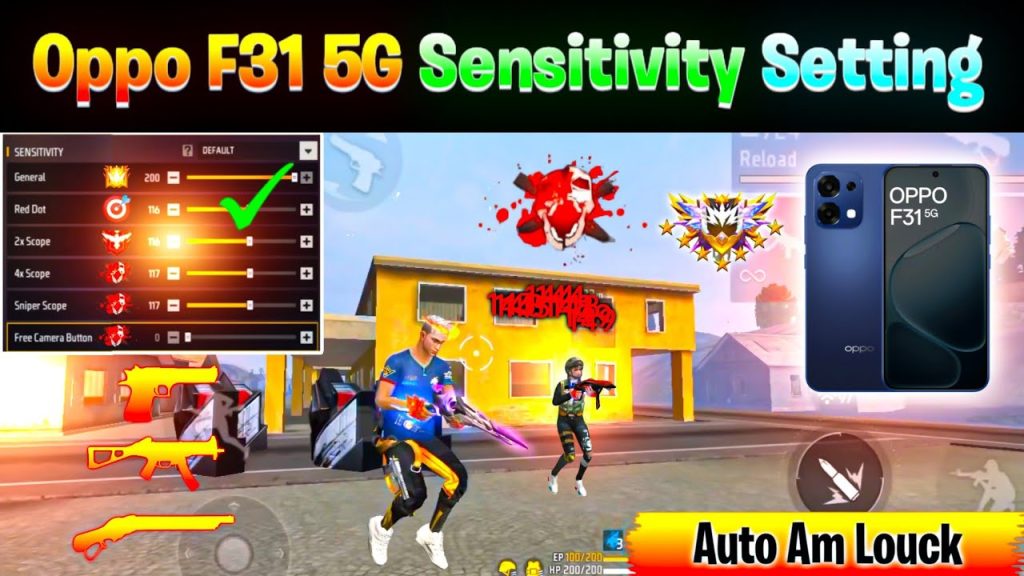
Launch Free Fire and tap the gear icon on the home screen to open Settings. Then go to the Sensitivity tab. Here you’ll see sliders for General, Red Dot, 2x Scope, 4x Scope, and more. If you’re using an Oppo with ColorOS, make sure your phone’s touch sensitivity is set to high (go to Settings > Additional Settings > Touch Sensitivity and enable it).
Step 2: Set General Sensitivity
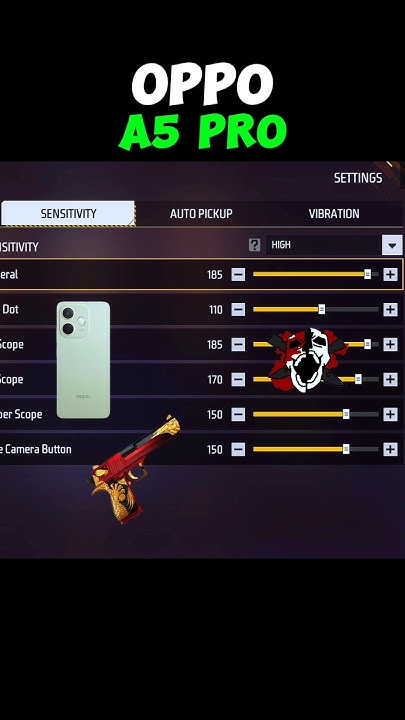
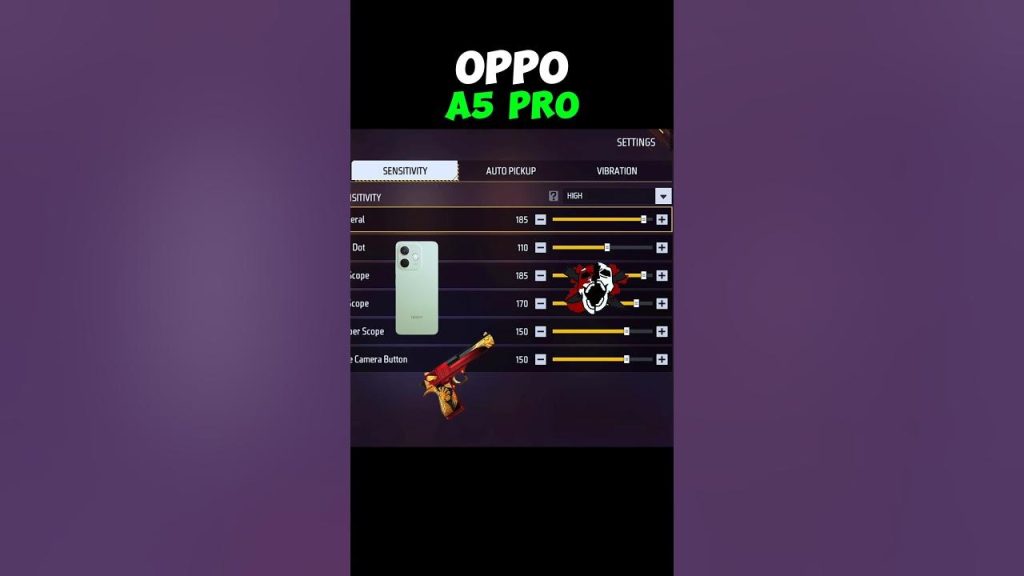
General sensitivity controls your turning speed when not scoped. For most Oppo phones (60Hz or 90Hz display), start with 85-90. If you have a 120Hz screen like the Oppo Find X3, you can go to 95. Slower is better for precision, faster for reaction. I personally use 88 on my Oppo Reno 10 Pro.
Step 3: Adjust Red Dot and Scope Sensitivity
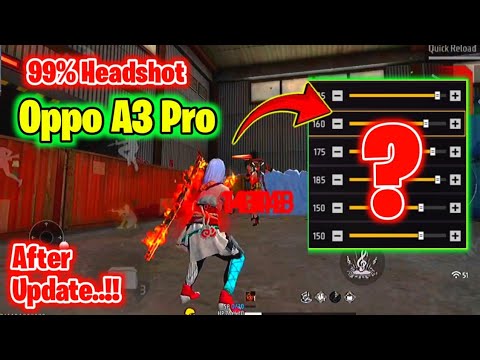
For red dot, set to 70-75. This helps you track enemies without overscoping. For 2x scope, go 65-70; for 4x, 60-65; for Sniper Scope, 30-35. These values work well with Oppo’s touch latency. If you use a claw grip, you might want slightly lower values to avoid accidental heavy flicks. Check out our claw sensitivity settings for more tailored numbers.
Step 4: Fine-Tune for Oppo Touch Response
Oppo phones often have a built-in Game Space app that lets you boost touch response. Open Game Space, add Free Fire, and set touch sensitivity to „High“. Also, enable „Touch Optimization“ and „Response Speed“. This reduces input lag and makes your sensitivity feel more responsive. If you notice stutter, try lowering the general sensitivity by 2-3 points.
Step 5: Test in Training Ground
Head to Training Ground and pick a weapon with a red dot (e.g., M4A1). Shoot at stationary targets to see if your crosshair stays on target when you strafe. Then try tracking moving bots. If you overshoot, reduce sensitivity; if you can’t keep up, increase. Repeat for each scope. This is where you’ll also test your smooth gameplay sensitivity – make sure it feels buttery, not jerky.
Common Pitfalls
- Copying pro settings without testing – pro player sensitivity values are often too high for Oppo’s touch sampling. Always start lower and adjust.
- Ignoring Oppo’s touch sampling rate – some Oppo models have 120Hz or 180Hz. If you set sensitivity too high, it becomes uncontrollable. Use the Game Space app to calibrate.
- Not differentiating between scopes – using the same sensitivity for red dot and 4x scope will hurt your long-range aim. Set them separately.
Where to Next?
Now that you have a baseline for Oppo, you can explore more advanced settings. Check out our ranked sensitivity settings for competitive matches, or learn how to optimize sensitivity for your specific playstyle. For a deeper dive, our complete sensitivity guide covers every slider and how it affects your gameplay. Keep practicing and adjust as you rank up!



