If you’ve ever felt like your crosshair is on ice or that your shots are a frame behind your thoughts, you’re in the right place. This guide is for every Free Fire player—casual or competitive—who wants buttery smooth gameplay without the jitter. By the end, you’ll have a set of sensitivity settings tailored to your phone and playstyle, plus the know-how to tweak them like a pro.
We’ll walk you through the in-game settings, explain what each slider does, and share the exact values that work for most devices. Whether you’re a thumb player or a claw user, you’ll find adjustments that make aiming feel natural. Let’s get your Free Fire sensitivity dialed in for silky smooth action.
What You’ll Need
- A phone or tablet running Free Fire (any device works, results may vary by specs).
- At least 10 minutes of uninterrupted practice time in the Training Grounds.
- Patience – small adjustments make a big difference.
- Optional: a friend to help test in a 1v1 room.
Step 1: Open the Sensitivity Menu
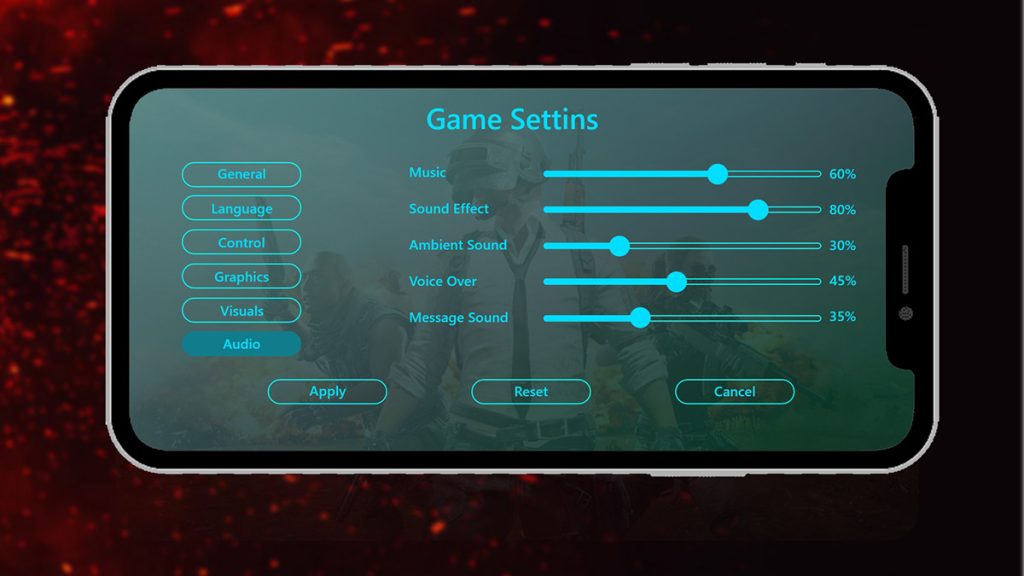
Launch Free Fire and head to the main lobby. Tap the gear icon (Settings) in the top-right corner, then select the ‘Sensitivity’ tab. This is where all the magic happens. If you’ve never been here before, check out our complete sensitivity guide for a full overview of each option.
Step 2: Set Your General Sensitivity
General sensitivity controls how fast your view moves when you swipe on the screen. Start with a default of around 90–100 for most phones. If you’re a claw user, you might prefer a slightly lower value for better control – check out the claw users settings for specific numbers. Swipe right to increase speed, left to decrease. A good rule: your crosshair should be able to do a full 180° turn with one smooth swipe from the center of the screen to the edge.
Step 3: Tweak Red Dot and Scope Sensitivities
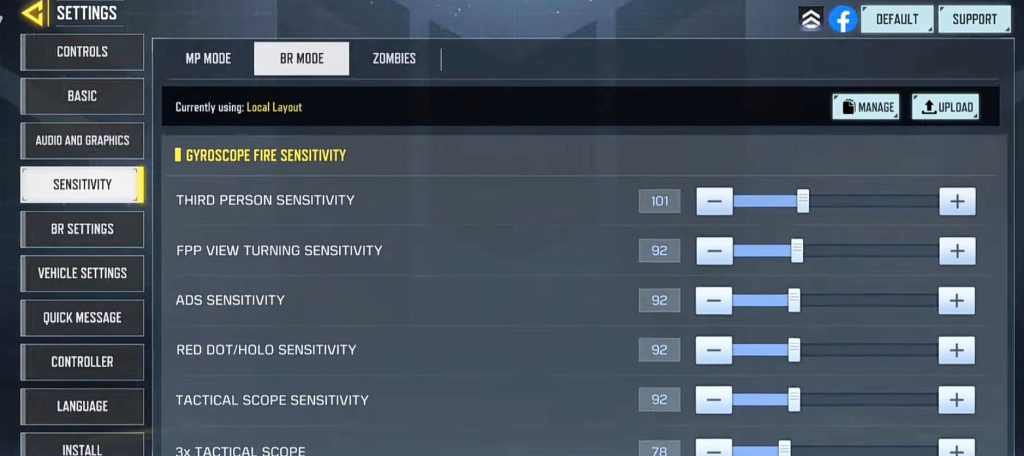
Now dial in your red dot (1x scope) sensitivity. This is crucial for close to mid-range fights. Start at 80–85 and adjust up or down 5 points at a time. For 2x scopes, try 75–80; for 4x scopes, 70–75; for sniper scopes, 60–65. These values ensure your aim stays smooth when you zoom in. For more refined numbers, see our ranked sensitivity settings.
Step 4: Adjust Fire Button and Gyroscope (Optional)
If you use gyroscope, set it to ‘Always On’ or ‘Scope Only’ depending on your comfort. Gyro sensitivity should be lower than touch – try 30–40 for general and 50–60 for scope. Keep the fire button sensitivity at default (100) unless you feel it’s too responsive. For advanced tweaks, pro player settings often use fine-tuned gyro values.
Step 5: Test Your Settings in Training Grounds
Head to the Training Grounds from the lobby. Grab any weapon and practice tracking moving targets, flicking between dummies, and quick 180° turns. If your aim overshoots or feels too slow, go back and adjust by 5 points. Repeat until you feel in control. Remember, smoothness beats speed every time. For more targeted practice, better tracking settings can help you fine-tune further.
Common Pitfalls
- Copying pro settings blindly – Every phone and playstyle is different. Use pro settings as a starting point, but always adjust to your own feel. The complete sensitivity guide explains why one-size-fits-all doesn’t work.
- Changing too many sliders at once – Only modify one or two values between tests. If you change everything, you won’t know what improved or ruined your aim. Keep a simple approach.
- Forgetting to save your settings – Free Fire sometimes resets after updates. Double-check your values before jumping into a ranked match. It helps to know how to change sensitivity quickly so you can restore your setup.
Where to Next
Now that your sensitivity is smooth, consider optimizing other aspects of your gameplay. Check out our guides on HUD layout, key mapping, and movement tricks. Master the basics, and you’ll climb ranks in no time. Good luck, and see you on the battlefield!
Smooth aim comes from consistency, not copying. Tweak until it feels like an extension of your hand.
Free Fire Pro Player



