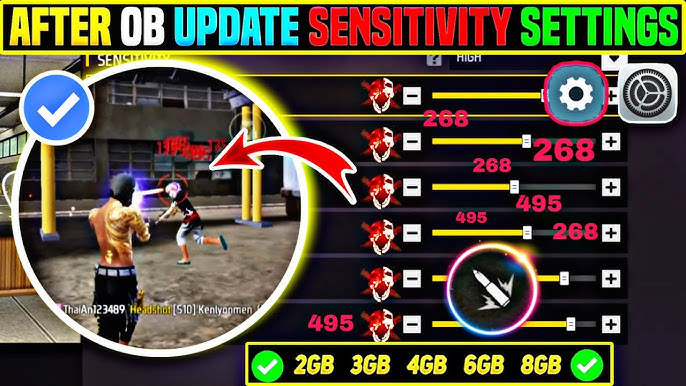
If you’ve been struggling to win gunfights in Free Fire, your sensitivity settings are probably off. This guide is for anyone who wants a clear, step-by-step process to find the perfect sensitivity—no guesswork. By the end, you’ll have a setup that feels natural, helps you track enemies smoothly, and lands more headshots.
We’ll cover everything from accessing the sensitivity menu to advanced tweaks for different playstyles. Whether you’re a 2-finger player or use a claw setup, these steps work. Plus, I’ll link to more specific guides like how to optimize free fire sensitivity settings and free fire sensitivity settings for aim players so you can dive deeper.
What You’ll Need
- Free Fire installed and updated on your phone.
- Access to the game’s settings (gear icon in the lobby).
- 5–10 minutes of uninterrupted time in the Practice Range or a Clash Squad match.
- A notepad or screenshot tool to record your settings (optional but helpful).
- If you play on a low-end device, check the free fire sensitivity settings with low fps guide first.
Step 1: Access the Sensitivity Settings
Open Free Fire and tap the gear icon in the top-right corner of the lobby. Go to the ‘Sensitivity’ tab. You’ll see three main sliders: General, Red Dot, and Scope. There’s also a fourth slider for Free Look (camera movement while running). If you’re on Free Fire Max, the layout is identical.
Step 2: Understand What Each Slider Controls
Before changing numbers, know what they do. General sensitivity affects your camera and aim when not using a scope. Red Dot (or 1x scope) sensitivity is for close-to-medium range fights. Scope sensitivity applies to 2x, 4x, and sniper scopes. The Free Look slider controls how fast you can look around while running—useful for checking surroundings.
Step 3: Set a Baseline
Start with these tested numbers. They work well for most players and are a solid foundation. General: 90–100, Red Dot: 85–95, Scope: 40–50, Free Look: 60–70. If you’re using a 2-finger setup, stay near the higher end. Claw users can go a bit lower for more precision. For a detailed baseline, see the latest free fire sensitivity settings for ranked guide.
- General: 90–100
- Red Dot: 85–95
- Scope: 40–50
- Free Look: 60–70
Step 4: Fine-Tune for Your Playstyle
Jump into the Practice Range. Pick a target and strafe left and right while keeping your crosshair on it. If you overshoot, lower the General or Red Dot sensitivity. If you can’t keep up, increase it. For long-range fights, adjust Scope sensitivity so you can track moving targets smoothly. The free fire sensitivity settings for aim players guide has more drills.
Step 5: Practice and Adjust
Spend 5 minutes in the Practice Range or a quick Clash Squad match. Notice if you’re missing shots because the camera is too fast or too slow. Tweak in increments of 5. Once you feel comfortable, try a BR match. For headshot practice, check the free fire sensitivity settings and headshot combo guide.
Common Pitfalls
- Setting sensitivity too high: Higher isn’t better. It makes your aim shaky and hard to control. Stick to the baseline and adjust slowly.
- Ignoring gyroscope: If your phone supports gyroscope, enable it in settings. It helps with micro-adjustments. Many pro players use gyro for fine aim.
- Not testing in real matches: Practice Range is good, but in-game pressure changes your grip. Always play a few matches after adjustments.
Where to Next
Now that you have a solid sensitivity setup, improve your gameplay further. Learn the free fire sensitivity settings for claw users if you play with multiple fingers, or check the free fire sensitivity settings and headshot combo guide to land more headshots. Experiment and find what works best for you!



