If you’re tired of missing shots and want to finally hit clean headshots, this guide is for you. Whether you’re a two-finger casual or a four-finger claw grinder, dialing in your Free Fire sensitivity settings can instantly improve your aim. By the end of this tutorial, you’ll have a custom sensitivity profile that helps you snap onto enemies, track moving targets, and land consistent headshots.
We’ll walk through every step—from resetting your defaults to fine-tuning aim assist and gyroscope. No more guessing. Just tested numbers and real-world advice. Ready to upgrade your aim? Let’s dive in.
What You’ll Need
- Free Fire or Free Fire Max installed on your phone
- A device with at least 60Hz display (120Hz recommended for smoother aim)
- Access to Training Mode (found in the game lobby)
- A friend or a second device if you want to test in real matches
- Patience – expect to spend 20–30 minutes tweaking
Step 1: Reset to Default and Understand Your Sliders
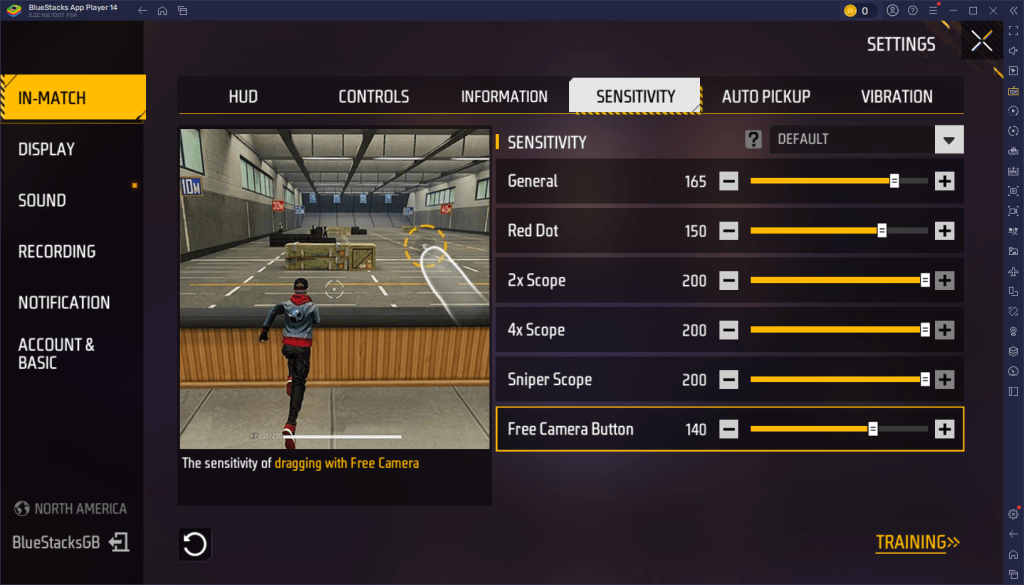
First, reset your sensitivity settings to default. This gives you a clean slate. Go to Settings > Sensitivity and tap the reset icon (usually a curved arrow). Now, let’s break down the sliders: General, Red Dot, 2x Scope, 4x Scope, Sniper Scope, and Free Look. For aim, the most important are General and Red Dot. Free Look helps with checking surroundings but doesn’t affect shooting.
If you’re coming from other guides, you might have seen headshot combo sensitivity or tracking sensitivity numbers. Those are great starting points, but we’ll adapt them for your specific playstyle.
Step 2: Set General and Red Dot Sensitivity
Start with General sensitivity. For aim players, a value between 85 and 95 works well – it’s fast enough to flick to enemies but not so high that you overshoot. I recommend 90 for most phones. Next, Red Dot scope: set it to 80–85. This value controls how fast you can adjust your aim when using a red dot sight. Too low and you’ll feel sluggish; too high and you’ll miss close-range shots.
These two sliders are your foundation. If you prefer a claw setup, check out our claw sensitivity guide for adjusted numbers. For now, stick with the basics.
Step 3: Fine-Tune Aim Assist and Gyroscope
Aim Assist in Free Fire works like a magnet – it pulls your crosshair toward enemies when you ADS. Set Aim Assist to ‘High’ for an aim help, but be aware it can throw off your muscle memory if you rely on it too much. Gyroscope is another big help: turn it on and set its sensitivity to around 50–60. This lets you make micro-adjustments by tilting your phone. It’s a game-changer for consistent aiming.
If you’re new to gyro, start low (30) and work your way up. Many pro player settings include high gyro values for sniping and long-range tracking. Remember, gyro works best when your phone is stable – use a table or a grip if possible.
Step 4: Test in Training Mode and Adjust
Head to Training Mode and pick your favorite weapons. Try to track moving bots, then practice flick headshots. If you’re overshooting targets (crosshair goes past them), reduce General sensitivity by 2–3 points. If you’re undershooting, increase by 2–3. Repeat for Red Dot. Also test with a sniper: set Sniper Scope sensitivity to 35–45 for stable long-range shots.
Don’t forget to check user reviews of settings posted by the community – sometimes a small tweak can make a big difference. After 10–15 minutes of practice, you’ll find the sweet spot.
Common Pitfalls
- Setting sensitivity too high – your aim becomes jerky and you miss easy shots. Start lower and gradually increase.
- Ignoring Aim Assist – some players turn it off to rely on pure skill, but the magnetic pull can actually help you win gunfights. Leave it on ‘High’ until you’re confident.
- Not adjusting per weapon – a sensitivity that works for an MP5 might be too fast for an AK. Spend time with each weapon class and note your preferences.
Where to Next
Now that you’ve dialed in your aim settings, it’s time to practice. For even more precision, check out our headshot combo sensitivity and tracking sensitivity guides to further refine your loadout. If you run a claw setup, our claw sensitivity article has specific numbers for that playstyle. And if you ever forget how to change sensitivity, we’ve got a quick tutorial for that too. Happy fragging!



