So, you’ve been grinding in Free Fire but still feel your aim is off? Maybe you’re using outdated sensitivity settings. Every patch update can shift weapon recoil patterns and movement mechanics, so your old settings might be holding you back. This guide is for anyone who wants to dial in their sensitivity for 2025 – whether you’re a thumb player, a claw user, or someone trying out gyro for the first time.
By the end of this guide, you’ll have a custom sensitivity profile that fits your device and playstyle. We’ll walk through each slider, explain what it does, and give you starting points based on the latest meta. You’ll also learn how to test your settings and tweak them like a pro. Ready to hit those headshots more consistently? Let’s dive in.
What You’ll Need
- Free Fire or Free Fire Max installed (latest version)
- A stable internet connection (ping below 100ms is ideal)
- Knowledge of your device’s DPI (you can find this in settings or use an app)
- A few minutes in the Training Ground or a Clash Squad lobby to test
Step 1: Reset Your Current Sensitivity and Understand the Categories
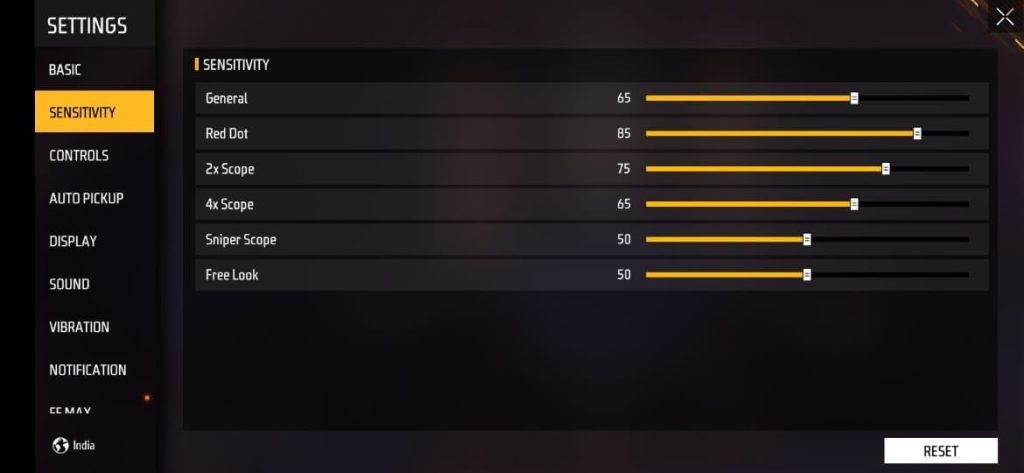
First, clear your old settings so we start fresh. Go to Settings > Sensitivity and hit ‘Reset to Default’. This gives you a clean slate. Now, you’ll see several sliders: General, Red Dot, 2x Scope, 4x Scope, Sniper Scope, and Free Look. Each one controls how fast your screen moves when you aim with that specific scope. General affects hip-fire and movement, while the others affect scoped aim. Don’t touch Gyroscope yet – we’ll get to that later.
Step 2: Set Base Sensitivity Values for Different Scopes
Start with these baseline numbers, which work well for most devices. Adjust later based on your feel. For General: 85-95 (high for quick turns). Red Dot: 75-85. 2x Scope: 65-75. 4x Scope: 45-55. Sniper Scope: 30-40. Free Look: 80-90. If you’re on a high DPI device (like 480+), lower these by 5-10 points – you can check the detailed guide on free fire sensitivity settings high dpi for specific values. For low-end phones, keep General on the higher side.
Step 3: Fine-Tune Gyroscope Sensitivity (Optional)
If you use gyroscope, enable it and set the sensitivity to about 25-35% of your regular values. For instance, if your General is 90, set Gyro General to 30. Gyro helps with micro-adjustments once you’re scoped in. But if you don’t use gyro, skip this step. Many players find that a low gyro sensitivity for scopes (Red Dot: 20, 2x: 15) gives them laser aim without feeling shaky.

Step 4: Test in Clash Squad or Training Ground
Hit the Training Ground and practice shooting at still and moving targets. Pay attention to how easily you track enemies. If you’re overshooting (crosshair goes past the target), lower the sensitivity. If you’re undershooting, raise it. Better yet, jump into Clash Squad and try the settings in real combat. Our guide on free fire sensitivity settings for clash squad explains how to adjust for that fast-paced mode.
Step 5: Adjust Based on Your Playstyle (Thumb, Claw, or Gyro)
Your grip style matters. Thumb players often need higher General sensitivity because they move the camera with one thumb. Check out our free fire sensitivity settings for thumb players for a specialized setup. Claw players can afford slightly lower sensitivities since they have more fingers for control. And if you’re using gyro, you might want to increase the gyro sensitivity for close-range fights. Remember: there is no perfect universal value, so tweak based on what feels natural.
Common Pitfalls
- Copying someone else’s settings without testing: Even the best free fire sensitivity settings from a pro might not work on your device or with your playstyle. You have to try them and adapt.
- Changing too many values at once: If you adjust five sliders at the same time, you won’t know which change helped or hurt. Tweak one slider, test, then move on.
- Ignoring device performance: Low-end phones can’t handle high sensitivity with max graphics. If you experience lag, lower both graphics and sensitivity. Use our optimized free fire sensitivity settings for low-end devices.
Sensitivity is personal – the best settings are the ones that let you aim without thinking.
Free Fire Pro Player
Where to Next?
Now that you’ve updated your sensitivity, keep practicing to build muscle memory. Want to take it further? Check out our expert free fire sensitivity settings for advanced tweaks like DPI-specific adjustments and gyro mixes. Also, explore our guides on weapon-specific settings – the Groza, UMP, and AK behave very differently, and a small sensitivity tweak can make them beam. Stay consistent, and you’ll see improvement in no time.