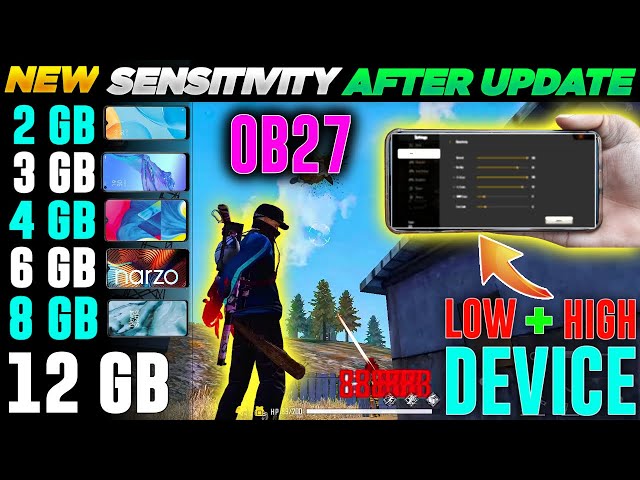
If you’re tired of spraying bullets all over the place in Clash Squad, you’ve come to the right place. Clash Squad is all about fast-paced, close-quarters fights where every millisecond counts. The sensitivity settings that work for Battle Royale often feel too slow or too floaty in 4v4 matches. By the end of this guide, you’ll have a custom sensitivity profile that lets you snap on enemies, control recoil, and outmaneuver opponents in tight spaces.
I’ve tested these settings across multiple devices and playstyles. Whether you’re a two-thumb player or use claw, these adjustments will give you a solid foundation. We’ll go step by step, starting from default and tweaking each slider until your aim feels sharp. Ready? Let’s dive in.
What You’ll Need
- Free Fire or Free Fire Max installed on your phone
- Access to the Settings menu (gear icon in the lobby)
- A stable internet connection (ping matters in Clash Squad)
- 10–15 minutes of uninterrupted time
- A training ground session or a custom room to test
- Optional: a friend to 1v1 in Clash Squad for realistic testing
Step 1: Understand Clash Squad vs BR Sensitivity Needs
Clash Squad maps are small — Kalahari, Bermuda Remastered, and Alpine. Engagements are usually under 30 meters. You need a higher sensitivity for quick 180° turns, but not so high that you overshoot. Slow scoping sensitivity is also important because you’ll often use red dot or scope attachments. If you’re using optimized free fire sensitivity settings from Battle Royale, they might be too low for Clash Squad’s rapid peeking and sliding.

Step 2: Reset Your Sensitivity to Default
Open Settings > Sensitivity and tap “Reset” at the bottom. This clears any previous tweaks. Default values are a safe starting point. Write down your current DPI or device sensitivity if you’ve customized it in developer options — you’ll want to keep that consistent.
Step 3: Set General Sensitivity
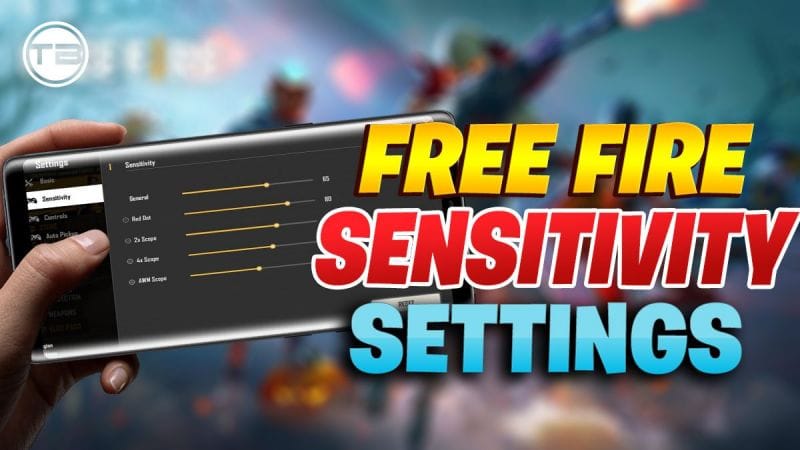
General sensitivity controls your regular look speed. For Clash Squad, start at 85–90. This lets you flick quickly. If you’re a thumb player, 90 might be too high; try 80. Claw players can go up to 95. Test by doing a 180° turn: you should complete it in one smooth flick without dragging twice. If you overshoot, lower by 2. If it feels sluggish, raise by 2. For reference, many pros use 90 for Clash Squad. Compare with top global free fire sensitivity settings to see where you stand.
Step 4: Fine-Tune Red Dot and Scope Sensitivity
Red dot and 2x scope are common in Clash Squad. Set red dot to 70–80 and 2x to 65–75. Aim for smooth tracking when an enemy slides or jumps. 4x scope is rarely used, but keep it at 50–60 just in case. The key is consistency: your muscle memory should feel the same across all scopes. I recommend the best free fire sensitivity settings as a baseline and then tweak ±5 for your comfort.
Step 5: Test in Training Ground
Go to Training Ground and pick a weapon like the M4A1 or MP40 without attachments. Shoot at the moving targets while strafing. Your crosshair should stay on target without excessive drag. If you notice your aim dropping (recoil pulling down too fast), reduce your general sensitivity by 2. If you can’t keep up with horizontal movement, increase it. Spend at least 5 minutes here. Also, check the professional free fire sensitivity settings for advanced fine-tuning tips.
Step 6: Test in a Real Clash Squad Match
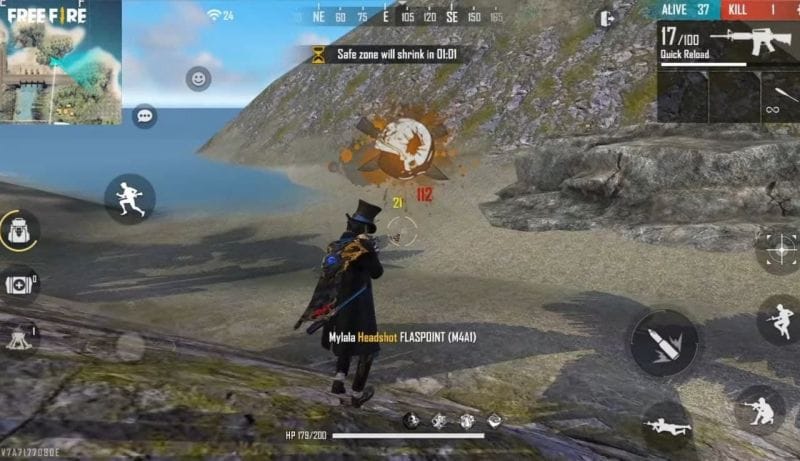
Jump into a ranked Clash Squad match. Focus on aiming and tracking, not winning. Play 2–3 matches and note any issues. Common problems: too slow to turn when an enemy flanks you (raise general by 2 or 3), overshooting when aiming down sights (lower red dot/scope). Don’t change more than one slider at a time. Keep a notepad with your current values. If you experience lag or stuttering, check the free fire sensitivity settings less lag guide to adjust graphics first.
Common Pitfalls
- Copying pro settings without testing: Pro players have different devices and grip styles. What works for them may feel terrible for you. Always tweak after copying.
- Changing too many sliders at once: You won’t know which adjustment helped. Change one by one and test thoroughly.
- Ignoring gyroscope if you have it: Gyro can help with micro-adjustments. If your device supports it, try a low gyro sensitivity (30–40) for fine aiming. Otherwise, use free fire max sensitivity settings without gyro as a reference.
Where to Next?
Once you have your Clash Squad sensitivity dialed in, consider optimizing other areas: HUD layout, key mapping, and device performance. For a complete setup that balances both modes, check our ultimate guide to best free fire sensitivity settings. Happy grinding!



