If you’re tired of missing shots or losing close-range fights in Free Fire, your sensitivity settings are probably the culprit. This guide is for anyone—from a fresh noob to a seasoned veteran—who wants to find that sweet spot where your crosshair moves exactly how you intend. By the end, you’ll have a personalized sensitivity profile that works with your device, your fingers, and your playstyle.
We’ll walk through DPI, general sensitivity, scope settings, gyro controls, and testing. No copy-paste pro settings that may not fit your phone. You’ll learn the *why* behind each slider, so you can tweak with confidence. Ready to laser your enemies? Let’s dive in.
What You’ll Need
- A phone or tablet running Free Fire (or Free Fire Max).
- 10–15 minutes of uninterrupted time in the Training Ground.
- Basic understanding of your device’s DPI settings (check your phone’s developer options).
- Patience—don’t change everything at once.
Step 1: Understand DPI and Sensitivity
Before touching sliders, know this: DPI (dots per inch) controls how fast your cursor moves outside the game, and in Free Fire, it affects the base movement speed of your camera and aim. Your phone’s DPI scale (found in Developer Options) interacts with in-game sensitivity. If you’re not sure what your DPI is, read our guide on Free Fire DPI and sensitivity settings first.
A lower DPI (like 240–320) gives you more control for micro-adjustments, while higher DPI (400+) lets you flick faster. I recommend starting at 320 and adjusting based on your screen size.
Step 2: Reset to Default
Go to Settings > Sensitivity and hit ‘Reset to Default’. This gives you a clean slate. My default numbers may vary by device, but we’ll build from there.
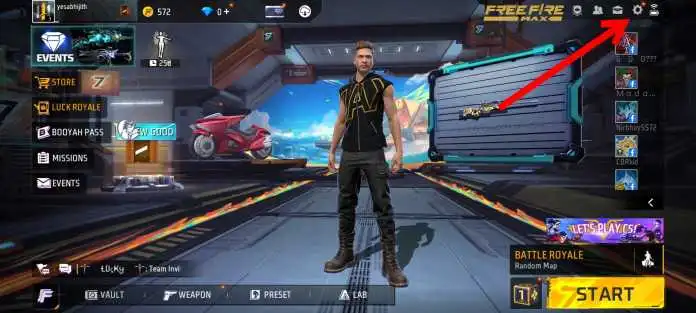
Step 3: Adjust General Sensitivity
General sensitivity controls your camera and aim when not using a scope. For most players, values between 80 and 100 work well. Start at 90. If you overshoot targets, lower it; if you can’t track quickly, raise it. For more advanced fine-tuning, check out our expert Free Fire sensitivity settings.
Step 4: Tweak Red Dot and Scope
Each scope has its own sensitivity. Begin with: Red Dot: 95, 2x Scope: 85, 4x Scope: 70, Sniper Scope: 50. These are safe starting points. If you mainly use ARs, keep Red Dot higher. For DMRs, lower the 4x a bit. Remember, consistency is key—you want the same feel across similar scopes.
Step 5: Gyroscope (Optional)
If your phone supports gyroscope, you can enable it for free aim correction. Start with gyro sensitivity at 50 for both camera and aim. Tilt your phone to adjust aim slightly without lifting your thumb. This is a game-changer for long-range taps. For camera-specific gyro tweaks, see our Free Fire camera sensitivity settings guide.
Step 6: Test and Fine-Tune in Training Ground
Head to the Training Ground and pick an AR with a Red Dot. Practice flicking between bots and tracking moving targets. If your aim feels off, adjust the relevant sensitivity by 5 points and try again. Do this until the crosshair lands where you look naturally. For a more systematic approach, use our accurate Free Fire sensitivity settings as a reference.
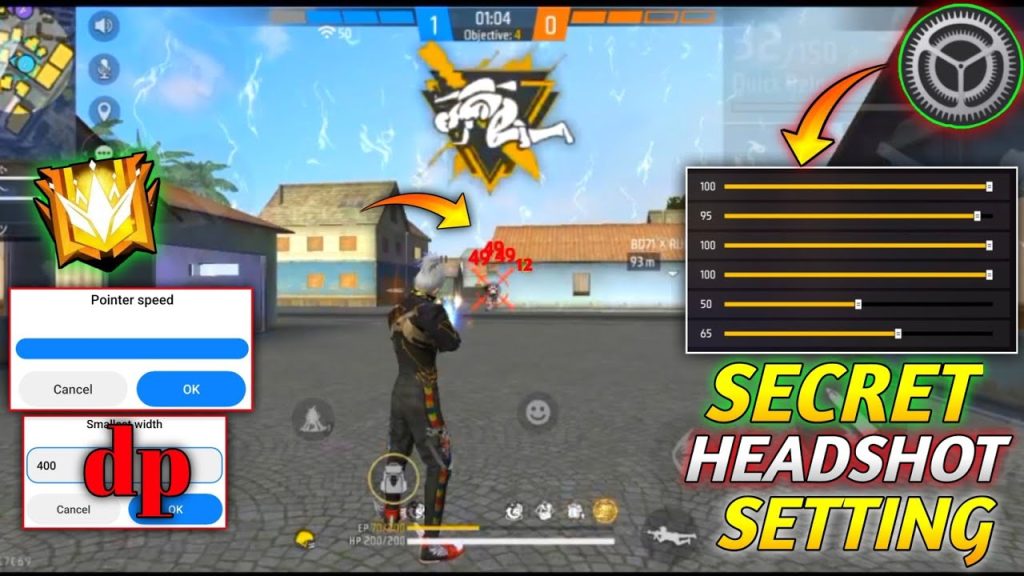
Common Pitfalls
- Copying pro settings without adaptation: Pros often play on high-end devices with low latency. Their settings may feel too fast or too slow on your phone. Always start from default and adjust to your feel.
- Changing too many settings at once: If you tweak DPI, general, scope, and gyro in one go, you won’t know what worked. Change one slider, test, then move to the next.
- Ignoring device performance: Low-end phones may struggle with high sensitivity, causing frame drops. If you experience lag, lower your graphics and sensitivity accordingly. Check the best Free Fire sensitivity settings for low-end phones if needed.
Where to Next
Now that you have a solid base, keep refining. Each weapon and playstyle may need minor tweaks. For the latest pro-crafted options, check out professional Free Fire sensitivity settings. Want a quicker setup? The best Free Fire sensitivity settings 2026 post has pre-tested numbers for popular phones. Happy headshot hunting!



