If you play Free Fire with just your thumbs—no claw grip, no gyroscope—you know the struggle. You swipe to aim, but the crosshair flies past. You try to control recoil, but your thumb cramps. You watch pro players who use four fingers and wonder, ‘Can I even compete?’ The answer is yes, but only if your sensitivity settings are dialed in for thumb-specific movement. This guide is for you, the dedicated thumb player who wants to improve aim, movement, and reaction time without changing your grip.
By the end of this step-by-step tutorial, you’ll have a custom sensitivity profile that works with your thumb’s natural motion. You’ll learn how to adjust every slider—from camera sensitivity to red dot scope—to reduce overswiping and improve tracking. We’ll also cover common traps that ruin thumb players’ aim and show you where to tweak further. You’ll be hitting headshots and winning close-range fights like never before.
What You’ll Need
- A phone or tablet running Free Fire (or Free Fire Max).
- About 20–30 minutes of uninterrupted time.
- Access to the Training Ground in Free Fire.
- Optional: a screen recorder to review your swipe patterns.
Step 1: Reset Your Current Sensitivity
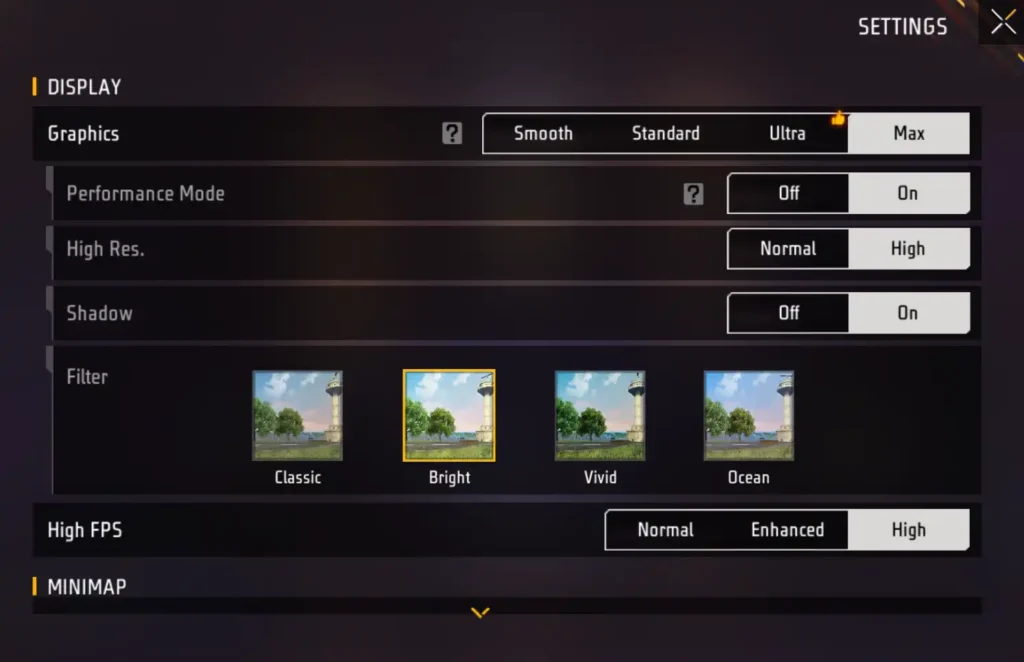
Before we build from the ground up, wipe your current settings. Go to Settings → Sensitivity and tap ‘Reset’ (or manually set every slider to 50). This removes any bad habits baked into your old numbers. Don’t worry, you’ll customize everything next.
Step 2: Set Your DPI (If Your Phone Allows)
DPI determines how many pixels your thumb swipe covers. For thumb players, a DPI between 300 and 400 works best. Lower DPI means more swiping but finer control; higher DPI means faster flicks but less precision. If you have developer options enabled, adjust it via ‘Smallest width’ (try 360). Otherwise, skip this step and focus on the in-game sliders. For more on this, check out our balanced DPI settings guide.
Step 3: Adjust Camera Sensitivity
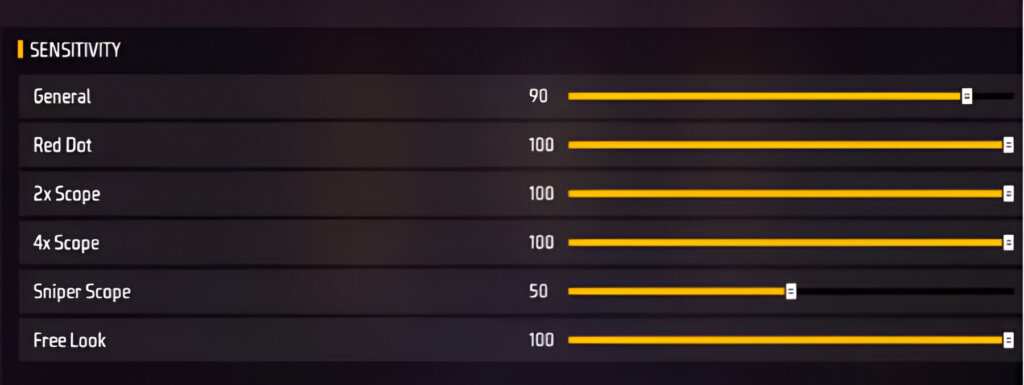
Camera sensitivity controls how fast your view moves when you swipe anywhere on screen. Thumb players usually need a medium-high camera sensitivity (around 80–90) to turn quickly without lifting their thumb. But if you overshoot targets, lower it. Start at 85, then test in Training Ground. If you’re still over-aiming, drop by 5 until you can snap to a dummy’s head consistently. For deeper breakdowns, see our dedicated article on camera sensitivity.
Step 4: Set ADS Sensitivity (Red Dot, 2x, 4x, etc.)
ADS sensitivity determines how fast the crosshair moves when you’re scoped in. For thumb players, lower ADS sensitivities (50–70) help with precise aiming because your thumb’s small movements translate into finer adjustments. But for close-range scopes like red dot, you might want higher (75–85) to keep up with strafing enemies. Start with these baseline numbers and then fine-tune: Red dot at 80, 2x at 70, 4x at 60, Sniper scope at 40.
Step 5: Tweak Fire Button Sensitivity and Recoil Control
Thumb players often struggle with recoil because they aim and fire with the same thumb. Use the ‘Customize HUD’ option to place the fire button slightly higher than your natural thumb rest. This forces you to stretch, which reduces accidental drag. Then, in Training Ground, fire a full magazine at a wall without moving your thumb. If the bullet pattern climbs too steeply, increase your Red Dot ADS sensitivity or lower your general sensitivity. For a comprehensive baseline, refer to our best sensitivity settings post.
Step 6: Test and Fine-Tune with Weapons
Each weapon class handles differently. For thumb players, the ideal setup balances speed and precision. Enter Training Ground and test these: MP40 (fast fire, close range), AK (high recoil), M1014 (shotgun, one shot). Use a BOT (run around dummies) and note if you over-swipe or under-swipe. If an MP40 sprays all over, lower your camera sensitivity. If an AK is impossible to control, increase ADS sensitivity for red dot. Repeat until all weapons feel comfortable. For those who love shotguns, our drag shot sensitivity guide can help.
Common Pitfalls
- Copying claw or gyro settings: Pro players using four fingers or gyroscope have very different swipe patterns. Their high camera sensitivity (100+) will make you over-rotate constantly. Start from scratch and ignore their numbers.
- Ignoring your phone’s DPI: Many phones have a default DPI that either makes your thumb slide too far or not far enough. If you don’t adjust developer options, at least test different ‘Smallest width’ values (360, 400, 440) in Settings → About phone.
- Not practicing with your new settings: Switching sensitivities mid-game leads to inconsistent aim. Dedicate at least 30 minutes in Training Ground and two full Classic matches before judging. Muscle memory needs time to adapt.
Where to Next
You’ve got a solid sensitivity foundation for thumb play. Now it’s time to build on it. Check out our guide on sensitivity settings for less lag if you’re experiencing frame drops. For low-end devices, we have dedicated low-end phone settings that keep your game smooth. And if you ever feel like your aim plateaus, revisit this process—sometimes a tiny tweak (like lowering your camera sensitivity by 5) can unlock a new level of consistency. Keep practicing, and those thumbs will become deadly.



