If you’ve ever watched a Free Fire YouTube video and wondered how those players flick-shot so fast, the secret is in their sensitivity settings. This guide is for anyone who’s tired of guessing and wants to copy the exact settings from their favorite streamers. By the end, you’ll know where to find sensitivity codes on YouTube, how to enter them step by step, and how to tweak them for your own device.
We’ll keep it casual — no jargon overload. Just practical steps that work on both Free Fire and Free Fire Max. Whether you’re a beginner or just want to improve your aim, these tips will save you hours of trial and error.
What You’ll Need
- A phone or tablet running Free Fire / Free Fire Max
- YouTube app or website
- A few minutes of free time
- Optional: a friend to help test settings in a custom room
Step 1: Find a YouTube Video with Sensitivity Settings
Open YouTube and search for something like “Free Fire sensitivity settings 2025” or “[pro player name] sensitivity code”. Look for videos where the player shares their settings in the description or ends the video with a settings screenshot. Many pros now include a code you can copy directly into the game.
Step 2: Copy the Sensitivity Code from the Description
Scroll down below the video to the description box. Tap “More” if needed. Look for a long string of numbers or a code starting with “FFSENSITIVITY…”. Long-press the code to copy it. If the codes are in an image, you’ll have to manually type them in later.
Step 3: Open Free Fire and Go to Sensitivity Settings
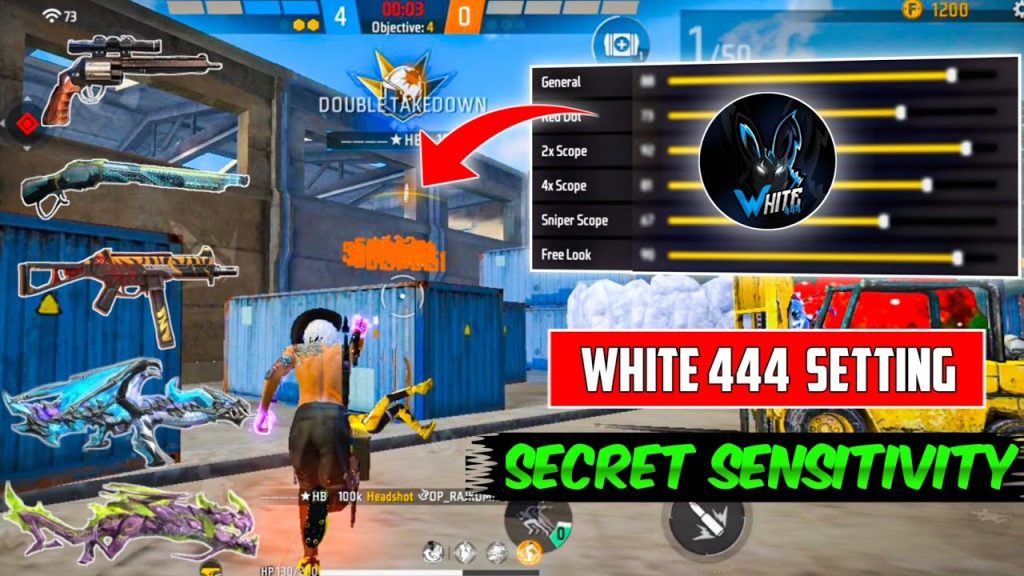
Launch Free Fire. From the main lobby, tap the gear icon (Settings). Then select the “Sensitivity” tab. You’ll see sliders for General, Red Dot, 2x Scope, 4x Scope, Sniper Scope, and Free Look. If your video provided a code, tap the “Import” button (usually a box with an arrow). Paste the code and confirm.
Step 4: Test the Settings in a Training Match
Don’t jump into ranked right away. Go to Training Ground or create a custom room with a friend. Practice spraying at different ranges and flicking to targets. If the settings feel too fast or too slow, adjust the sliders by 5–10 points until it’s comfortable.
Step 5: Fine-Tune for Your Device and Playstyle
Even the best pro settings need tweaking for your phone’s screen size and touch response. If your phone lags, check our guide on free fire sensitivity settings for frame drops. For better touch response, see free fire sensitivity settings with touch response. And if you want a built-from-scratch approach, our custom free fire sensitivity settings guide has you covered.
Common Pitfalls
- Copying settings blindly: What works for a streamer’s high-end phone might feel too fast on your device. Always start with their code, then adjust gradually.
- Forgetting to save after importing: Some players exit without hitting the save button. Make sure you see the confirmation pop-up before leaving settings.
- Using outdated codes: Sensitivity codes change with each update. Check the video upload date and comments to see if the code still works. For the latest, try tested free fire sensitivity settings from recent videos.
Where to Next
Now you can copy any pro’s sensitivity settings directly from YouTube. Don’t stop here — check out our other guides like the youtube free fire sensitivity settings article for more sources, or dive into free fire max sensitivity settings for pro players to dominate in the Max version. Happy gaming!



