If you’re tired of missing your shots in Free Fire, this guide is for you. Whether you’re a beginner who just started or a veteran looking to sharpen your aim, dialing in your sensitivity settings is the single biggest factor in winning gunfights. By the end of this step-by-step tutorial, you’ll have a set of tested sensitivity values that work for your device and playstyle—no more copying random pro settings that feel terrible.
We’ll walk through every slider, from general camera sensitivity to the per-scope options, and give you concrete starting numbers. You’ll also learn how to test your settings in the practice range and tweak for less recoil. Plus, we’ll cover common mistakes that throw off your aim. Grab your phone, open Free Fire, and let’s get your crosshair on point.
What You’ll Need
- A device with Free Fire or Free Fire Max installed
- At least 10 minutes of uninterrupted time
- Access to the practice range (unlocked at level 8 or via lobby)
- Patience to test and adjust (no one-hit-wonder settings)
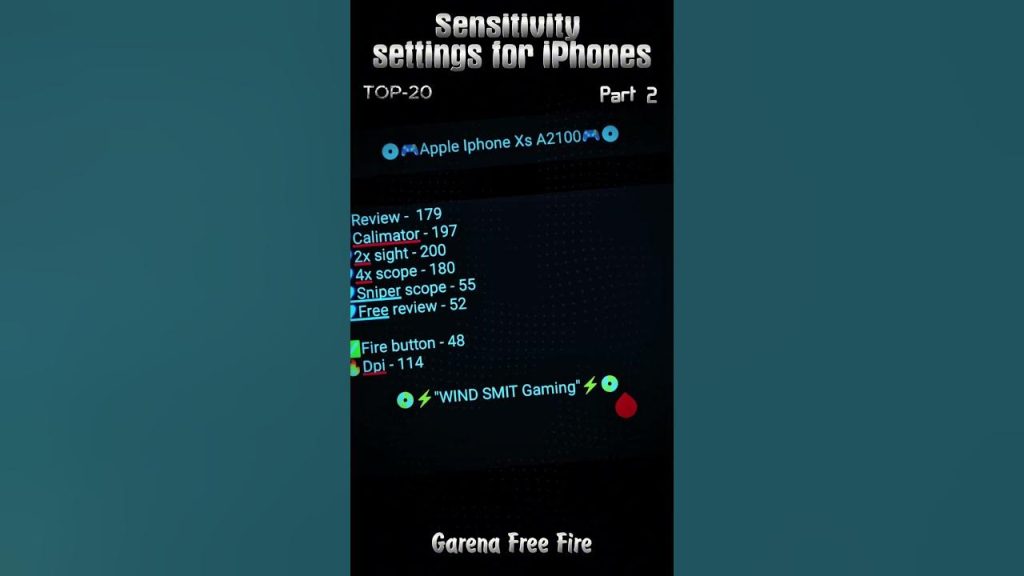
Step 1: Access the Sensitivity Settings
Open Free Fire and go to the main lobby. Tap the gear icon (Settings) in the top-right corner. Then navigate to the “Sensitivity” tab. You’ll see a list of sliders: General, Red Dot, 2x Scope, 4x Scope, Sniper Scope, and Free Look. Don’t panic if there are a lot—we’ll handle them one by one.
Step 2: Understand the Sensitivity Sliders
Each slider controls how fast your screen moves when you swipe. General sensitivity affects hip-fire and overall camera movement. Scope sensitivities (Red Dot, 2x, 4x, Sniper) control aim-down-sight speed. Free Look lets you move the camera without changing your movement direction (used for scouting). Higher values mean faster movement, but too high can make you overshoot targets.
Step 3: Set General Sensitivity
Start with your general sensitivity. A good baseline is 90–100 if you’re using a standard phone. For tablets, go lower (70–85) because the screen is bigger. If you play with thumbs, stick to 90–100. If you use four-finger or claw, 85–95 helps with accuracy. Remember: you can always adjust later.
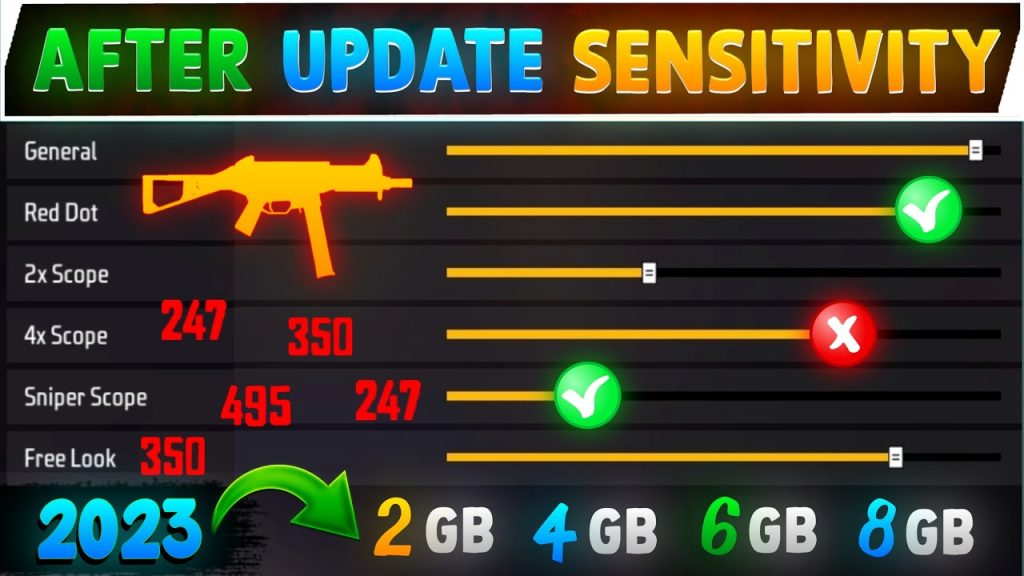
Step 4: Adjust Scope Sensitivities
Now set your scope values. For Red Dot (used with ARs and SMGs), start at 90–95. For 2x Scope, 85–90; for 4x Scope, 80–85; for Sniper Scope, 70–80. These numbers keep your aim steady while allowing quick flicks. If you use the 6x scope on an AR, 75–80 works well. Free Look should be low (50–60) so you don’t get nauseous while checking surroundings.
Step 5: Fine-Tune with DPI and Touch Response
Your device’s DPI (dots per inch) setting affects how the game interprets your swipes. Higher DPI means more sensitivity per millimeter of swipe. If you’ve already tried the basic sliders but aim still feels off, check out our tested sensitivity settings for a baseline that works on most devices. Also, enable “Touch Response” in settings if your device has it—it reduces input lag. For a deeper dive, see our touch response sensitivity guide.
Step 6: Test in Practice Range
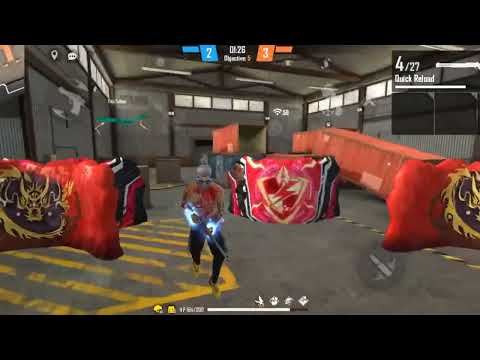
Head to the practice range (click “Practice” in the lobby). Pick any weapon and shoot at the standing targets. Try tracking a moving target while firing. Adjust your general sensitivity if your crosshair overshoots or undershoots. Spend at least 5 minutes here—it’s the most important part. For specific weapon tests, like the M1887 or AWM, refer to our sensitivity for new weapons guide.
Step 7: Tweak Based on Weapon Recoil
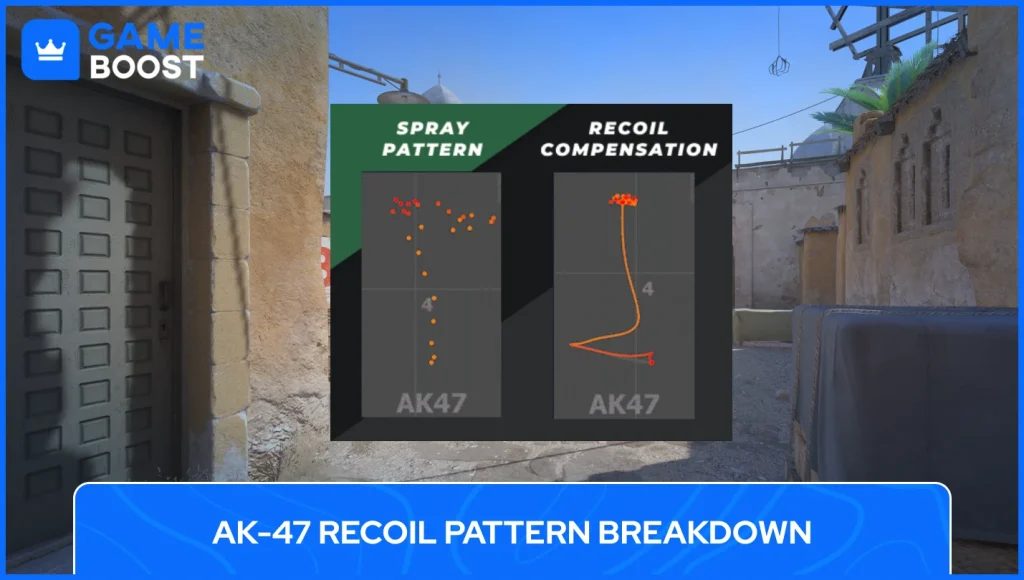
Different guns have different recoil patterns. For example, the M4A1 has low recoil, so you can use slightly higher sensitivity. The AK has high recoil—you might need to lower your general and 2x sensitivity to control it. Our less recoil sensitivity settings guide gives specific numbers for each popular weapon. Test with your main gun and adjust until you can consistently land headshots.
Common Pitfalls
- Copying pro settings without adjusting for your device. Pros often play on high-end phones with custom DPI; your device may not handle the same sensitivity smoothly.
- Ignoring frame drops. If your game lags, high sensitivity becomes uncontrollable. Lower your graphics and sensitivity together. Our guide on sensitivity for frame drops can help.
- Not accounting for screen size. A 6.5-inch phone needs different sensitivity than a 10-inch tablet. Always adjust general sensitivity based on your screen’s physical size.
Where to Next
Now that you’ve got a solid sensitivity setup, check out our custom sensitivity guide for advanced tweaks like per-gun presets. If you’re into competitive play, our precision aim sensitivity guide will help you fine-tune for headshots. And don’t forget to join the player discussion on sensitivity settings to share your own configurations. Happy hunting!



