If you’re rocking a phone with a 120Hz display, you’re already ahead of the game. But raw refresh rate alone won’t make you a headshot machine. The real magic happens when you pair that smooth screen with the right sensitivity settings. This guide is for anyone who wants to squeeze every ounce of performance out of their high-refresh device. By the end, you’ll have a custom sensitivity setup that feels like an extension of your hand, making your aim snappy and your movement fluid.
We’ll walk you through enabling 120Hz on your phone and in Free Fire, then dial in your general sensitivity, gyroscope, and per-weapon settings. No copy-paste nonsense—just a systematic approach that you can tweak for your personal playstyle. Let’s make your 120Hz screen work for you.
What You’ll Need
- A phone with a 120Hz display (make sure it’s turned on in Settings > Display)
- Free Fire or Free Fire Max installed (latest version)
- A few minutes in the Training Grounds to test settings
- Patience to fine-tune – one match won’t cut it
Step 1: Enable 120Hz on Your Phone and in Free Fire
First, make sure your phone is actually running at 120Hz. Go to your device Settings > Display > Refresh Rate and select 120Hz or High. Then, in Free Fire, open the in-game settings (gear icon) > Graphics > Display Mode and ensure it’s set to ‘Smooth’ (or whatever gives you the highest frame rate). Also, turn on ‘Ultra Frame Rate’ if available. This unlocks the full potential of your screen.
Step 2: Reset Sensitivity to Default (Optional but Recommended)
If you’ve tinkered before, reset your sensitivity to default in Free Fire > Settings > Sensitivity > Reset. This gives you a clean slate. We’re starting fresh.
Step 3: Set General Sensitivity for 120Hz
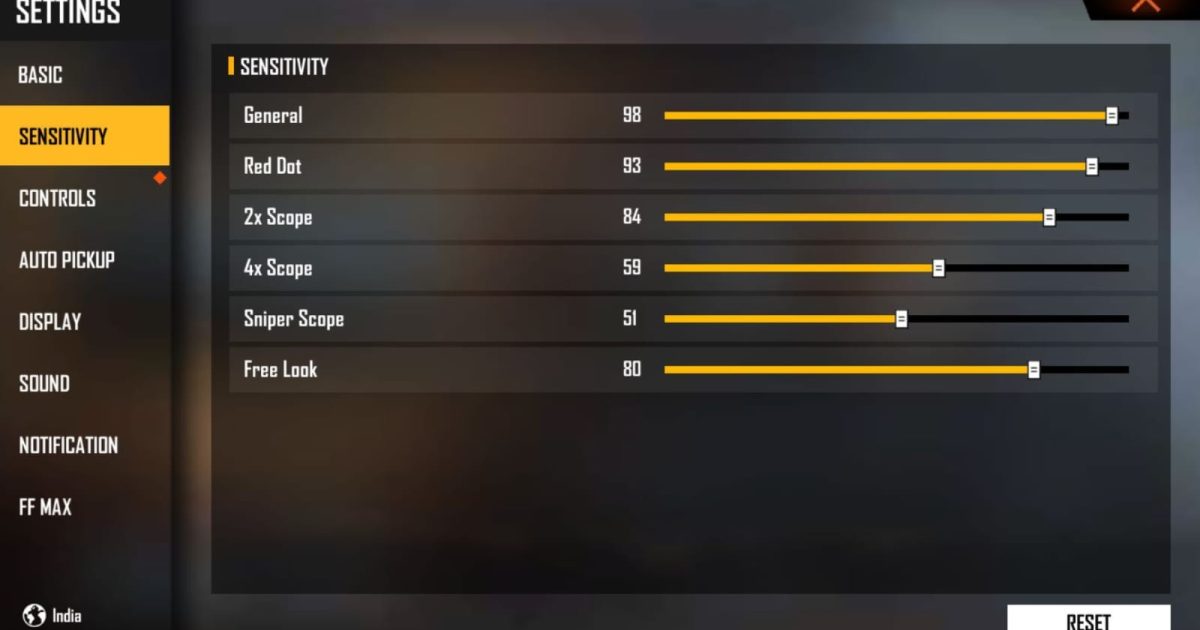
For a 120Hz screen, lower sensitivity can feel sluggish because the screen updates twice as fast as 60Hz. Start with these values in the ‘Sensitivity’ tab: General: 90–100, Red Dot: 85–95, 2x Scope: 80–90, 4x Scope: 70–80, Sniper Scope: 30–40, Free Look: 80–90. These are starting points — you’ll adjust them in Step 5.
Step 4: Tweak Gyroscope Settings for Precision
Gyroscope is a game-changer on 120Hz. Go to Settings > Sensitivity > Gyroscope and enable ‘Always On’. Use these starter values: General: 80–90, Red Dot: 70–80, 2x: 60–70, 4x: 50–60, Sniper: 10–20. The higher refresh rate makes gyro aiming buttery smooth. If you’re new to gyro, start lower (50) and increase gradually.
Step 5: Test in Training Grounds
Head to the Training Grounds and practice for at least 10 minutes. Move around, flick to targets, and spray at different distances. If you feel like you’re overshooting (moving past the target), lower your sensitivity. If you feel like you’re dragging, increase it. The goal is a 180-degree turn with a single swipe from center to edge of your screen.
Step 6: Fine-Tune Per Weapon Type
Different weapons behave differently. For close range (MP40, M1014) you want higher sensitivity for fast flicks. For long range (SCAR, Sniper) lower sensitivity helps. Increase your ‘General’ sensitivity by 5 for close-range weapons and decrease by 5 for snipers. Check out our free fire sensitivity settings for long range and free fire sniper scope sensitivity settings for detailed values.
Common Pitfalls
- Not enabling 120Hz in phone settings or in-game frame rate – you’re basically wasting your screen. Double-check both.
- Copy-pasting pro player settings without adjusting – they might use different phone sizes or play styles. Always start from a baseline and tweak for you.
- Ignoring gyroscope – on 120Hz, gyro is incredible for micro-adjustments. Don’t skip it.
Where to Next
Now that you’ve got a solid 120Hz sensitivity setup, keep refining. Read our free fire max sensitivity settings 2026 for more aggressive values. If you want community-tested settings, check out the free fire sensitivity settings user reviews. For movement-heavy playstyles, our free fire sensitivity settings for movement players will help. And don’t forget the winning free fire sensitivity settings that top players swear by. Happy hunting!



