If you’re a movement player in Free Fire—someone who relies on sliding, jumping, and quick strafes to outplay opponents—you know that sensitivity can make or break your flow. The default settings are too sluggish for those fast peek-and-shoot moves, and cranked-up sensitivity often leads to jittery aim. This guide is for you: the rusher who wants to feel like a ninja, not a tank. By the end, you’ll have a custom sensitivity profile tuned for maximum mobility, along with tips to fine-tune it on your own device.
We’ll walk through each slider step by step, from general sensitivity to gyroscope (if you use it). You’ll also learn how to test your settings in the training ground and avoid common mistakes that trip up movement players. Whether you’re grinding ranked or just want to style on enemies, these settings will help you slide into battles with confidence.
What You’ll Need
- A device running Free Fire (Android or iOS) with a stable internet connection.
- 10–15 minutes of free time (no distractions – you’ll be tweaking and testing).
- Your preferred control layout already set up (claw or thumbs – works for both).
- A clear head: be ready to adjust values by small increments if needed.
- (Optional) A friend or a bot match to test movement under pressure.
Step 1: Reset to Defaults and Understand the Sliders
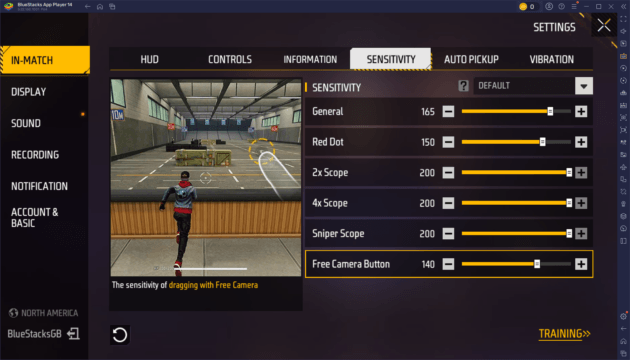
Before we dive in, go to Settings > Sensitivity and tap ‘Reset to Default.’ This ensures we start from a clean slate. Movement players need a balance: high enough for quick 180° turns and slide-cancels, but low enough to maintain control during close-range sprays. The key sliders are General Sensitivity, Red Dot, 2x Scope, and the Gyroscope (if enabled). We’ll set them one by one.
Step 2: Set General Sensitivity (The Foundation)
General sensitivity controls how fast your camera moves when you swipe without scoping. For movement, start at 90–95. This lets you spin quickly to spot enemies behind you, but it’s not so high that you overshoot. If you use a claw grip with multiple fingers, you can go higher (95–100), but thumb players often prefer 85–90. Test by doing a quick 180° turn – you should land precisely on your target.
Step 3: Configure Red Dot and 2x Scope (Common Engagement Ranges)
Movement players often engage at close to medium range, so Red Dot and 2x are critical. Set Red Dot to 90–95 (match your general) and 2x to 80–85. This gives you quick target acquisition without losing control. For higher scopes (4x, Sniper), keep them lower (60–70) since you’re not using those while moving aggressively. Remember, this is about movement, not long-range sniping.
Step 4: Tweak Gyroscope (If You Use It)
Gyro helps with micro-adjustments during movement. Enable it if your device supports it. Set Gyro General to 60–70, Gyro Red Dot to 70–80, and Gyro 2x to 60–70. This lets you tilt the phone to fine-tune aim while strafing. If you’re new to gyro, start lower (40–50) and work up. Test by moving left and right while keeping your reticle on a stationary target.
Step 5: Practice Movement in Training Ground
Head to the Training Ground. Practice sliding, jump-shotting, and quick peeks around corners. Your goal is to keep the reticle on the dummy while moving erratically. If you overshoot, lower sensitivity by 2–3 points. If you feel sluggish, increase by 2–3. fine-tune until your movement feels seamless. This is where the magic happens – don’t skip this step.
Step 6: Save Your Settings and Test in Real Matches
Once satisfied, go to Settings > Sensitivity and tap the ‘Save’ button (or screenshot your values as backup). Then jump into a Clash Squad or ranked match. Focus on movement: sliding into cover, quick turns, and close fights. If something feels off, note it and adjust after the match. Remember, consistency comes with practice. For reference, you can check our free fire sensitivity settings after phone update guide if you recently updated your device.
Common Pitfalls
- Too high sensitivity: Cranking everything to 100 will make your aim jittery. Movement players need control – keep general below 95 unless you’re a seasoned claw user.
- Neglecting gyro calibration: If you use gyro, make sure your phone’s sensors are calibrated. An uncalibrated gyro can cause drifting, ruining your movement.
- Copying pro settings blindly: Pros use different grips and devices. Use their values as a starting point, but always tweak for your own comfort. Our tested free fire sensitivity settings guide offers a great baseline.
Where to Next
You’ve got the movement-friendly sensitivity – now it’s time to sharpen your gameplay. Check out our free fire sensitivity settings for ranked mode if you’re climbing the ladder. For extreme close-range dominance, try our free fire sensitivity settings rush sensitivity. And don’t forget to learn how to save free fire sensitivity settings so your hard work never gets lost. Happy sliding!



