If you’re tired of losing gunfights because your aim feels off, you’ve come to the right place. This guide is for anyone who wants tested Free Fire sensitivity settings that work on most devices. Whether you’re a beginner or a seasoned player, these settings will help you lock onto enemies faster, control recoil better, and land more headshots. By the end, you’ll have a personalized sensitivity profile that you can trust in ranked matches and squad battles.
I’ve spent hours tweaking and testing these values across different phones and DPIs. These aren’t random numbers – they’re optimized for smooth tracking and quick flick shots. We’ll start with a backup, then move through each sensitivity category step by step. Ready to upgrade your gameplay? Let’s go.
What You’ll Need
- A device running Free Fire (Android/iOS)
- A stable internet connection
- 5–10 minutes in the training ground
- Your preferred DPI settings (if you use a separate DPI tool, check our DPI 700 sensitivity settings for reference)
- A backup method (screenshot your settings or note them down)
Step 1: Backup Your Current Settings
Before making any changes, it’s smart to save your current configuration. This way you can always revert if something feels off. Open the Free Fire settings, go to the sensitivity tab, and take a screenshot or write down the values. If you ever need to restore them, check out our guide on how to reset free fire sensitivity settings. It also covers what to do if you lose your settings after a device reset.
Step 2: Understand the Sensitivity Categories
Free Fire divides sensitivity into several categories: General, Red Dot, 2x Scope, 4x Scope, Sniper Scope, and Free Look. Each affects different aspects of your aim. General sensitivity controls your overall camera movement, while scope-specific ones adjust aim when using scopes. For beginners, focus on General and Red Dot first – they cover most combat situations. Our advanced sensitivity settings guide dives deeper into tweaking each category for competitive play.
Step 3: Start with Recommended Base Values
Here are tested starting points that work well on most devices. You can adjust later based on your playstyle. For a standard DPI (like 700), try these:
- General: 85–90
- Red Dot: 80–85
- 2x Scope: 75–80
- 4x Scope: 60–70
- Sniper Scope: 40–50
- Free Look: 70–80
If you use a different DPI, like 600 or 800, you’ll need to scale accordingly. Our guide on DPI 700 sensitivity settings explains how to match your DPI to these values for perfect aim.
Step 4: Test in the Training Ground
Head to the training ground to try out your new settings. Practice tracking moving targets, flicking to stationary dummies, and spraying at close range. Pay attention to whether you’re over-aiming (too high sensitivity) or under-aiming (too low). A good test is to do a 180-degree turn: if it feels smooth and natural, your General sensitivity is close. If you feel dizzy or can’t control the crosshair, lower it by 5. The goal is to have consistent control without fighting your own settings.

Step 5: Fine-Tune for Recoil Control
Recoil management is key to winning extended fights. After your initial test, focus on controlling the spray pattern of your favorite weapons (like M4A1 or AK). If your crosshair jumps too much, lower your General or Red Dot sensitivity slightly. For specific tips, check our sensitivity settings for less recoil guide – it includes weapon-specific adjustments. Remember, lower sensitivity helps with recoil but may hurt your turn speed. Find the sweet spot.

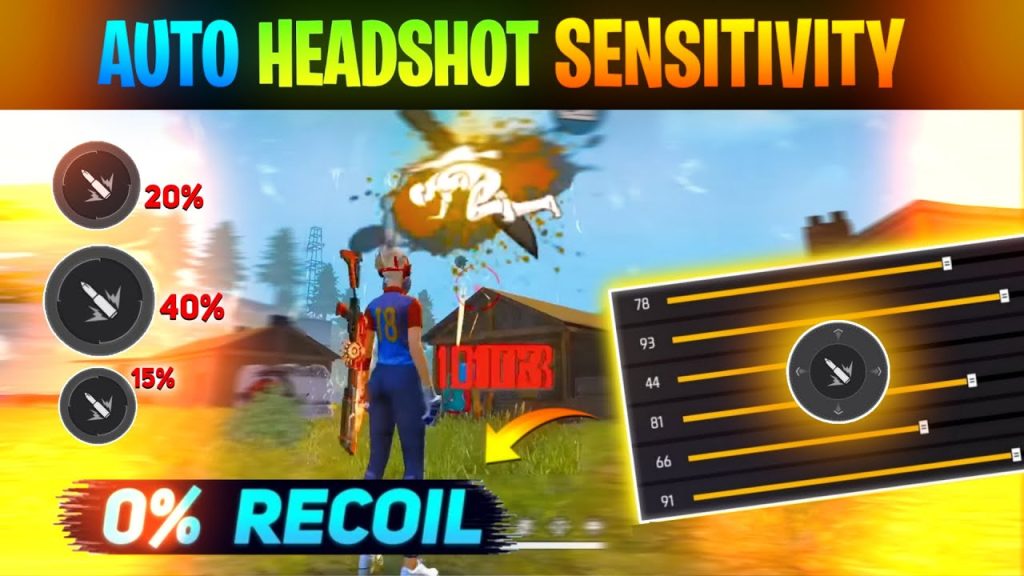
Step 6: Adjust for Quick Headshots
Headshots require precision and fast reflexes. To improve, try raising your Red Dot sensitivity by 2–3 from your base value. This lets you flick upward quickly to catch heads. Practice in the training ground targeting the head at different distances. For more advanced techniques, our sensitivity settings for quick headshots guide breaks down crosshair placement and flick drills.
Step 7: Save and Practice
Once you’re happy, save your settings. Now spend at least 3–4 matches with them to build muscle memory. Avoid changing settings mid-game – stick with a set for a few days. If something feels off, make small adjustments (2–3 points at a time). Consistency is key. If you ever mess up, you can restore your backup or follow our free fire sensitivity settings after reinstall guide to start fresh.

Common Pitfalls
- Copying settings from pros without testing: What works for a YouTuber might not work on your device or playstyle. Always start from a base and tweak.
- Changing settings too often: If you adjust every match, you’ll never build muscle memory. Dedicate at least a few sessions to one configuration.
- Ignoring DPI: Your phone’s DPI affects how sensitivity feels. Make sure you’re using a consistent DPI, or adjust sensitivity accordingly. Check our DPI 700 sensitivity settings for a reference.
Where to Next
You’ve got your tested sensitivity settings – now keep improving. Explore our other guides like advanced sensitivity settings for competitive play, or learn how to optimize your device for smoother gameplay. Remember, the best settings are the ones you practice with consistently. Good luck in your next rank push!
Sensitivity is personal – but starting from tested values saves hours of trial and error.
Free Fire Settings Team



