
If you’re playing Free Fire on a PC emulator or using a mouse with OTG on mobile, DPI 700 is the sweet spot for smooth, accurate aim. This guide walks you through the exact sensitivity settings to pair with your 700 DPI mouse so you can land every shot without jittery crosshairs. Whether you’re a claw player or a thumb player, these tweaks will transform your gameplay.
By the end of this tutorial, you’ll have a customized sensitivity profile that lets you flick, track, and scope with confidence. You’ll also learn how to avoid common mistakes that ruin your aim. Ready to dominate? Let’s dive in.
What You’ll Need
- Free Fire installed on your PC emulator (e.g., Gameloop, BlueStacks) or mobile device with mouse support via OTG
- A mouse that supports DPI adjustment (set it to exactly 700 DPI)
- Access to the Free Fire training ground (to test and fine-tune)
- A few minutes of uninterrupted practice time
Step 1: Set Your Mouse DPI to 700
Before touching Free Fire settings, make sure your mouse is running at 700 DPI. Most gaming mice have a dedicated DPI button or software. Check your mouse manual or manufacturer’s app. If you’re unsure how to configure it, check out our guide on how to use DPI with Free Fire sensitivity. Once set, disable any mouse acceleration in your OS settings for raw input.

Step 2: Open Free Fire Sensitivity Settings
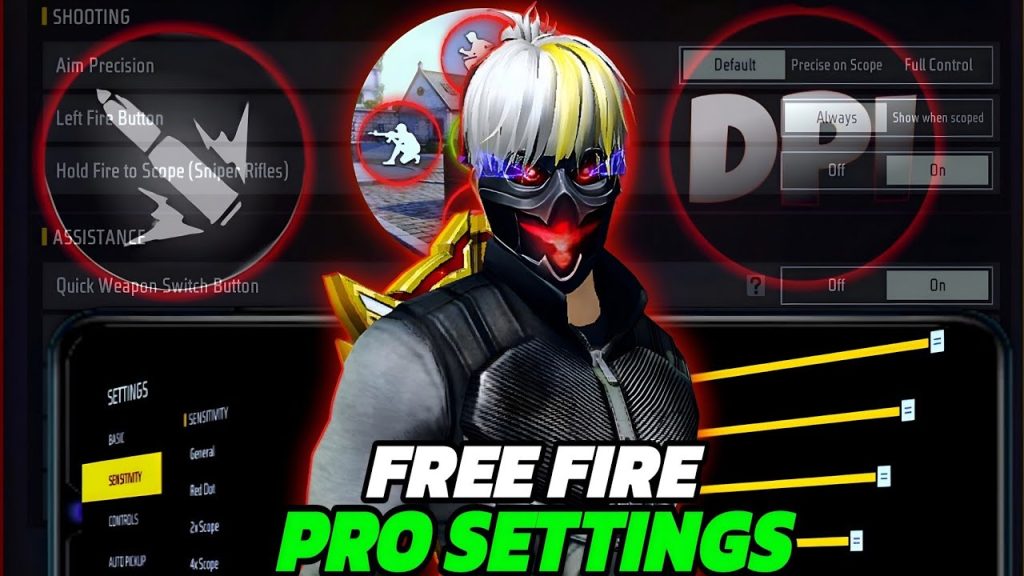
Launch Free Fire and go to Settings > Sensitivity. You’ll see sliders for General, Red Dot, 2x Scope, 4x Scope, Sniper Scope, and Free Look. With DPI 700, we want a balance between speed and control. Start with these baseline values: General: 85, Red Dot: 80, 2x Scope: 70, 4x Scope: 55, Sniper Scope: 45, Free Look: 80. These are starting points—you’ll tweak them in Step 4.
Step 3: Adjust Camera and Scope Sensitivity
For DPI 700, fine-tune your camera control settings so you can track enemies smoothly. The General slider controls your hip-fire look speed. Keep it between 80-85 for quick reaction. Red Dot and 2x Scope should be slightly lower to maintain precision at mid-range. For snipers, lower sensitivity (40-45) prevents over-aiming. If you’re a gyro user, consider combining these with gyro sensitivity settings for extra control.
Step 4: Test in Training Ground and Fine-Tune
Head to the training ground. Pick a weapon you use most (e.g., AK, M4, or AWM). Practice flicking to stationary and moving targets. If your crosshair overshoots, lower the corresponding sensitivity by 3-5 points. If you feel sluggish, increase by 3-5. Repeat until you hit consistent headshots. Use the sensitivity settings helper if you want a data-backed baseline. Also, don’t forget to test quick headshot settings from a separate guide to refine your tap fire.
Step 5: Save and Apply in Real Matches
Once you’re satisfied, save your settings. Play a few unranked matches to see how they feel under pressure. Avoid changing settings mid-game. Stick with your DPI 700 configuration for at least 10-15 matches to build muscle memory. For advanced optimization, check out pro Free Fire settings from tournament players—they often share their exact sensitivity sliders.
Common Pitfalls
- Forgetting to apply settings: After tweaking sliders, tap the ‘Save’ button. Many players exit without saving and wonder why nothing changed.
- Too high scope sensitivity: With DPI 700, higher scopes (4x, Sniper) need lower sensitivity. A common mistake is leaving them at 80+ which causes shaky aim.
- Not adjusting for different weapons: Each gun has different recoil. Your sensitivity for an AK might be too fast for a SCAR. Visit our free fire sensitivity settings for SCAR article for weapon-specific tweaks.
Where to Next
You’ve got the DPI 700 settings dialed in. To take your aim even further, explore our guide on quick headshot settings for tap-fire drills, or learn how camera control settings can improve your peripheral vision. If you play on a tablet, we have dedicated settings for that too. Keep practicing, and see you in the winner’s circle!



