If you’ve been struggling with your aim in Free Fire, you’re not alone. The difference between a headshot and a miss often comes down to your sensitivity settings. This guide is for every player — whether you’re a newbie who just installed the game or a veteran stuck in a ranking rut. By the end, you’ll have a custom sensitivity profile that feels like an extension of your thumb, giving you consistent shots and smoother recoil control.
Forget about blindly copying pro settings from YouTube. Those numbers might not work for your device, your grip, or your playstyle. Instead, we’ll use a sensitivity helper — a simple but effective method that lets you find your own sweet spot. We’ll walk you through the process step by step, so grab your phone and let’s get started.
What You’ll Need
- Free Fire installed on your phone or tablet (any version works).
- A sensitivity helper app (optional but recommended). Apps like “Sensitivity Test” or “Aim Lab Mobile” can give you a baseline, but you can also do this manually in the game’s training mode.
- 10–15 minutes of uninterrupted time to test and tweak.
- A notepad or the game’s built-in save feature to record your settings.
- Patience – perfect sensitivity isn’t found in one try.
Step 1: Understand the Sensitivity Options
Before you touch those sliders, open Free Fire’s settings and go to the Sensitivity tab. You’ll see several categories: General, Red Dot, 2x Scope, 4x Scope, Sniper Scope, and Free Look. General affects all unscoped aiming. The scope-specific settings let you fine-tune each magnification. There’s also an option for Accelerated Sensitivity (also called gyroscope or aim assist). For this guide, we’ll focus on standard sensitivity sliders.
If you’re completely new, start with the default values. Most pro players run General between 50–70, Red Dot around 60–80, 2x Scope 40–60, 4x Scope 30–50, and Sniper Scope very low (10–30). But these are just starting points. Your own numbers will depend on your phone’s DPI, screen size, and how your fingers swipe.
Step 2: Use a Sensitivity Helper App (or a Simple Website)
A sensitivity helper tool calculates your ideal sensitivity based on your physical swipe length and preferred crosshair movement. For example, you can use an app like “Sensitivity Matcher” or visit a website like mouse-sensitivity.com (yes, it works for mobile too). These tools ask you to perform a 180-degree turn by swiping from one edge of your screen to the other. The tool then suggests a sensitivity value that matches your gesture.
If you don’t want to download anything, you can do the same manually: go to Free Fire’s training mode, stand in front of a wall, mark a spot, then swipe from left to right across the whole screen. Adjust your General sensitivity until a full swipe turns you exactly 180 degrees. This gives you a natural, muscle-memory-friendly baseline.
Once you have your General sensitivity, apply similar logic for each scope. For Red Dot, you want a quick but controlled aim, so set it slightly higher than General. For higher scopes, lower values help with precision.
Step 3: Test in Training Mode and Adjust Recoil Control
Now it’s time to hit the training ground. Pick a weapon you use most — like the M4A1, AK, or Groza. Shoot at a wall at medium range without compensating for recoil. Watch the bullet pattern. Then adjust your sensitivity while dragging down to keep the crosshair steady. If you overshoot, lower it; if you can’t pull down fast enough, raise it.
Repeat this for different scopes. For example, with a 2x scope, you’ll need less sensitivity than hip fire. A good rule: your 2x Scope should be about 10–15 points lower than your Red Dot. Use the training dummies to practice tracking moving targets. You’ll soon feel which settings are too twitchy or too sluggish.
Step 4: Fine-Tune Scope by Scope
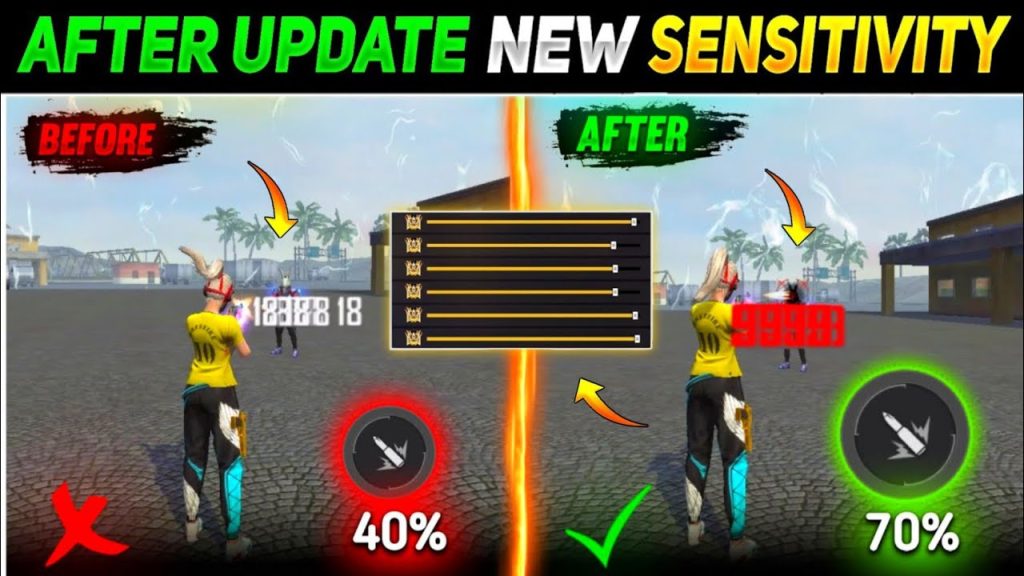
Once you’re comfortable with General and Red Dot, move to higher scopes. For a 4x scope, you want low sensitivity for stable long-range shots. Many pro players set it around 30–40. Sniper Scope should be even lower — think 10–20 — because you need pixel-perfect aim. Free Look (the camera when moving) can be left at default or slightly increased for better situational awareness.
Don’t forget to test in real matches. Settings that feel great on dummies might not work in chaotic Clash Squad or Battle Royale. Jump into a casual match and see if you can track enemies while sliding or jumping. Adjust by 5 points at a time until it feels right.
Step 5: Save and Share Your Settings
Once you’ve found your perfect numbers, take a screenshot or save them as a preset. Free Fire allows you to export settings via a sharing code. You can then share it with friends or keep it for backup. If you ever switch devices, you can import those settings instantly. Check out our guide on free fire sensitivity settings sharing code to learn how.
Also, consider writing down your settings in a notes app. It’s easy to accidentally reset everything after an update. Having a backup saves you from hours of retweaking.
Common Pitfalls
- Blindly copying pro settings – Their phone, fingers, and playstyle are different. Always start from your own baseline.
- Changing too many sliders at once – If you adjust everything in one go, you won’t know which change made the difference. Tweak one at a time.
- Ignoring your device’s performance – On weaker phones, high sensitivity can cause frame drops. Check our optimized free fire sensitivity settings for a balance.
- Not testing in real combat – Training mode is great, but pressure affects your swipes. Play a few real matches before finalizing.
If you find your aim still feels off, revisit the basics. Check your DPI settings or try a different grip. Sometimes it’s not the sensitivity but your crosshair placement or reaction time. Keep practicing.
Where to Next
Now that you have a solid sensitivity foundation, you can explore more advanced topics. Check out our beginner free fire sensitivity settings guide if you want a structured starting point. For aggressive rushers, our free fire sensitivity settings for clash squad will help you dominate close-range fights. And if you’re into long-range tapping, don’t miss our optimized free fire sensitivity settings for stable FPS. Remember, sensitivity is personal – keep tweaking until it feels like second nature.