If you’re playing Free Fire on a budget phone with a weak processor, you’ve probably experienced lag, frame drops, and stuttery aiming. It’s frustrating when your device can’t keep up, especially in close fights. This guide is for you. By the end, you’ll have a set of sensitivity settings tuned for low-end hardware, plus a few tricks to squeeze out extra performance.
We’re not going to give you one magic number – sensitivity is personal. But we’ll show you a starting point that reduces input lag and minimizes processor strain. You’ll learn how to dial in your aim smoothness while keeping everything responsive, even on a Snapdragon 450 or MediaTek Helio P22.
What you’ll need
- A phone running Free Fire (or Free Fire Max) with a weak processor (e.g., Snapdragon 4xx, MediaTek Helio A22/P22, Unisoc T606).
- The game updated to the latest version (as of 2025).
- A stable internet connection – ping spikes make lag worse.
- 5-10 minutes in the training ground – no real matches while tweaking.
- Optional: a screen recorder to review your aim later.
Step 1: Reset existing settings to default
Before we start, clear any previous sensitivity adjustments. Go to Settings > Sensitivity and tap “Reset to Default”. This gives you a clean slate. If you’re coming from another guide, your old settings might be built for high-end devices – we need a fresh start.
Step 2: Adjust General sensitivity – start low
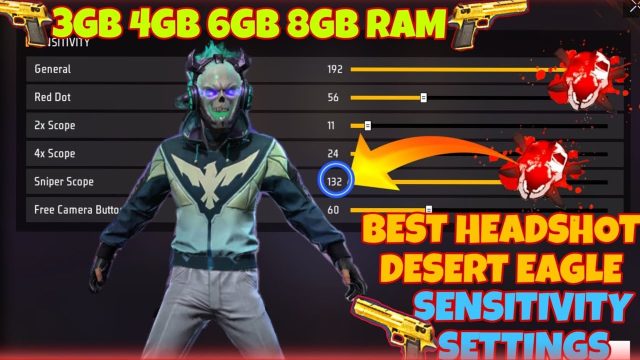
Weak processors struggle with high sensitivity because the game has to calculate more movements per frame. Set General to 60. That’s the sweet spot: not too sluggish, but won’t overload your CPU. If you’re a claw player, you can try 70, but for thumbs stick to 60. For more on thumb-specific setups, check out the free fire sensitivity settings for thumb players.
Step 3: Red Dot, 2x, 4x scope sensitivities
These scopes are used in medium-range fights and need precision. Set each to 55–60. Lower values mean less processor work because the game doesn’t need to redraw the scope overlay as often. For the 4x scope, keep it at 55 – higher makes aiming jittery on weak devices.
Step 4: Sniper and Free Look – keep them low
Sniper scope sensitivity should be around 30–35. You don’t need fast flicks with a sniper, and low sensitivity reduces the load when zooming. Free Look (the eye icon) set to 50 max. It’s used for scanning, and high values stutter on weak processors. For more on overall optimization, see the optimized free fire sensitivity settings.
Step 5: Fire button and ADS sensitivity tweaks
Keep the fire button sensitivity at default (100) – it doesn’t affect performance. ADS (aim down sight) sensitivity should match your general sensitivity. Set it to 60. If you notice stutter while ADS, lower it to 55. Also, disable “aim assist” if you have it on – it can cause micro-stutters on weak processors. For devices like Xiaomi, see the best free fire sensitivity settings for xiaomi for device-specific advice.
Step 6: Test in the training ground
Hop into the training ground and practice moving your crosshair on targets. Pay attention to frame drops when turning quickly. If the game stutters, lower each sensitivity by 5 and test again. Your goal is smooth, consistent aim without sudden jumps. If you’re on Free Fire Max, you can also lower graphics settings to ‘Smooth’ and ‘High’ frame rate – this reduces processor strain. Check out the free fire max sensitivity settings for android for more.
Common pitfalls
- Copying pro settings blindly – They use high-end phones. Their settings will lag your device. Always start low.
- Ignoring graphics settings – Sensitivity alone won’t fix lag. Lower resolution, turn off shadows, and disable background apps.
- Changing too many values at once – Make one adjustment, test, then the next. Otherwise you won’t know what helped.
Where to next
Now that you have a stable sensitivity setup, you can focus on other aspects. If you want to share your settings with friends, learn how to clone free fire sensitivity settings. For aggressive rushing, see the guide on free fire sensitivity settings for aggressive rushing. And if you ever upgrade your phone, revisit our free fire sensitivity settings updated guide for 2025. Keep practicing, and don’t let a weak processor hold you back.