
If you’re playing Free Fire Max on Android and feel like your aim is just a bit off, you’re not alone. The default sensitivity settings are okay for casual play, but to really beam enemies and win those clutch fights, you need to fine-tune them. This guide is for every Android player who wants a competitive edge without spending hours testing random numbers. By the end, you’ll have a set of sensitivity values that work great on most Android devices, plus you’ll know how to tweak them for your own phone.
We’ve tested these settings on a variety of Android phones, from budget devices to flagships, and they strike a sweet spot between fast turning and precise aiming. Of course, every phone is a little different, so we’ll also show you how to adjust based on your screen size and touch response. And if you’re coming from regular Free Fire, don’t worry — the same principles apply. For even more options, check out our best free fire sensitivity settings guide.
What You’ll Need
- Free Fire Max installed on your Android phone (latest version recommended).
- A stable internet connection to avoid lag while testing.
- 10-15 minutes of free time — we recommend doing this in Training Mode or a Clash Squad match.
- Optional: a screen recorder to review your aim later.
Step 1: Open Sensitivity Settings
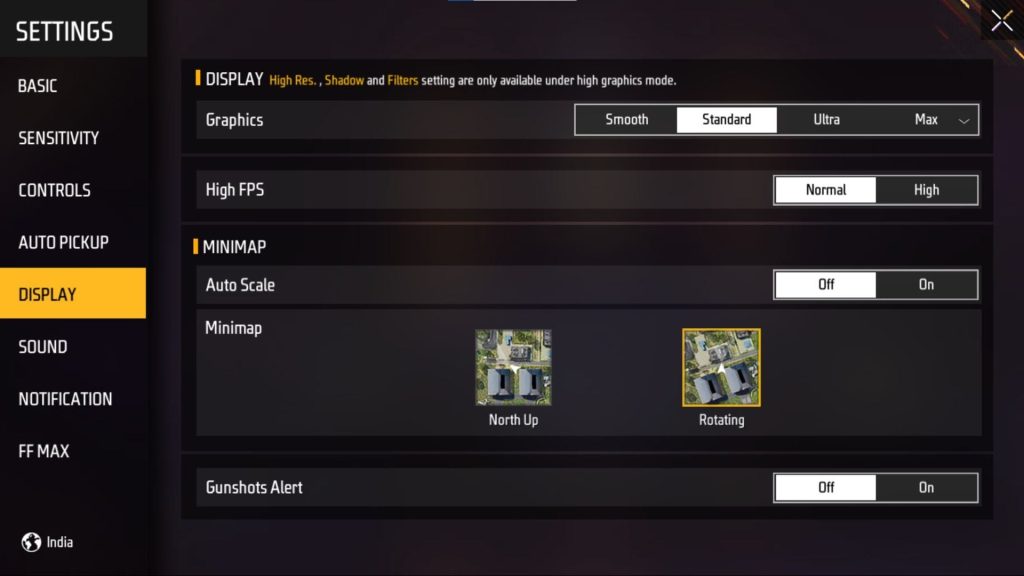
Launch Free Fire Max and tap on the gear icon in the top right corner to open Settings. Then go to the ‘Sensitivity’ tab. You’ll see sliders for General, Red Dot, 2x Scope, 4x Scope, Sniper Scope, and Free Look. Don’t worry about the numbers you see — we’re about to change them all.
Step 2: Adjust General Sensitivity
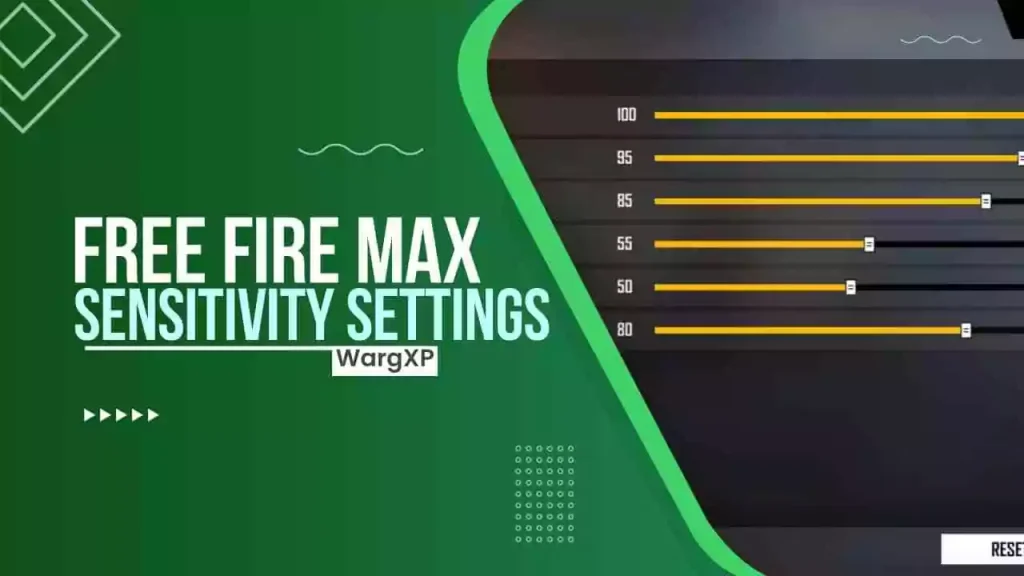
The General sensitivity controls how fast your character turns when you swipe anywhere on the screen (outside of scope areas). For most Android phones, a value between 90 and 100 works great. This lets you do quick 180-degree spins without lifting your finger. Start at 95 and test it — if you overshoot targets, lower it a bit; if you feel too slow, increase it.
Step 3: Set Red Dot and 2x Scope Sensitivity
These scopes are your go-to for close to medium range fights. Set Red Dot sensitivity to 70 and 2x Scope to 60. These values allow you to track moving enemies smoothly while still being able to flick to headshots. If you find the aim too jittery, reduce by 5 points. For more tailored options, check out our sensitivity settings for thumb players.
Step 4: Configure 4x and Sniper Scope

For long-range engagements, you need more control. Set 4x Scope to 50 and Sniper Scope to 40. These lower values prevent your crosshair from flying off target when you breathe or get hit. If you use the AWM or Kar98k, you can even drop the sniper sensitivity to 35. Remember, you can always adjust later — the key is consistency.
Step 5: Tweak Free Look Sensitivity
Free Look lets you look around while running in a straight line — essential for checking your surroundings without stopping. Set this to 80. It’s high enough to scan quickly but not so fast that you lose orientation. If you’re a thumb player, you might prefer 85 for faster peeks.
Step 6: Test in Training Mode
Now it’s time to test! Head to Training Mode and practice your recoil control with different weapons. Try spraying an M4 at 50 meters, then switch to a single tap with a sniper. If you feel that your aim is too shaky, reduce General by 2-3 points. If you can’t keep up with enemies, increase Red Dot or 2x slightly. Spend at least 10 minutes here — don’t jump straight into a ranked match. For a more advanced tweaking method, see our optimized free fire sensitivity settings.
Common Pitfalls
- Copying pro settings blindly: Pro players have different phones, screen sizes, and even grip styles. What works for them may feel terrible on your device. Always start from a baseline and adjust.
- Changing too many settings at once: If you tweak every slider every game, you’ll never know what worked. Change one value at a time and test it thoroughly before moving on.
- Ignoring DPI settings on your phone: Your phone’s DPI affects how fast your screen registers touches. Pair our settings with a lower DPI for smoother aiming — learn more in our free fire dpi and sensitivity settings guide.
Where to Next
You’ve got a solid sensitivity setup now, but there’s always more to learn. If you want to reduce lag even further, read our sensitivity settings for less lag. For aggressive Clash Squad matches, try our clash squad sensitivity settings. And if you’re ready to go pro, dive into expert free fire sensitivity settings. Happy fragging!



