If you’re new to Free Fire, one of the first things you’ll hear is “tweak your sensitivity settings.” But what does that even mean? Sensitivity controls how fast your screen moves when you swipe. Get it right, and you’ll land headshots like a pro. Get it wrong? You’ll spray bullets everywhere. This guide is made for absolute beginners — no confusing jargon, no pro tricks. By the end, you’ll have a solid starting sensitivity that you can adjust as you improve.
We’ll walk you through the key settings, show you how to test them in the training ground, and give you a baseline to start with. You don’t need any special tools or third-party apps. Just your phone, Free Fire installed, and a few minutes of your time. Let’s dive in.
What You’ll Need
- Free Fire (or Free Fire Max) installed on your phone
- At least 10–15 minutes of uninterrupted time
- A stable internet connection
- Your phone’s DPI setting (optional — see our guide on free fire dpi and sensitivity settings)
- A willingness to practice a few rounds in the training ground
Step 1: Find the Sensitivity Settings Menu
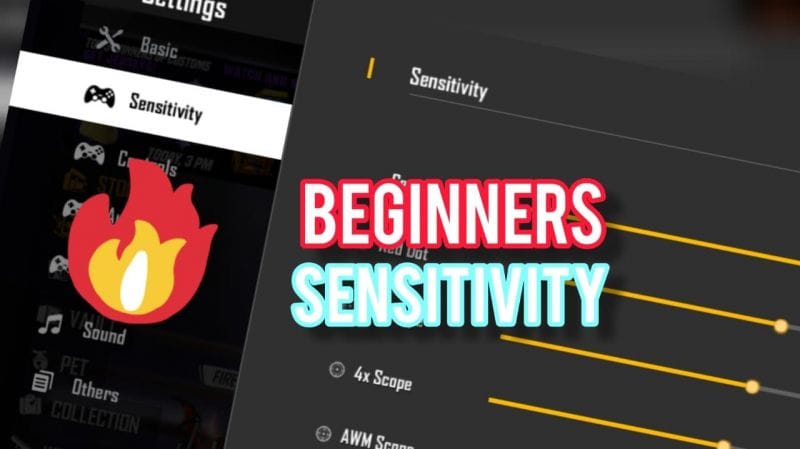
Open Free Fire and tap the gear icon (Settings) in the top-right corner of the lobby. Then tap on the “Sensitivity” tab. This is where all the sliders live. Don’t worry — we’re going to break them down one by one.
Step 2: Reset to Default (Optional but Recommended)
If you’ve already messed around with settings, tap “Reset” at the bottom of the sensitivity screen. This gives you a clean slate. Beginners should start from the default values and then make small changes. If you want to skip the grind, you can use someone else’s settings — check out our article on free fire sensitivity settings sharing code to import a trusted setup.
Step 3: Understand the Main Sliders
There are three main groups: General, Red Dot, and Scope. Each affects how fast the screen moves when you’re hip-firing (no scope), using a red dot sight, or zoomed in with a scope. For beginners, here’s a good starting point: General: 80, Red Dot: 60, Scope (2x and 4x): 40, Sniper Scope: 25. Write these down or screenshot them.

Step 4: Adjust the Gyroscope (If You Use It)
The gyroscope lets you aim by tilting your phone. Some pros swear by it, but it’s not mandatory. If you want to try it, enable it in the same sensitivity menu and set it low — around 30 for general. You can always increase it later. For a deeper dive, see our guide on free fire sensitivity settings for aggressive rushing, which often uses gyro.
Step 5: Practice in the Training Ground
Go to the Training Ground (tap the mode select, then the target icon). Find the moving target bots. Try to track them while shooting. If your aim overshoots (swipes too far), lower the sensitivity. If you can’t keep up, increase it. Spend at least 5 minutes here. For more practice techniques, read about how to drag aim with free fire sensitivity settings.
Step 6: Test in a Real Match (Clash Squad or Classic)
After training, jump into a Clash Squad match — it’s fast and lets you test quickly. Focus on close-range fights first. If you’re struggling with recoil, try lowering your general sensitivity slightly. For CQC (close quarters combat), many players prefer higher sensitivity. Check out the best free fire sensitivity settings for thumb players if you play with thumbs.
Step 7: Fine-Tune Over Time
No single setting works forever. As you improve, you’ll want to tweak. Increase your General sensitivity gradually if you want to spin faster, or lower it for more control. Don’t change more than 5 points at a time. Record your current settings so you can revert. For a complete preset, check out the optimized free fire sensitivity settings guide.
Common Pitfalls
- Changing too many sliders at once — make small adjustments and test each change.
- Copying pro settings blindly — their playstyle, device, and DPI differ from yours. Start with a baseline and adapt.
- Ignoring the training ground — jumping straight into ranked matches with untested settings will hurt your performance.
Where to Next?
Great job! You now have a workable sensitivity setup. From here, you can explore more advanced topics like drag shooting, gyroscope aiming, or even device-specific settings (like free fire max sensitivity settings for android). Keep practicing and remember: consistency beats high sensitivity every time. Happy hunting!



