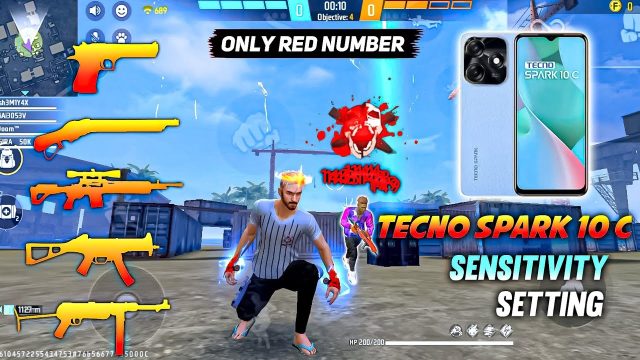
If your Free Fire game stutters or drops frames just when you’re about to lock onto an enemy, you know the pain. That split-second lag can mean the difference between a headshot and a respawn screen. This guide is for anyone playing on a mid-range or older phone who wants stable, smooth gameplay without sacrificing aim. By the end, you’ll have a custom sensitivity profile that reduces input delay, minimizes frame drops, and keeps your crosshair right where you want it.
We’re not just copying pro settings here – we’re adapting them to your device’s performance. You’ll learn to tweak sensitivity for general, red dot, scope, and free look, plus adjust graphics and other settings to prevent stuttering. Whether you’re using the sensitivity settings for global version or need something specific like sensitivity settings for Tecno, this step-by-step process will work for you.
What You’ll Need
- Free Fire or Free Fire Max installed (latest version recommended)
- A device with at least 3GB RAM (works on 2GB but results may vary)
- Stable internet connection (Wi-Fi or 4G with low ping)
- 10–15 minutes of free time in the training ground
- Optional: a friend to help test in a custom room
Step 1 – Reset Your Current Sensitivity Settings
Start fresh. If you’ve been messing with settings before, they might be clashing with your device’s performance. Go to Settings > Sensitivity and tap ‘Reset’ to clear everything. This ensures you’re building from a clean slate. If you’ve reinstalled the game recently, the settings after reinstall should already be default, but reset anyway to be safe.
Step 2 – Set Graphics to Smooth and Low
Frame drops happen when your GPU can’t keep up. Head to Settings > Graphics and choose ‘Smooth’ for Graphics Quality and ‘Low’ for everything else (High FPS is okay if your device supports it). Turn off shadows, anti-aliasing, and bloom. This reduces the load and gives your sensitivity settings a stable frame rate to work with.
Step 3 – Adjust General Sensitivity for Smooth Tracking
Now go to Sensitivity > General. The key is to find a balance where your crosshair moves without stutter. Start with a value between 70 and 85. On low-end devices, higher sensitivity can cause skipped frames because the game has to process more input. Lower is smoother. Test by moving your camera quickly in the training ground. If you see micro-stutters, decrease by 5 points. Repeat until movement is buttery.
Step 4 – Fine-Tune Red Dot and Aiming Sensitivity
Red dot and scope sensitivities affect how fast you aim when using optics. For frame drop reduction, set red dot to 55–65, 2x scope to 50–60, 4x scope to 40–50, and sniper scope to 30–40. These lower values mean the game doesn’t have to calculate huge camera rotations, which can lag lower-end devices. If you want sensitivity settings for less recoil, these numbers also help – lower sensitivity means more controlled sprays.
Step 5 – Set Free Look and Gyroscope (Optional)
Free look sensitivity (the camera while running) should be around 75–85. Too high and the game may stutter when you look around quickly. If you use gyroscope, set it to 50% or lower. Gyro can introduce extra processing, so disable it if you’re still seeing frame drops. Test these in a real match – if the world feels like it’s skipping, lower the free look value.
Step 6 – Enable High FPS Mode (If Available)
Some devices allow ‘High FPS’ in graphics settings. This can actually reduce frame drops because it forces the game to run at a stable 60fps. If you see the option, enable it. But if your device overheats or drops frames even more, switch back to ‘Medium’ or ‘Low’ FPS. The goal is stability, not raw numbers.
Common Pitfalls
- Copying pro settings blindly: Pro players use max sensitivity on flagship phones. On a mid-range device, that will cause input lag and frame drops. Always test your own values.
- Ignoring device heating: If your phone gets hot during gameplay, performance throttles and you’ll see stutters. Take breaks and consider a cooling fan.
- Not restarting after changes: Some settings (like graphics) only take full effect after a restart. Always reboot Free Fire after making adjustments.
Where to Next
Now that your sensitivity is optimized for frame drops, you can build on that foundation. Check out our sensitivity settings for pro players to push your aim further, or learn how to reset your sensitivity settings quickly when you need a clean slate. If you’re playing on a specific device like Tecno, we have dedicated sensitivity settings for Tecno that already account for hardware quirks. Keep testing, keep tweaking, and enjoy those buttery smooth headshots.