If you’re playing Free Fire on a Xiaomi device — whether it’s a Redmi, Mi, or Poco — you know that getting the sensitivity settings right can make or break your game. Xiaomi phones run MIUI, which sometimes handles touch input differently than stock Android. That’s why generic sensitivity codes from YouTube might not feel perfect on your device. This guide is for Xiaomi users who want to dial in their Free Fire sensitivity for smoother aim, quicker flicks, and better control in close-range fights. By the end, you’ll have a set of sensitivity values tailored for MIUI, plus tips to fine-tune them for your playstyle.
We’ll cover everything from where to find the sensitivity sliders in the game settings to advanced tweaks like gyroscope and pointer speed. Whether you’re a casual player or grinding ranked, these steps will help you get the most out of your Xiaomi’s touch screen. Let’s jump in.
What You’ll Need
- A Xiaomi smartphone (Redmi, Mi, or Poco) running MIUI 12 or later.
- Free Fire installed and updated to the latest version.
- A stable internet connection for training mode testing.
- Optional: A screen recorder to compare before/after aim.
Step 1: Access Free Fire Settings Menu
Open Free Fire on your Xiaomi device. On the main lobby screen, tap the gear icon in the top-right corner to open the settings menu. If you can’t find it, look for the ‘Settings’ button on the bottom left of the screen (it’s usually represented by a gear or a sliders icon).
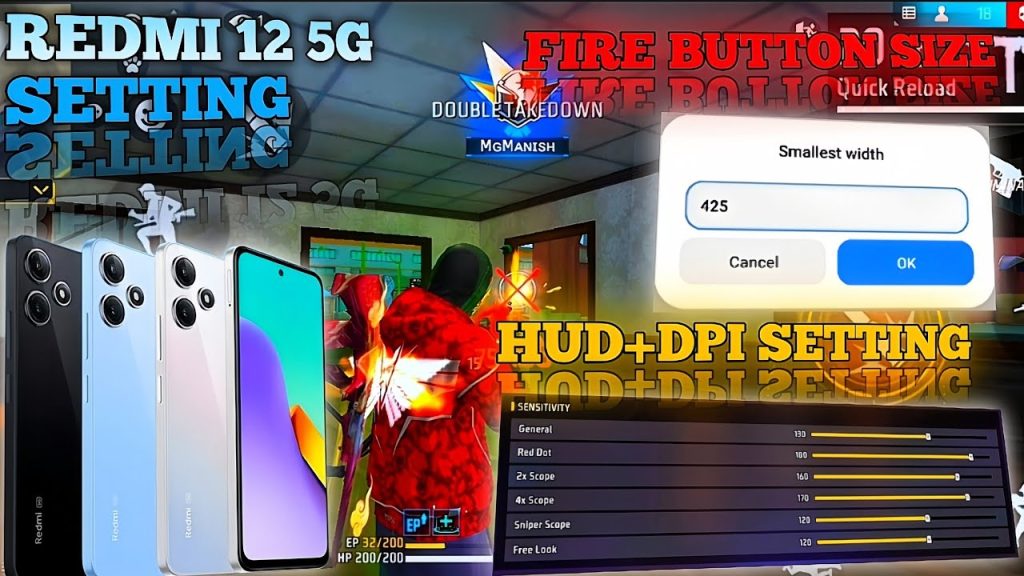
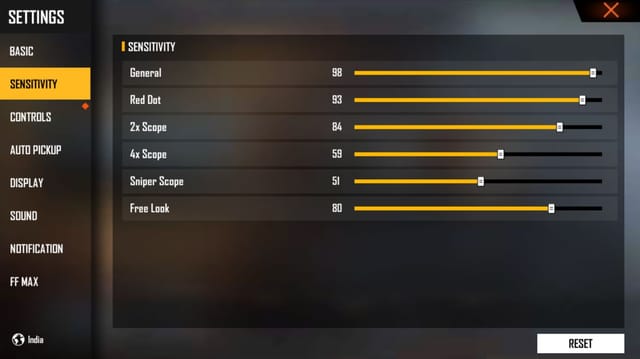
Once inside settings, swipe to the ‘Sensitivity’ tab. This is where all the slider adjustments live. You’ll see categories for General, Red Dot, 2x Scope, 4x Scope, Sniper Scope, and Free Look. Each one controls how fast your crosshair moves in different situations.
Step 2: Adjust General Sensitivity
General sensitivity affects your regular aim without a scope. For most Xiaomi devices, a value between 80 and 100 works well. Start at 90 if you’re unsure. Move the slider until you feel comfortable — you want it fast enough to turn quickly but slow enough to control recoil. If you’re using a device with a high refresh rate (like the Redmi Note 11 series), you might prefer a slightly higher value, around 95-100. For older devices, check out our free fire sensitivity settings for old devices guide for lower values.
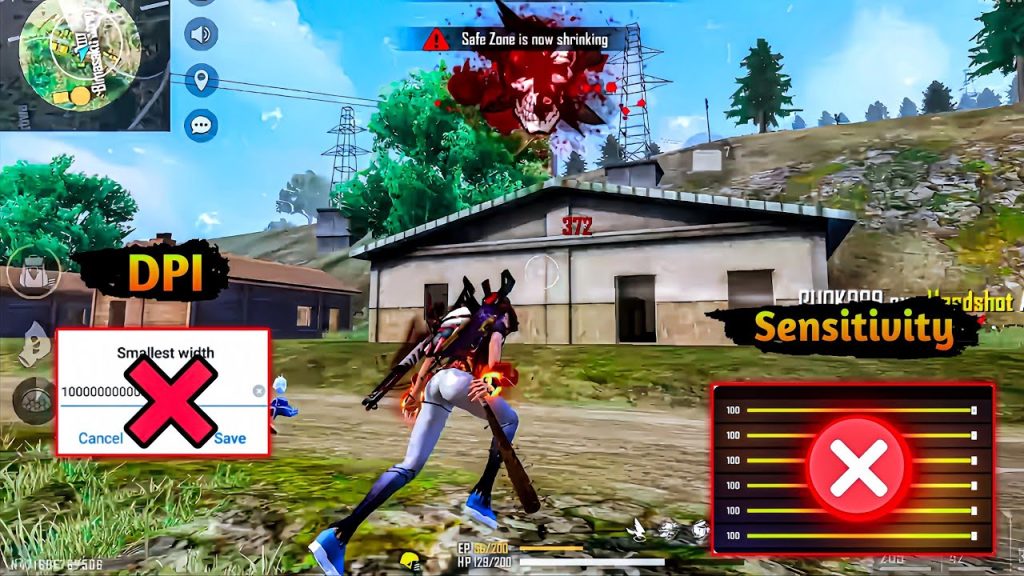
Step 3: Set Red Dot and Scope Sensitivities
Red dot and scope sensitivities should be lower than general to maintain precision. For red dot, try 70-85. For 2x scope, 60-75. For 4x and sniper, 40-55. These numbers work well on MIUI because the touch response is usually snappy. Adjust based on your preference. If you’re a rush player, keep red dot higher; for long-range, lower it. Our free fire sensitivity settings for ranked mode guide has more specific values for competitive play.
Step 4: Configure Gyroscope Sensitivity (Optional)
If your Xiaomi has a gyroscope and you want to use it, enable the gyroscope toggle in the ‘Sensitivity’ tab. Set the gyroscope sensitivity to around 30-40 for general and lower for scopes. Tilt your phone to aim — it takes practice but can greatly improve your aim. Not everyone likes gyro, so if you prefer manual aim, skip this step. For those without gyro, our free fire sensitivity settings for non gyroscope users guide is a must-read.
Step 5: Tweak Advanced Settings (Pointer Speed & Fire Button)
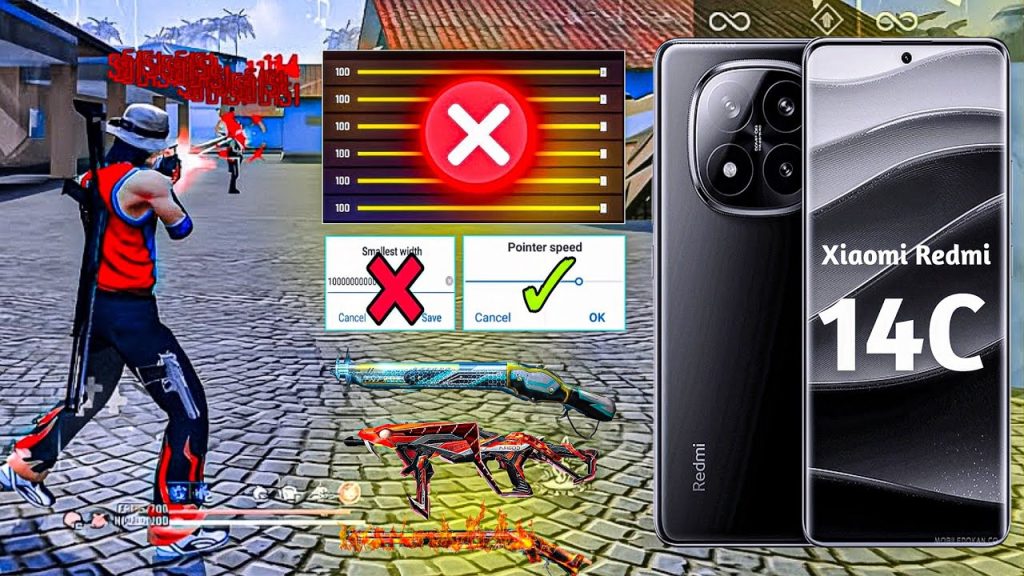
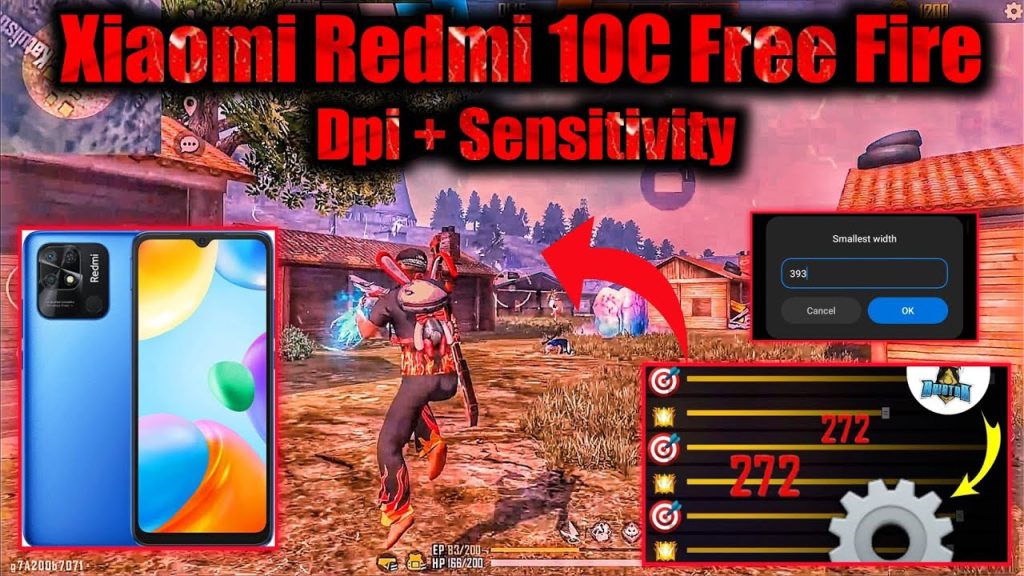
In the same settings menu, go to ‘Advanced’ or ‘Controls’. Adjust the ‘Pointer Speed’ (sometimes called ‘Pointer Sensitivity’) — for Xiaomi, a value around 50-70 is ideal. This affects how fast your crosshair moves when you swipe. Also, make sure your fire button is comfortable; you can adjust its size and position. For more details on pointer speed, check our free fire sensitivity settings with pointer speed article.
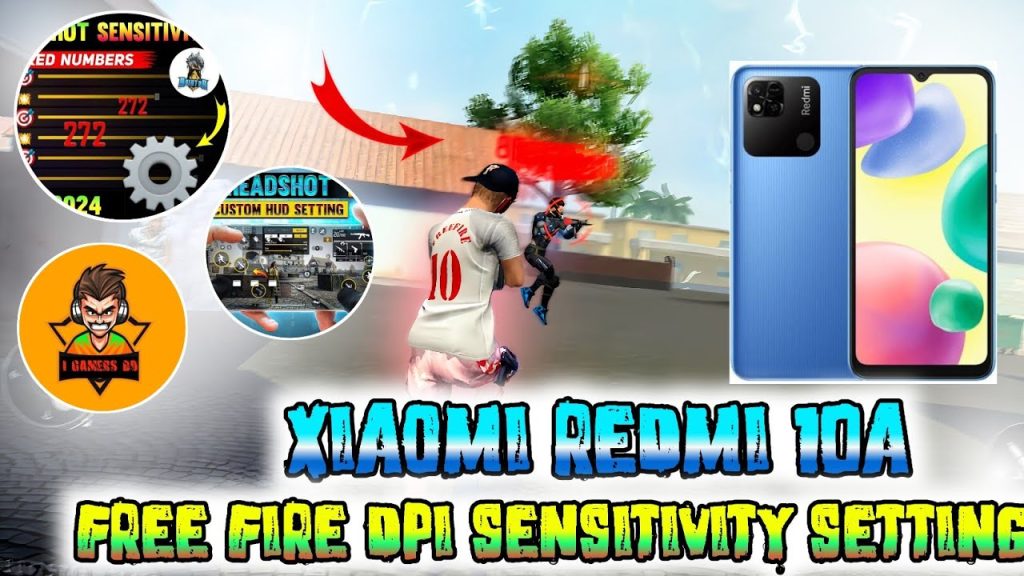
Step 6: Test and Fine-Tune in Training Mode
Go to the lobby and select ‘Training’ mode. Practice shooting at moving targets, turning quickly, and aiming down sights. If your aim feels too jittery or too slow, go back and adjust the sliders by 5 points at a time. Repeat until it feels natural. Remember, sensitivity is personal — what works for one Xiaomi user might not work for another. Take your time. You can also use the custom free fire sensitivity settings guide for a more systematic approach.
Common Pitfalls
- Copying someone else’s settings blindly: Every Xiaomi model has different touch latency. What works on a Redmi 9 may not work on a Poco X3. Always start from our values and tweak.
- Ignoring MIUI game turbo settings: Xiaomi’s Game Turbo can override your sensitivity if it’s set to ‘Default’ or ‘Performance’ mode. Go to Game Turbo settings and disable any touch optimization that might alter your sensitivity.
- Skipping the pointer speed adjustment: Many players only change in-game sliders but forget to adjust pointer speed in advanced settings. This can make your aim feel off even with perfect sensitivity values.
Where to Next?
Now that your sensitivity is dialed in, it’s time to practice. Consider mastering one weapon at a time, like the M1887 or the AWM. If you’re on a Redmi device, our best free fire sensitivity settings for redmi guide has model-specific recommendations. And if you want to take your game to the next level, check out our latest guides on aim training and movement mechanics.