If you’re the type of Free Fire player who drops into Bermuda for hours on end — grinding rank, practicing with your squad, or just enjoying the grind — you know that fatigue sets in fast. Your thumbs get sore, your aim starts twitching, and by the third hour you’re missing shots you’d normally hit. This guide is for you: the dedicated player who wants to play long sessions without burning out or losing consistency. By the end, you’ll have a sensitivity setup tuned for comfort and control over extended gameplay, plus a few ergonomic tweaks to keep your hands fresh.
We’re not talking about pro-level flick shots or crazy 400+ sensitivity. This is about finding that sweet spot where your muscle memory can stay solid even after fifty matches. You’ll learn to adjust your general, red dot, and scope sensitivities, plus camera and gyroscope settings if you use them. Let’s get your Free Fire settings ready for the long haul.
What You’ll Need
- A phone or tablet with Free Fire installed (Android or iOS).
- At least 30 minutes of free time to test and tweak.
- Access to the Free Fire settings menu (gear icon in the lobby).
- Optional: a notepad or notes app to record your baseline settings.
- Optional: a friend to join a custom room for live recoil testing.
Step 1: Reset Your Sensitivity to Default and Warm Up
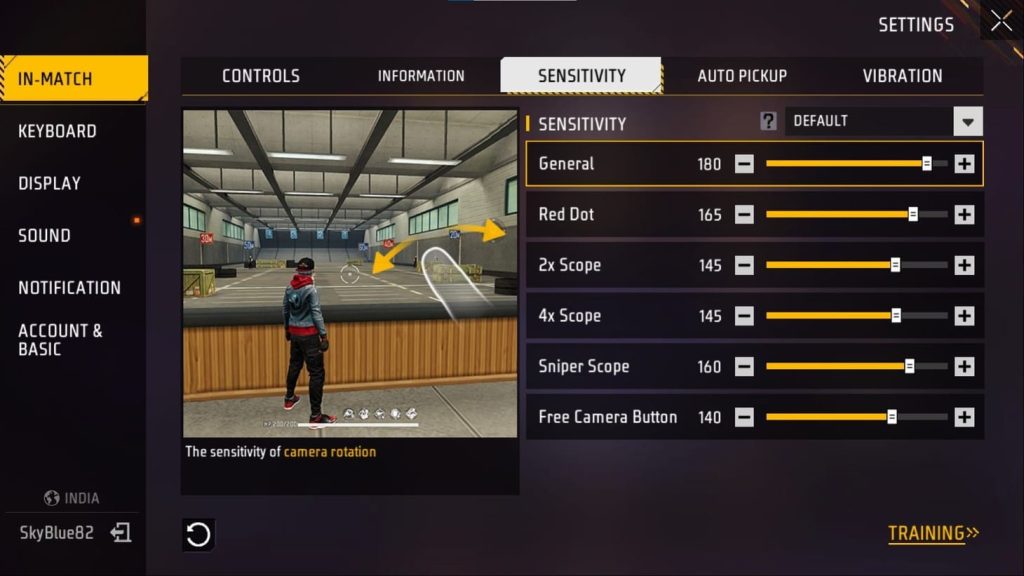
Before making any changes, go to Settings > Sensitivity and hit ‘Reset to Default’. This gives you a clean slate. Then jump into the Training Ground (or a quick Clash Squad match) for about 5 minutes. Focus on how your thumbs feel — are you stretching to reach controls? Do your fingers cramp after a few sprays? Note any discomfort. This warm-up will inform the adjustments you’re about to make.
Step 2: Reduce General Sensitivity for Better Control
For long sessions, lower sensitivity is your friend. High sensitivity forces micro-adjustments that tire your thumbs fast. Start by dropping your General (Free Look) sensitivity to 70-80 if you were above 90. Test it: spin your character 180° — you should be able to do it with one smooth swipe, not a frantic zigzag. If you need a reference, check out the free fire sensitivity settings for ranked mode which often use lower values for consistency.
Step 3: Tweak Red Dot and 2x Scope for Minimal Wrist Movement
Red Dot and 2x Scope are your most used sights. Set Red Dot to 70-80 and 2x Scope to 60-70. The idea is to keep your wrist stationary and use only thumb movement for tracking. If you’re a rusher, you might want slightly higher — the free fire sensitivity settings rush sensitivity guide recommends 80-85 for close combat. But for longevity, stay on the lower end. If you don’t use gyroscope, refer to the free fire sensitivity settings for non gyroscope users for fine-tuning.
Step 4: Dial in 4x and Sniper Scope for Stability
For mid-to-long range, you want zero shakes. Set 4x Scope to 50-60 and Sniper Scope to 40-50. If you’re using a sniper, a lower sensitivity helps you hold center mass without jittering. Test with an AWM in training: aim at a stationary target 100m away and strafe slightly. If the crosshair drifts, reduce the scope sensitivity by 5. For advanced precision, the free fire sensitivity settings for precision aim guide offers even more granular tuning.
Step 5: Adjust Camera Sensitivity to Reduce Finger Travel
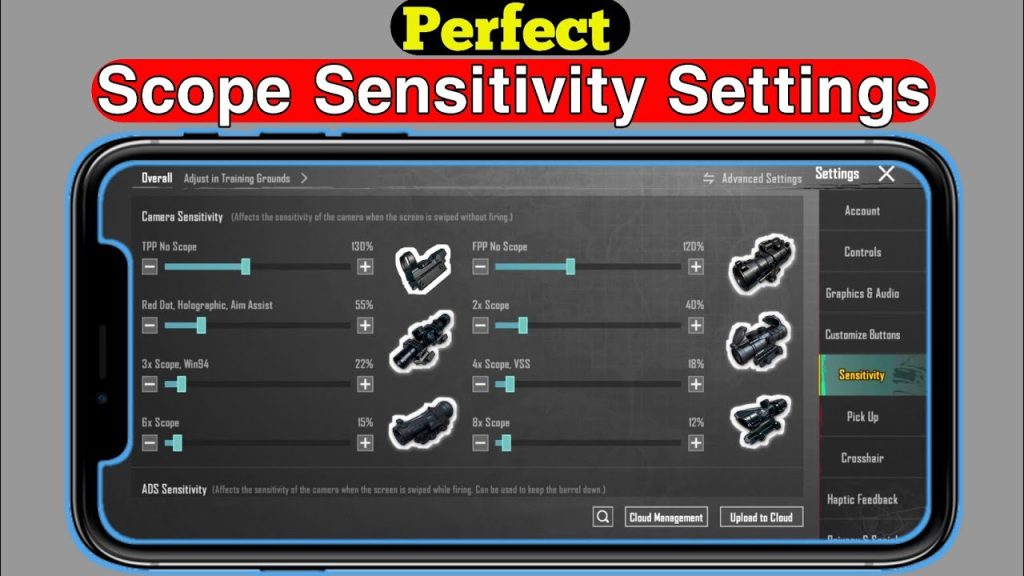
Camera sensitivity controls how fast your view moves when you drag. For long sessions, keep it between 70-80. The key is to minimize the distance your thumb needs to slide. Use the ‘Camera Sensitivity’ slider in the same sensitivity tab. If you find yourself lifting your thumb and repositioning, the sensitivity is too low. If you overshoot, it’s too high. Find the middle ground. Pair this with a proper fire button layout — the free fire sensitivity settings and aim combo article has tips for combining sensitivity with button placement.
Step 6: Enable Gyroscope (Optional) for Fine Aim Without Extra Thumb Work
If your device has a gyroscope, turn it on and set it to ‘On Scope’ or ‘Always On’. Use low gyro values (5-10) for scopes to make micro-adjustments by tilting your phone. This takes pressure off your thumbs. Be careful: too high gyro can make you dizzy. Test in training: aim at a head-sized target and tilt your phone gently. If the reticle moves too fast, reduce gyro sensitivity. Beginners can start with gyro off — check the free fire sensitivity settings for non gyroscope users for an alternative.
Step 7: Test in a Real Match and Listen to Your Body
Play three to four Battle Royale matches with your new settings. After each match, ask yourself: do my thumbs hurt? Is my aim consistent? If you feel strain, reduce sensitivities by another 5 points. If you can’t track moving enemies, bump them up by 3. The goal is comfort first, performance second. Over time, your muscle memory will adapt. If you’re on an older phone, also check the free fire sensitivity settings for old devices guide to avoid lag.
Common Pitfalls
- Overcompensating with high sensitivity. Many players think higher = faster kills, but for long sessions it leads to burnout and shaky aim. Stick to lower ranges.
- Ignoring the scope sensitivities. Setting all scopes the same might seem easy, but it kills your consistency. Each scope needs its own value for comfortable transitions.
- Forgetting to take breaks. Even with perfect settings, your hands need rest. Use a timer to stand up every 30 minutes. Your rank will thank you.
Where to Next?
Now that you have settings that won’t wreck your wrists, it’s time to master your aim drills. Check out the free fire sensitivity settings for precision aim guide to practice crosshair placement. Or if you want to compete seriously, the free fire sensitivity settings for ranked mode will help you climb. Play smart, play long, and stay comfortable.



