If you don’t use gyroscope in Free Fire (and let’s be honest, a lot of players don’t), then your touch sensitivity settings are everything. Without gyro, you rely purely on your thumbs to aim, track, and flick. That means finding the right sensitivity can make or break your gameplay. This guide is for every non gyro player who wants consistent aim without shaking the phone or feeling sluggish. By the end, you’ll have a set of sensitivity values that work in training ground and real matches.
We’ll go step by step from resetting your settings to fine-tuning each scope. These are tested numbers that pros and streamers use, adapted for non gyroscope users. Ready to lock in your aim? Let’s go.
What You’ll Need
- Free Fire installed (any version – original, Max, or Lite)
- Stable internet connection (ping below 100ms preferred)
- 10–15 minutes of uninterrupted time
- A notepad or screenshot tool to save your settings
- Access to the Training Ground in Free Fire
Before we start, make sure you’re in a quiet place and your phone is not on low battery. Let’s begin.
Step 1: Reset Your Sensitivity to Default
First, clear any tweaks you’ve done before. Go to Settings > Sensitivity and tap ‘Reset to Default’. This gives you a clean slate. Most default settings are too low for non gyro players, but we’ll change everything anyway. After reset, note down the current DPI – if you have a different DPI, check our free fire dpi 500 sensitivity settings guide for adjusted values.
Now, set your DPI to 500 (or keep your phone’s native DPI). On most devices, the built-in DPI is around 480–600. Don’t worry about exact numbers – just stay consistent.
Step 2: Set General Sensitivity (Camera & Aiming)
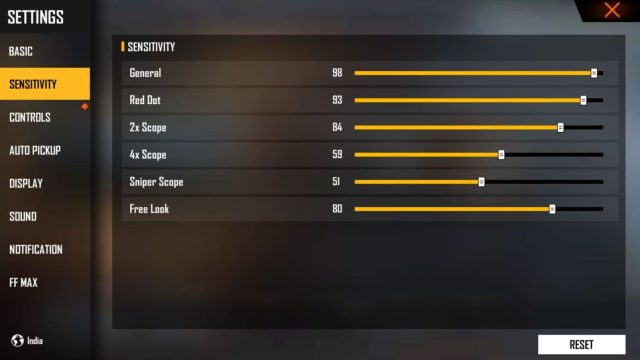
For non gyro, you need high general sensitivity to make quick turns. Set ‘Camera Sensitivity’ between 90 and 100. ‘Aim Sensitivity’ (the one when you scope) should be slightly lower – around 85–95. This helps you control recoil without over-aiming. If your device is a low-end model, start on the higher side and check for frame drops. For help with lag, see our free fire sensitivity settings for frame drops guide.
Step 3: Adjust Red Dot and 2x Scope Sensitivity
These are your most used scopes in close to mid range. Set them high but not max. Red dot: 85–95. 2x Scope: 80–90. The key is to be able to track moving enemies without jerking. Go to the training ground and test with a moving target. If your crosshair overshoots, lower by 5 points. Many pro players use values similar to those in our streamer free fire sensitivity settings article – check that out for inspiration.
Step 4: Set 4x and Sniper Scope Sensitivity
For long range, lower sensitivity gives better precision. 4x Scope: 55–70. Sniper Scope: 40–55. If you’re using a DMR like the SKS, you can go a bit higher. The goal is to keep your crosshair steady while peeking. If you’re struggling with sniper flicks, try the custom free fire sensitivity settings guide for more granular tweaks.
Step 5: Configure Free Look Sensitivity
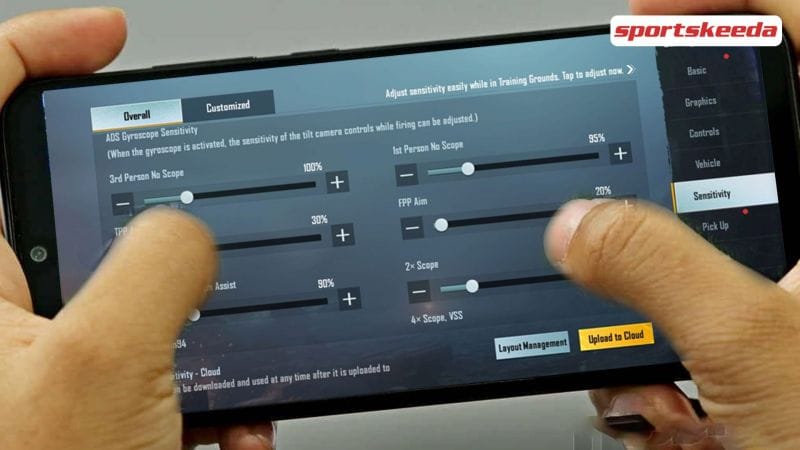
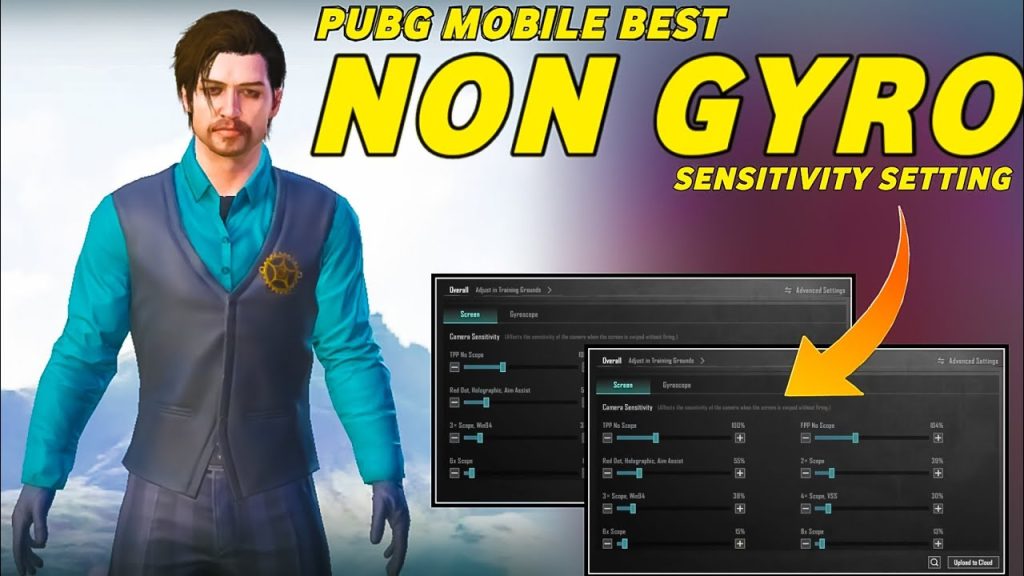
Free look is the camera movement when you’re not aiming down sights. For non gyro, this helps you check your surroundings quickly. Set it between 85 and 95. Too low and you’ll miss enemies; too high and you’ll disorient. Use it in training to spin around and track multiple dummies.
Step 6: Fine-Tune in Training Ground
Now it’s time to test. Go to Training Ground, pick your favorite weapon (M4A1, AK, or MP40). Practice shooting at stationary dummies from different ranges. Then try moving targets. Adjust each scope sensitivity by 5 increments until you feel comfortable. This is the most important step – don’t skip it. Write down your final numbers. Compare with our tested free fire sensitivity settings for a baseline.
Step 7: Test in Real Matches
Play a few Clash Squad matches to see how your settings hold up under pressure. Focus on consistency – if you’re winning gunfights you used to lose, you’re on the right track. If something feels off, go back to training and tweak. Remember, sensitivity is personal; our numbers are a starting point. Also, check your pointer speed in phone settings – our free fire sensitivity settings with pointer speed article explains how that interacts.
Common Pitfalls
- Too High Sensitivity: You’ll constantly over-aim and miss shots. If you can’t control your crosshair on a stationary target, lower general sensitivity by 5–10 points.
- Too Low Sensitivity: You’ll be slow to react to enemies behind you or to track moving targets. If you find yourself ‘dragging’ your aim, bump up camera sensitivity.
- Ignoring Scope Adjustments: Many players change only general sensitivity and ignore scopes. Each scope needs its own balance – take the time to dial them in separately.
Where to Next?
You now have a solid non gyro sensitivity setup. Next, consider optimizing your HUD layout for better finger placement, or explore gyroscope settings if you ever want to try it. For more tips, browse our guides on free fire max sensitivity settings for pro players and other advanced topics. Keep practicing and your aim will keep improving. See you in the battlefield!