If you’re using a mouse with 500 DPI on Free Fire (yes, free fire has PC emulator support and some devices allow mouse input), you’ve come to the right place. DPI 500 is a common mid-range sensitivity that gives you a good balance between speed and control. By the end of this guide, you’ll have a set of in-game sensitivity numbers that make your aim snappy, reduce recoil, and feel natural for your playstyle.
I’m assuming you already know how to access the sensitivity menu. If not, don’t worry — I’ll walk you through it. This guide is tested on the global version of Free Fire (and Free Fire Max) and works for both emulator and phone with external mouse. Let’s get your settings dialed in.
What you’ll need
- A device running Free Fire (Global or Max) — phone or emulator
- A mouse set to 500 DPI (check your mouse software to confirm)
- Patience for a few test rounds in training mode or Clash Squad
- Optional: a friend to help you test recoil patterns
Step 1: Check Your Mouse DPI
Before touching anything in Free Fire, make sure your mouse is actually running at 500 DPI. If you have a gaming mouse, open its software (Logitech G Hub, Razer Synapse, etc.) and set the DPI to 500. For basic mice, you might not be able to change DPI — in that case, just use whatever default you have (usually around 800 or 1000) and adjust the in-game sensitivity accordingly. This guide assumes exactly 500 DPI.
Step 2: Accessing the Sensitivity Settings
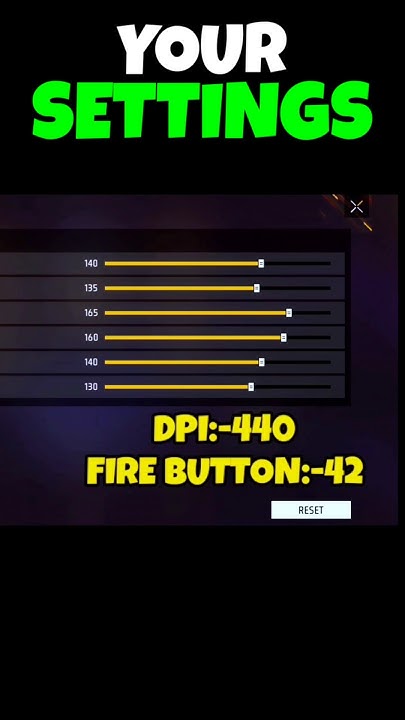
Open Free Fire and go to the main lobby. Tap the gear icon (Settings) in the top right corner. Then select the “Sensitivity” tab. You’ll see five sliders: General Sensitivity, Red Dot, 2X Scope, 4X Scope, and Free Look Sensitivity. That’s where all the magic happens.
Step 3: Setting General Sensitivity
For 500 DPI, I recommend starting around 70-75 for General Sensitivity. This gives you a good turn speed without making the crosshair fly off target. If you prefer a slower, more precise aim, lower it to 65. If you like fast flick shots, go up to 80. But 75 is the sweet spot for most players.
Here’s a pro tip: set the sensitivity while in the training ground. Go there from the lobby, then open settings and adjust while aiming at a dummy. This way you can feel the changes in real time.
Step 4: Red Dot and 2X Scope Settings
Red Dot sensitivity should be slightly lower than General, I use 68. The 2X Scope needs even more control: set it to 62. For 4X Scope, I recommend 55 because you don’t need fast movement at long range — precision is key. If you use the 6X or 8X, keep them at 50 or below.
Step 5: Free Look Sensitivity
Free Look is used to glance around while running. Set it to around 70-75 to match your general sensitivity. If you find it too fast, lower it to 60. This setting doesn’t affect aiming, just camera movement when you’re not shooting.
Now you have a baseline. These numbers are a starting point — feel free to fine-tune them based on your playstyle. I suggest playing a few matches and adjusting by 2-3 points at a time until it feels perfect.
Step 6: Test and Adjust
Go to training mode and practice moving your crosshair from one target to another. If you overshoot, lower your sensitivity. If you can’t track a moving target, increase it. Also try full-auto spray on a wall to check recoil control — you want the bullets to form a tight group. For more recoil tips, check out the free fire sensitivity settings less recoil guide.
Remember that your in-game sensitivity is personal. What works for a streamer might not work for you. That’s why we also have tested free fire sensitivity settings from many players — you can compare and tweak.
Common Pitfalls
- Using the same sensitivity for all scopes. Each scope magnifies movement, so drop it for higher zooms.
- Forgetting to check DPI. If your DPI is not exactly 500, these numbers won’t feel right. Use a DPI analyzer online to verify.
- Skipping the training ground. Never change settings in the lobby and then jump into a ranked match expecting instant improvement. Test first.
Where to Next
Once you have your 500 DPI sensitivity dialed in, you might want to explore other settings. For example, the free fire sensitivity settings for precision aim guide takes your new base and fine-tunes it for headshots. Or if you play on the global version, check out free fire sensitivity settings for global version for any version-specific quirks. And if you ever want to try a higher DPI, our free fire sensitivity settings ultra high dpi guide has you covered. Keep practicing, and you’ll be dominating in no time!



