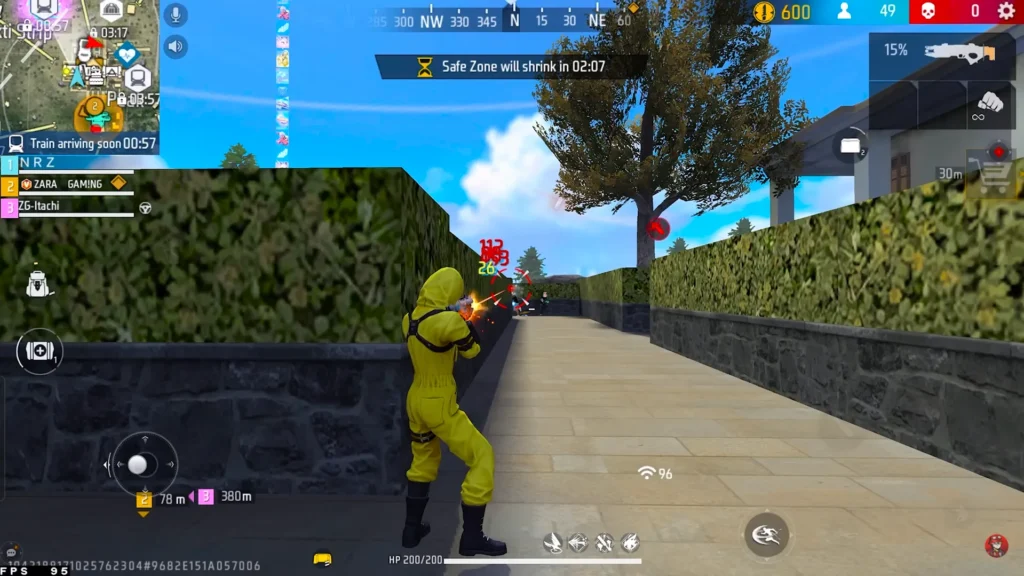
If you’re still rocking an older smartphone with 2GB RAM or less, playing Free Fire can feel like a slideshow. But don’t worry — you don’t need a flagship to frag out. This guide is for players whose devices struggle with frame drops, stutters, and overheating. By the end, you’ll have a tuned sensitivity setup and graphics settings that prioritize performance over looks, giving you a smoother, more responsive experience.
We’ll walk through checking your device specs, tweaking in-game graphics, finding the right sensitivity numbers, and even using game boosters. No fluff, just actions. You’ll also learn what not to do — because cranking up sensitivity on a laggy phone is a recipe for disaster. Ready to turn that old brick into a gaming machine? Let’s dive in.
What You’ll Need
- An old Android phone (1–3GB RAM recommended; Free Fire runs on 1GB minimum)
- Free Fire installed (latest version from Play Store)
- Stable internet connection (Wi-Fi preferred to reduce lag)
- Patience — expect a few rounds of tweaking before settings click
- Optional: a game booster app like Game Turbo or GFX Tool
Step 1: Check Your Device Specs and Current FPS
Before changing anything, know what you’re working with. Go to Settings > About Phone and check RAM and processor. Then open Free Fire, start a match, and enable the FPS counter (in settings > graphics > show FPS). If your FPS is below 30 in open areas, you need aggressive optimizations. This baseline helps you see if your changes make a difference.
Step 2: Adjust Graphics Settings for Maximum Performance
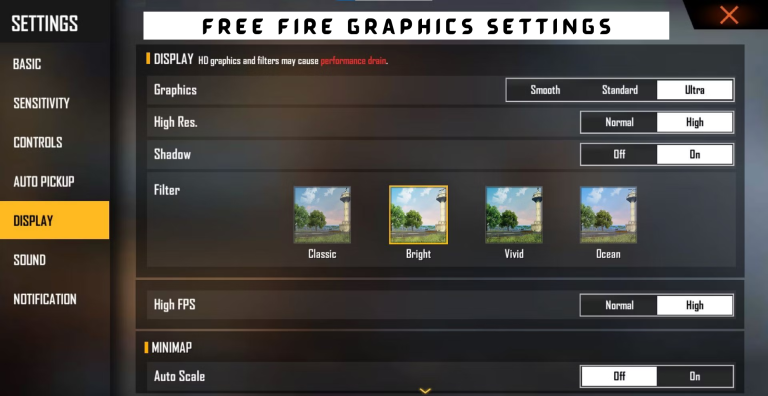
Inside Free Fire, go to Settings > Graphics. Set everything to Low or Smooth: Low Graphics, Low Resolution, Low Shadow, Low HD. Use the highest FPS option available — if your device supports High FPS, turn it on. Some old phones have a ‘Primitive Graphics’ toggle; enable it. This reduces visual effects but stabilizes frame rate. Apply and restart the game.
Step 3: Tweak Sensitivity Settings
Now the main event. On low-end devices, keep sensitivity moderate — high values cause micro-stutters. Go to Settings > Sensitivity. General and Red Dot sensitivity around 40–50; 2x Scope at 35; 4x at 30; Sniper and Free Look at 20–25. For the ‘Accuracy’ tab, aim assist on medium or high helps compensate for lag. Gyroscope? If your phone has it, enable it with low sensitivity (10–20) for fine aim. If not, check our free fire sensitivity settings for non gyroscope users. Stick to these numbers — they work on 1GB RAM phones.
Step 4: Practice in Training Mode
Don’t jump into ranked yet. Head to the training ground and practice aiming at moving targets. Pay attention to how the crosshair moves — if it feels jerky, lower your sensitivity by 5 points. If you’re over-flicking, lower it more. This is also a good time to test different scopes. Use the ‘Static Aim’ walls to see if your spray stays tight. Repeat until the aim feels natural.
Step 5: Use a Game Booster App
Game boosters can free up RAM and kill background apps. Popular ones like Game Turbo (built-in on some phones) or GFX Tool (download from Play Store) let you override Free Fire’s graphics settings. In GFX Tool, select Free Fire, set Graphics Profile to ‘Smooth’, Texture Quality to ‘Low’, and Shadow to ‘Off’. Apply and launch. This often gives an extra 5–10 FPS. Be careful with GFX Tool — it may trigger anti-cheat if you modify too much. Stick to standard options.
Common Pitfalls
- Setting sensitivity too high — on old devices, high values cause input delay and jittery aim. Always start low and increase gradually.
- Ignoring device temperature — overheating leads to thermal throttling. Play in a cool room and take breaks. Use a fan or cool gel pack.
- Forgetting to clear cache — Free Fire’s cache grows over time. Every few days, go to device settings > apps > Free Fire > storage > clear cache. This prevents random stutters.
Where to Next
Got the basics down? You can go further. Check out our free fire sensitivity settings for hardcore players if you want a more aggressive setup, or the free fire sensitivity settings rush sensitivity guide if you love close combat. For devices that still lag, see our free fire sensitivity settings for frame drops. And if you want a completely tailored setup, our custom free fire sensitivity settings guide will help you dial in every detail. Also, if you’re on a Redmi phone, the best free fire sensitivity settings for redmi are a must-read. Happy fragging!



