If you’re a hardcore Free Fire player, you know that default sensitivity just won’t cut it. You need precision, speed, and consistency to outplay opponents in ranked matches and tournaments. This guide is for you – the player who already knows the basics but wants to push their aim to the next level. By the end, you’ll have a custom sensitivity setup tailored to your gameplay style, whether you rush or play passively.
We’ll cover everything from DPI and pointer speed to gyroscope tuning and close-combat settings. No fluff, just actionable steps. Get ready to dominate the battlefield.
What You’ll Need
- A smartphone (preferably high-refresh-rate display)
- Free Fire game installed (latest version)
- Stable internet connection (low ping helps)
- Knowledge of your device’s DPI (check settings or use an app)
- A few training matches or the practice range
- Patience – finding your perfect sensitivity takes time
Step 1: Know Your Device – DPI and Pointer Speed
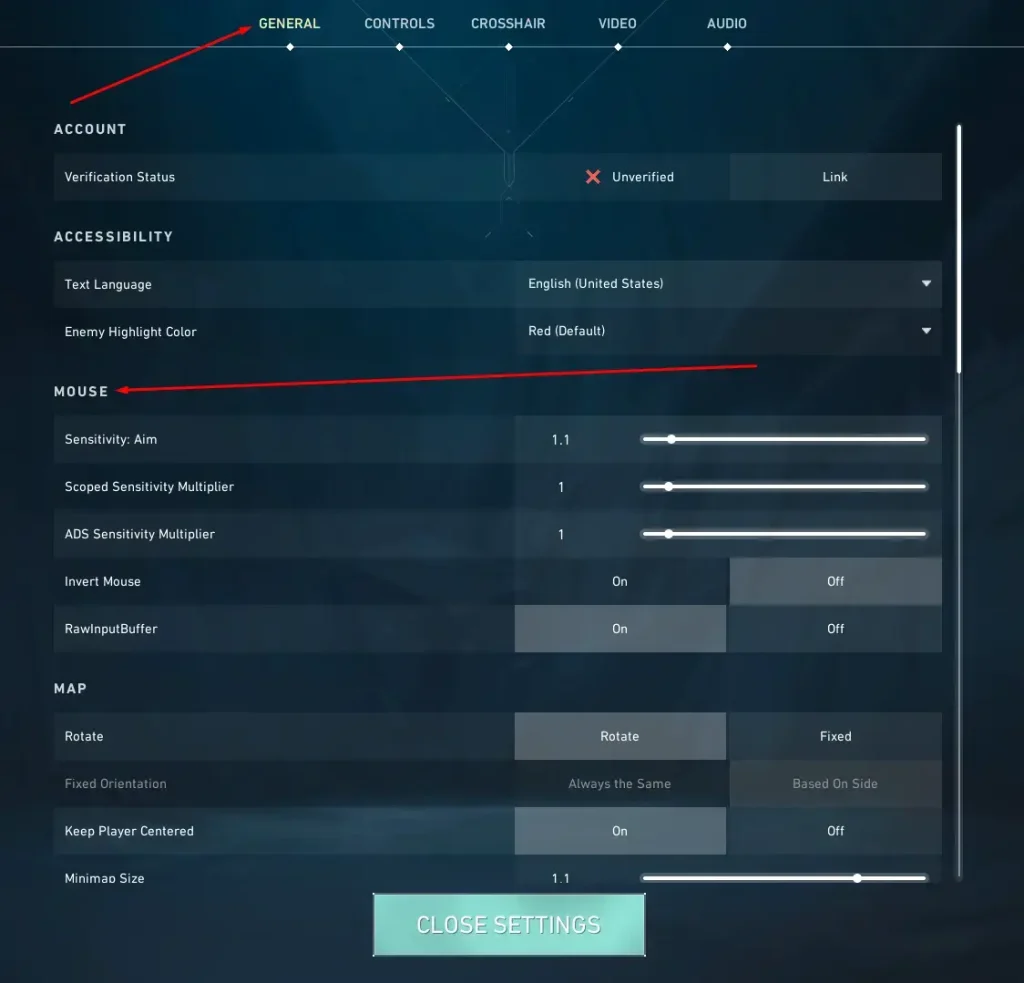
Before diving into Free Fire settings, you need to understand your device’s baseline. DPI (dots per inch) and pointer speed affect how your touch inputs are translated. Go to your phone’s settings, find the pointer speed slider (usually under Developer Options or Accessibility), and set it to a value you’re comfortable with. For hardcore play, most pros set pointer speed to around 50-70%. If you’re using an external mouse, check your mouse DPI – we have a separate guide for high DPI settings.
Once your pointer speed is set, open Free Fire and head to the sensitivity menu. Remember, changing pointer speed later will affect your in-game sensitivity.
Step 2: Adjust General Sensitivity
In the Free Fire sensitivity menu, you’ll see categories like General, Red Dot, and 4x Scope. Start with General Sensitivity – this controls your camera movement when not aiming down sights. For hardcore players, a high general sensitivity (80-90) allows quick 180-degree turns, but if you’re not using gyroscope, you might want it lower. If you rely on gyroscope, keep general at 50-60 and let gyro handle the rest. Check out our Redmi device settings for low-end phone tweaks.
Next, set Red Dot sensitivity to around 60-70 for close-to-mid range. For 4x and higher scopes, keep them lower (40-50) to avoid overcorrecting. These values are starting points; you’ll fine-tune later.
Step 3: Fine-Tune Gyroscope (If You Use It)
Gyroscope is a game-changer for hardcore players. It allows precise aim by tilting your phone. Enable it in settings and set gyro sensitivity to 50-70% for general movement. For scopes, keep them lower (30-50) to avoid shaky aim. If gyro feels too sensitive, reduce it gradually. Many pros combine high gyro with medium general sensitivity for smooth tracking. If you’re not a fan of gyro, our non-gyroscope sensitivity guide has alternatives.
Step 4: Optimize for Close Combat – Rush Settings
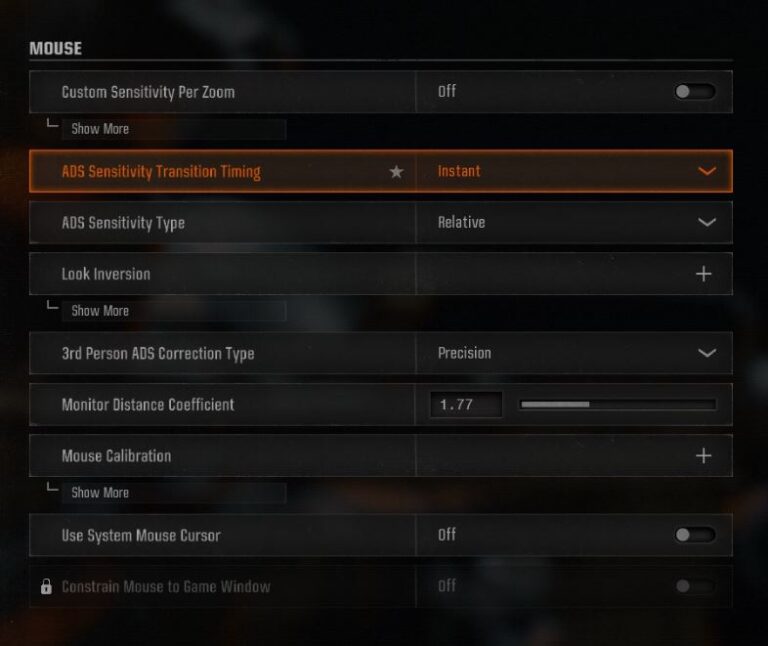
Hardcore rushers need lightning-fast reactions. Set your camera sensitivity high (85-95) for quick flick shots. Use our rush sensitivity settings as a base. Also, adjust the ‘Sprint Sensitivity’ to 100 so you can start running instantly. For close combat, turn off ‘Left Fire Button’ if you use the right-side fire button for better control. Remember, high sensitivity can make you miss – practice in training mode.
Step 5: Test and Tweak in the Practice Range
Now it’s time to put your settings to the test. Enter the practice range and try different weapons – SPAS-12, M1887, AWM, and M416. Focus on tracking moving targets and flicking to stationary ones. If your aim feels too jerky, lower sensitivity by 5 points. If you’re undershooting, increase it. Repeat this process until you feel comfortable. For more precision, check our tournament sensitivity settings pro players use.
Don’t forget to test in real matches. Play a few Clash Squad rounds to see how your settings hold up under pressure. Adjust as needed.
Common Pitfalls
- Copying pro settings blindly: Everyone’s device and playstyle are different. Use pro settings as inspiration, not a final solution. Tweak to your own comfort.
- Ignoring device performance: High sensitivity can cause frame drops on lower-end phones. If you experience lag, lower your sensitivity and graphics settings. Check our guide for frame drops.
- Not adjusting for screen size: Larger screens may need lower sensitivity, smaller screens higher. If you switch devices, recalibrate from scratch.
Where to Next
Congratulations! You now have a solid sensitivity setup tailored for hardcore Free Fire play. Keep practicing and tweaking as you improve. For more in-depth guides, check out our pointer speed sensitivity settings or high DPI settings for external mice. Also, explore our custom sensitivity settings guide for advanced tweaks. Happy fragging!



