Hey streamers! If you’re broadcasting Free Fire, you know that your sensitivity settings make or break your gameplay. You need something that feels smooth on your fingers but also looks crisp on stream—no jittery aim or awkward camera shakes. This guide is built for you: whether you’re a new streamer or upgrading your setup, by the end you’ll have a sensitivity configuration that keeps your aim tight and your audience engaged.
We’ll walk through device-specific tweaks, scope sensitivity balancing, and how to adjust for the extra screen real estate of streaming overlays. You’ll also get tips on practicing without messing up your stream. Ready to lock in those headshots? Let’s dive in.
What You’ll Need
- Free Fire installed (latest version)
- A device you stream from (phone or emulator)
- Basic knowledge of Free Fire settings menu
- Optional: a second device to view your stream
- About 30 minutes of practice time
Step 1: Know Your Device and Playstyle
Your device’s processor and screen refresh rate affect how high you can push sensitivity. High-end phones (90Hz+) can handle higher values without stutter. Also consider your playstyle: aggressive rushers need faster general sensitivity, while support players may prefer lower for accuracy. Test a few matches to see what feels natural.
Step 2: Access and Reset Sensitivity Settings
Open Free Fire, go to Settings > Sensitivity. Hit ‘Reset’ to start from scratch. This wipes any past tweaks and gives you a clean slate. Note your current values if you want to return to them later.
Step 3: Set General and Red Dot Sensitivity
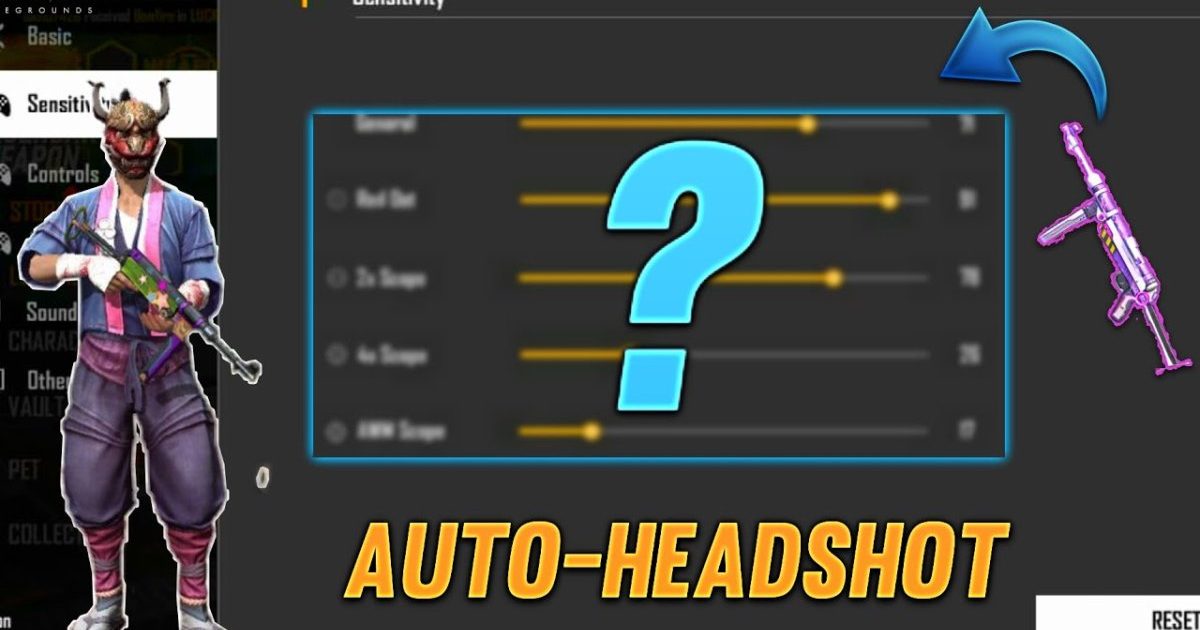
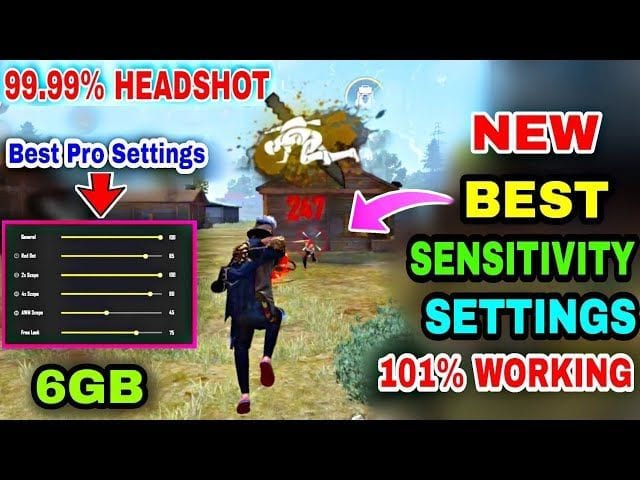
For streamers, we recommend General at 90–100 and Red Dot at 80–90. The lower end helps avoid shaky aim that looks bad on stream. If you’re comfortable, go higher. These values work well for most devices.
Step 4: Adjust Scope Sensitivities
Set 2x scope to 70–80, 4x to 60–70, and AWM scope to 50–60. Lower scope sensitivity helps viewers follow your shots smoothly. Tweak these based on your recoil control. For 4x, try 65 and go from there.
Step 5: Fine-Tune with Practice Mode and Stream Preview
Head to practice mode and test your settings. Use a second device or ask a friend to watch your stream. Adjust until your aim looks smooth on both your screen and the broadcast. Focus on tracking and flick shots.
Common Pitfalls
- Copying pro settings without adjusting for your device – every phone is different.
- Ignoring stream delay – your on-screen aim might look delayed to viewers; lower sensitivity helps.
- Not testing with your actual streaming overlay (OBS etc.) which can cause input lag – always test live.
Where to Next
If you want to go deeper, check out our guide on practice mode free fire sensitivity settings to perfect your aim. Also read about smooth free fire sensitivity settings to reduce jitter. For beginners, our beginner free fire sensitivity settings tutorial is a great start. Hardcore streamers might like free fire max sensitivity settings or free fire sensitivity settings for fast aim. And if you’re on a low-end device, don’t miss latest free fire sensitivity settings for low end devices.



