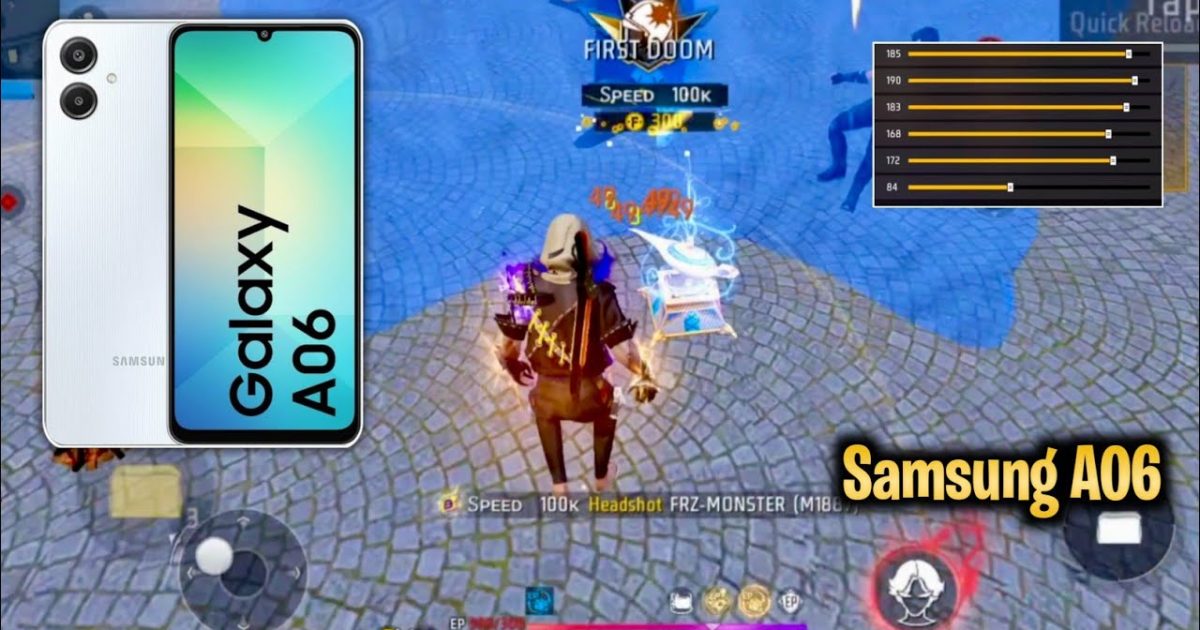
If you play Free Fire on a Samsung phone, you already have a solid device for gaming. But raw hardware won’t make you a headshot machine—you need the right sensitivity settings. This guide is for Samsung users who want to stop whiffing shots and start winning gunfights. By the end, you’ll have a custom sensitivity profile that suits your Samsung’s display and performance.
We’ll walk you through tweaking every slider, adjusting for your Samsung’s screen size and touch response, and even using the Game Launcher for a boost. Whether you have a Galaxy S24 or an older A-series, these steps will help you find your sweet spot. Let’s dive in.
What You’ll Need
- A Samsung phone (any model, but we’ll cover tips for both flagship and mid-range).
- Free Fire installed and updated to the latest version.
- A stable internet connection (ping under 100ms ideal).
- 5–10 minutes of free time in the training ground.
- Optional: Game Launcher app (pre-installed on most Samsungs) to disable Bixby and notifications.
Step 1: Open Free Fire’s Sensitivity Menu
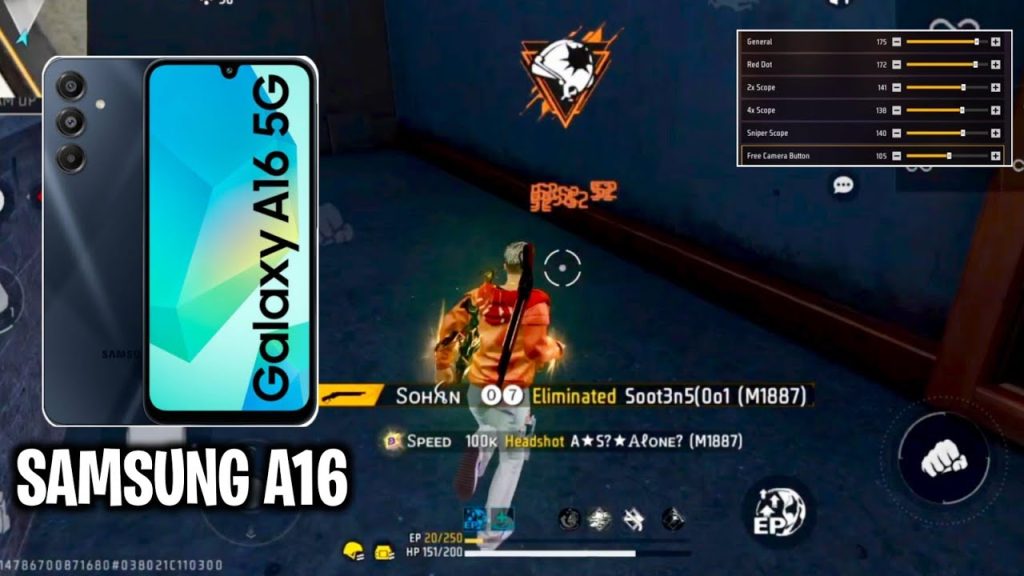
Launch Free Fire on your Samsung phone. Tap the gear icon on the top-right corner of the lobby to open Settings. Then go to the “Sensitivity” tab. You’ll see a bunch of sliders—don’t be scared. We’ll handle them one by one.
Step 2: Set a Baseline for General, Red Dot, and 2x Scope
Most Samsung phones have a touch sampling rate of 120Hz or higher, so you don’t need crazy high sensitivities. Start with these values: General – 80, Red Dot – 75, 2x Scope – 72. These work well for mid-range fights and quick flick shots. If you have a phone with 90Hz refresh rate (like the Galaxy A54), lower them by 5 points to avoid over-aiming.
For reference, you can compare with our recommended settings for other devices. The goal is to keep your crosshair steady when tapping fire. If you notice your screen jittering, drop the value by 5 until it feels smooth.
Step 3: Adjust 4x, Sniper, and Free Look Sensitivity
For long-range scopes, you want lower sensitivity. Try 4x – 55, Sniper – 45, Free Look – 70. This prevents pixel jumping when you’re trying to track a distant enemy. On Samsung phones with thick bezels or curved edges, the Free Look slider helps you check corners without moving your thumbs much.
If you use gyroscope, you might want to experiment with our dedicated guide to gyro settings. But for this baseline, we’re going no-gyro to keep it simple.
Step 4: Fine-Tune with Samsung Game Launcher
Samsung’s Game Launcher has a “Performance” mode that can reduce touch latency. Open Game Launcher, find Free Fire, tap the three dots, and select “Game Booster”. Enable “Performance” and turn off “Auto brightness”. This locks your screen to a consistent brightness and prevents touch lag. Some newer Samsung phones also have a “Touch sensitivity” toggle in Settings > Display—turn it on for better response with screen protectors.
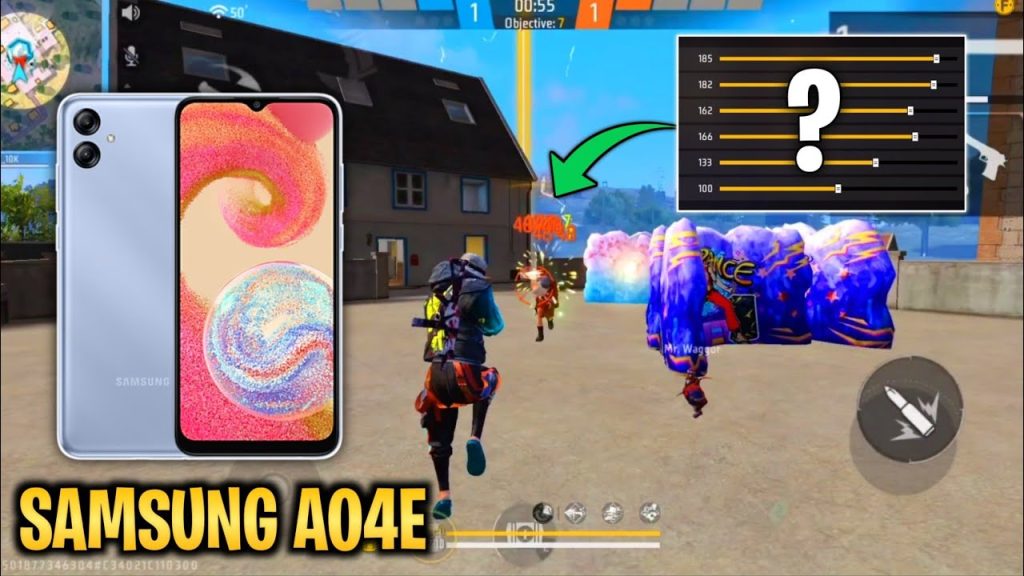
After enabling Game Booster, go back to Free Fire and try your new sensitivity. If it feels too fast or too slow, tweak the General slider by +/- 5. Remember, the perfect setting is the one that lets you control recoil without fighting the joystick.
Step 5: Test in Training Ground
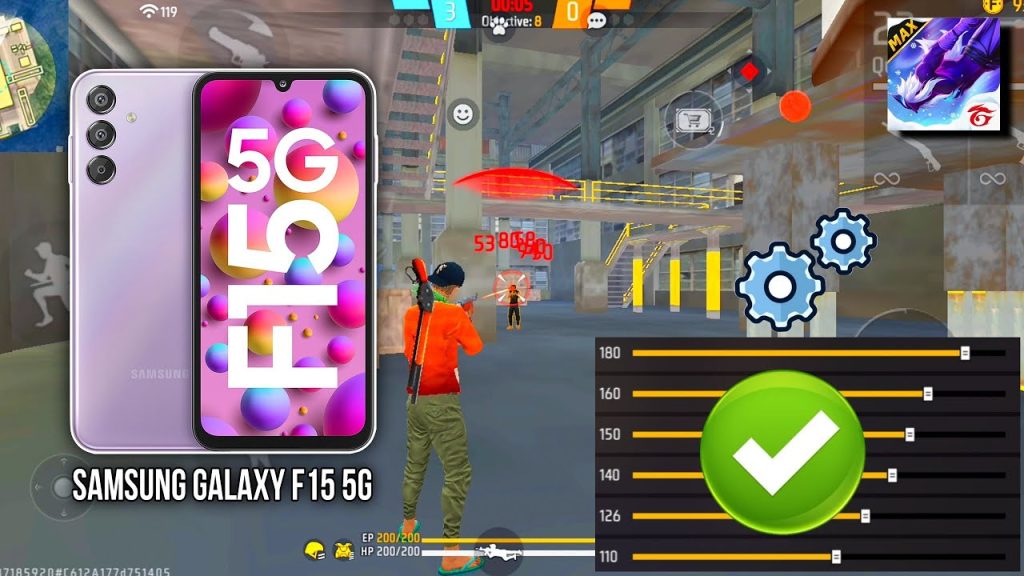
Enter the training ground and practice spraying at a wall from 10m, 20m, and 30m. Your bullet holes should form a tight group. If they climb too much, lower your general sensitivity. If you can’t track a moving target, raise it. Use the “test your sensitivity” method from our dedicated guide to get scientific about it. Spend at least 5 minutes here.
Common Pitfalls
- Copying pro settings blindly: Pros have different phones and playstyles. What works for a OnePlus user might make your Samsung jittery. Always adjust based on your device’s touch response.
- Ignoring overheating: Long gaming sessions on Samsung can cause throttling. If your phone gets hot, lower sensitivity by 10 points to compensate for lag. See our guide for overheating phones.
- Skipping the training ground: Tweaking sliders in lobby and jumping into ranked straight away is a recipe for disaster. Always test first. Use the training mode to save your teammates from frustration.
Where to Next
Great job! You’ve now got a solid sensitivity setup for your Samsung. Want to take it further? Check out our advanced sensitivity tuning for fine-tuning gyro and DPI. Or try mastering your sensitivity with our pro tips. Keep practicing, and soon those headshots will feel automatic.



