If you’re rocking a Poco phone—whether it’s the Poco X3, F1, M3, or any other model—you know these devices pack serious performance for their price. But even with great hardware, your aim in Free Fire can feel off if your sensitivity settings aren’t dialed in. This guide is made for Poco users who want to stop spraying and start landing headshots. By the end, you’ll have a custom sensitivity preset that works with your phone’s screen response and frame rate.
We’ll walk through every slider step by step, from general sensitivity to scope settings, and even throw in some Poco-specific tweaks like enabling Game Turbo and adjusting touch sampling. Whether you’re a casual player or grinding rank, these settings will give you smoother aiming and faster reactions. Let’s get your crosshair on point.
What You’ll Need
- A Poco phone (any model with Free Fire or Free Fire Max installed)
- Game Turbo enabled (go to Settings > Special Features > Game Turbo)
- Free Fire or Free Fire Max updated to the latest version
- 5–10 minutes in the Training Ground to test your settings
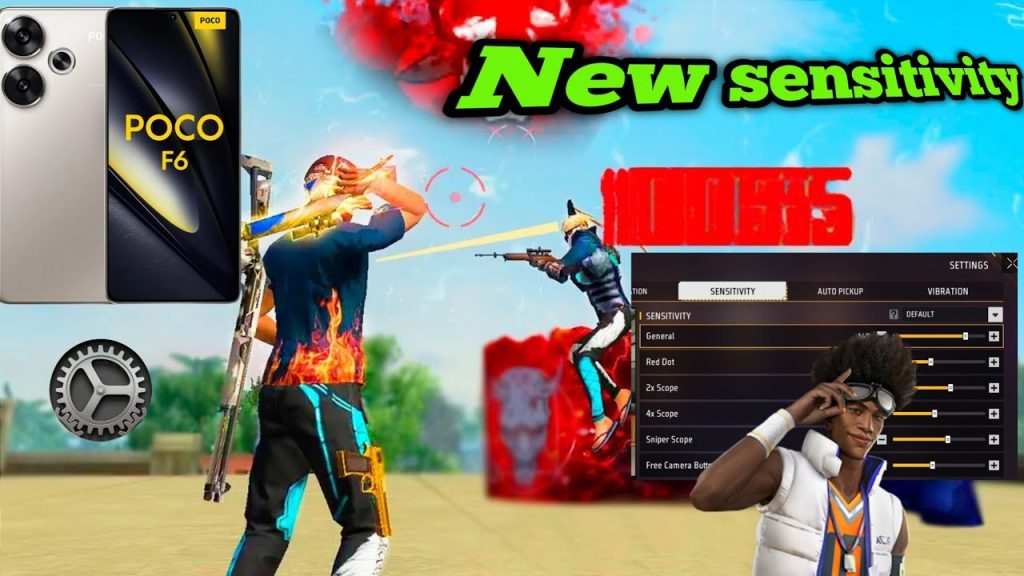
Step 1: Open Sensitivity Settings in Free Fire
Launch Free Fire and tap the gear icon on the main lobby screen to enter settings. Then go to the ‘Sensitivity’ tab. If you’re using Free Fire Max, the layout is identical. Here you’ll see sliders for General, Red Dot, 2x Scope, 4x Scope, Sniper Scope, and Free Look. We’ll adjust each one based on what works best on Poco devices. Before you start, take a screenshot of your current settings so you can revert if needed.
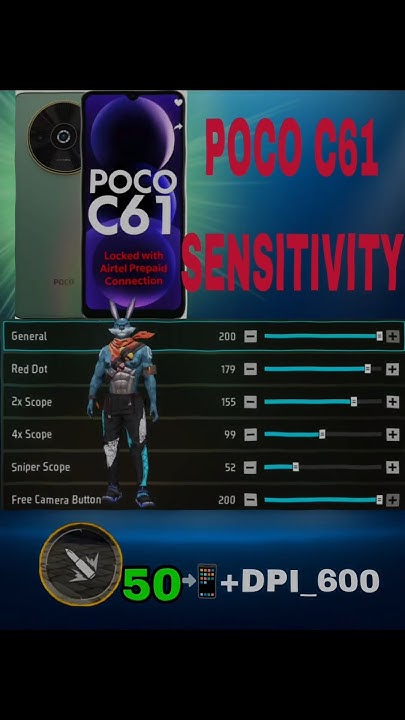
Step 2: Set General Sensitivity
General sensitivity controls your overall aim speed when not scoped. For Poco phones with 60Hz or 120Hz displays, a range between 85 and 100 is ideal. Start at 90 and adjust based on your comfort. If you have a higher refresh rate (like 120Hz on Poco X3 Pro), you can push it to 95–100. Lower values (70–85) work if you prefer steadier aim but slower reactions. We recommend 90 as a starting point.
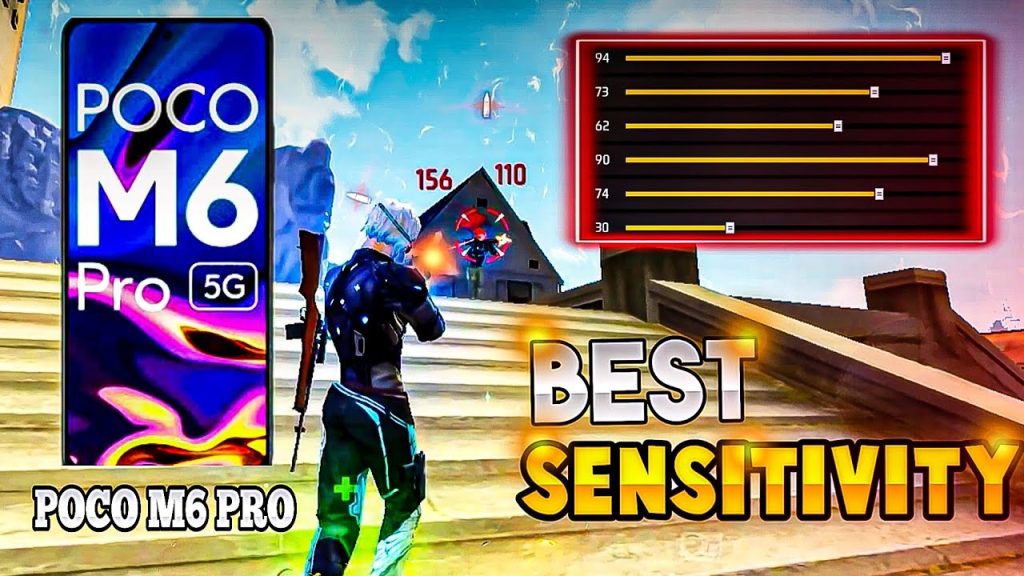
Step 3: Adjust Red Dot and 2x Scope Sensitivity
Red Dot and 2x Scope are used for close to mid-range fights. On Poco, these should be slightly lower than General to maintain control during sprays. Set Red Dot to 80–90 and 2x Scope to 70–85. A good baseline is Red Dot 85 and 2x Scope 75. If you find yourself over-aiming, lower them by 5; if you can’t track fast enemies, raise them a bit. Remember, the goal is a balance between speed and precision.

Step 4: Configure 4x Scope and Sniper Scope
For long-range engagements, lower sensitivity gives you better accuracy. Set 4x Scope between 50 and 65, and Sniper Scope between 30 and 45. On Poco, the touch response is usually good, so you don’t need high values. Try 4x at 55 and Sniper at 35. If you use AWM or Kar98k frequently, a sniper sensitivity of 30–35 helps steady your aim while peeking.
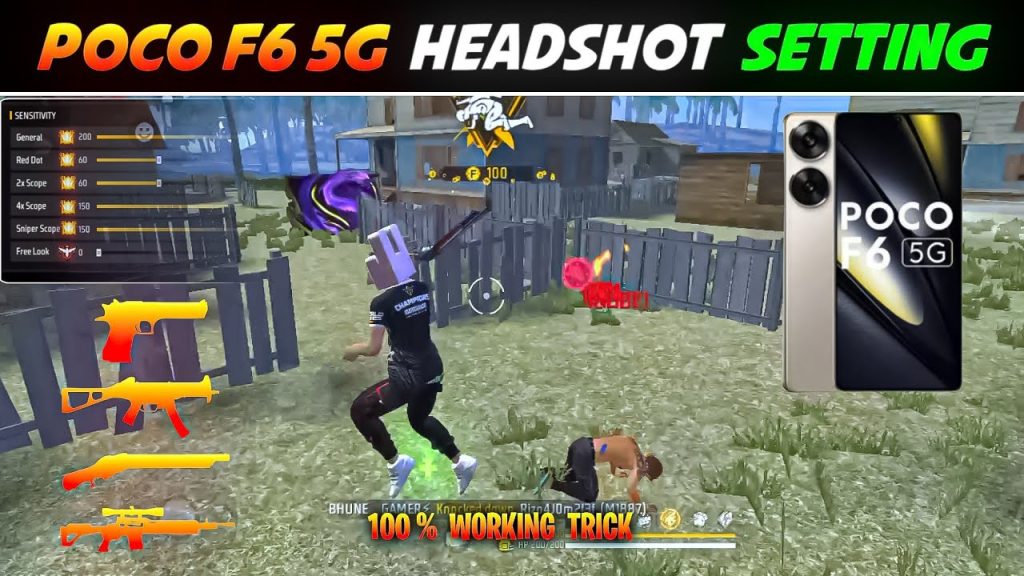
Step 5: Tweak the Fire Button and Gyroscope (Optional)
Your fire button sensitivity isn’t in the same menu—it’s under ‘Controls’. However, the ‘Fire Button’ size and position affect how quickly you can tap. Keep it about 50% size and placed in a comfortable spot. If your Poco has a gyroscope (like Poco F1), you can enable gyro under ‘Sensitivity – Gyroscope’ and set it to 100% for both General and Scope. Gyro helps with micro-adjustments. For non-gyro users, your thumb aim is adjusted via the main sensitivity.
Step 6: Test in Training Ground
Now it’s time to see if your settings feel right. Head to the Training Ground and pick an AR like M4A1 or Groza. Practice spraying at 50m and 100m targets. If your crosshair jumps past the target, reduce sensitivity; if it lags behind, increase it. Also test with a red dot and 4x scope. Spend at least 5 minutes here. Adjust each slider by 2–3 increments until everything feels natural. Don’t forget to check our best free fire sensitivity settings for android for more baseline numbers.
Common Pitfalls
- Copying pro settings blindly: Pro players often use extreme values (like 100 general) that may not suit your play style or Poco’s touch latency. Always start from a moderate baseline and adjust.
- Ignoring Game Turbo: Poco’s Game Turbo can improve touch response and frame rate stability. If you skip enabling it, your sensitivity might feel sluggish even with perfect sliders.
- Over-adjusting too fast: Changing 5 sliders at once makes it hard to know what works. Adjust one scope at a time, test, then move to the next. Patience pays off.
Where to Next
Now that your Poco is dialed in, you might want to explore even more ways to improve. Check out our free fire sensitivity settings for smooth gameplay if you value consistency. For a deep dive into every slider, read our complete free fire sensitivity settings guide. And if you’re aiming for tournament-level precision, our guide on how to optimize free fire sensitivity settings has advanced tips. Happy gaming!



