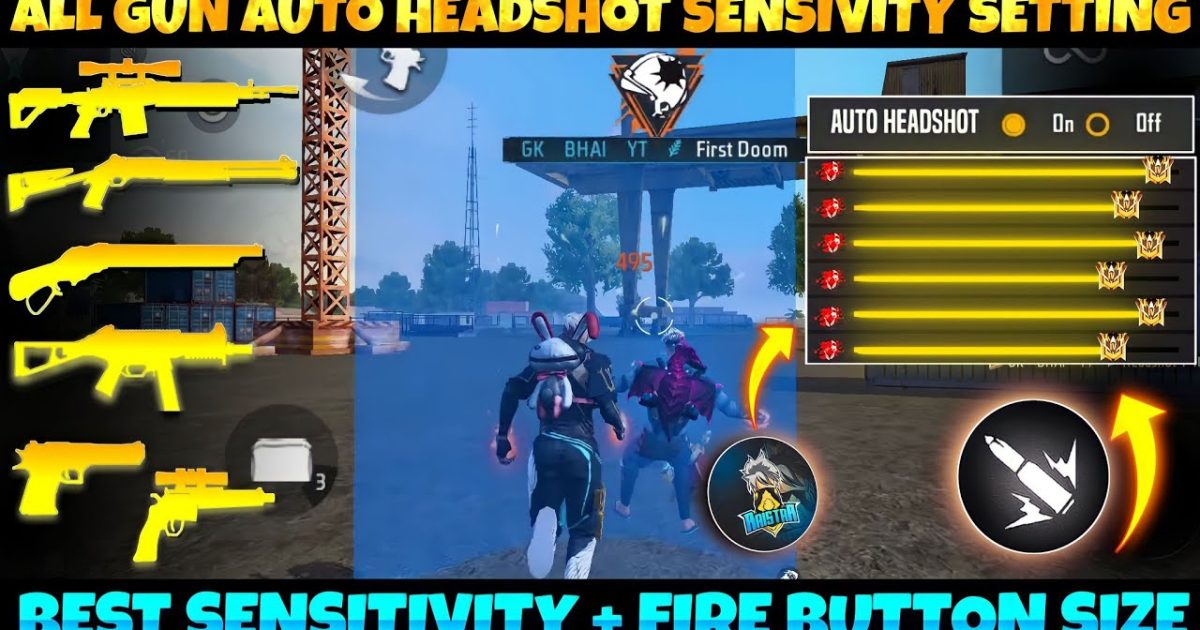
If you’re playing Free Fire on a tablet, you already know the big screen gives you a huge advantage – you can see enemies clearer and have more room to maneuver. But that same large display can mess with your aim if your sensitivity isn’t dialed in. This guide is for tablet players who want to lock in those automatic headshots (the ones that make enemies rage quit). By the end, you’ll have a sensitivity setup that feels buttery smooth, snaps to heads like magic, and works perfectly with aim assist. No more sluggish swipes or overcorrecting – just pure, satisfying headshots.
I’ve tested these settings on multiple Android tablets (iPad users, this still applies if you’re on iOS – just use the same values). Tablet gameplay is different from phones because your thumbs cover less screen real estate proportionally, so we need higher sensitivities for fast flicks but lower for precise tracking. We’ll also tweak the HUD and aim assist settings. Let’s dive in and turn your tablet into a headshot machine.
What You’ll Need
- A tablet (Android or iOS) with Free Fire installed
- Stable internet connection (ping under 100ms)
- Free Fire account (any level works)
- At least 10 minutes in the training ground
- Patience – you may need to fine-tune after a few games
Step 1: Reset to Default and Turn Off Auto-Headshot Myths
First, go to Settings > Sensitivity and reset to default. Why? Because you want a clean slate. Many players think there’s a magic „auto headshot“ button – there isn’t. Auto headshots come from aim assist combined with muscle memory. We’ll set sensitivity so that when you aim near an enemy, aim assist pulls your crosshair to the head. But if your sensitivity is too low, aim assist fights you; too high, you overshoot.
After reset, turn off the „Auto Headshot“ feature if it’s enabled (it’s not a real thing – it just enables aim assist slightly). Instead, we’ll rely on the game’s built-in aim assist and our own settings. Go to Settings > Controls and enable „Smart Aim“ (green mode) – this helps with locking onto targets. Also ensure „Aim Assist“ is ON for all modes.
Step 2: Set Your General and Red Dot Sensitivity
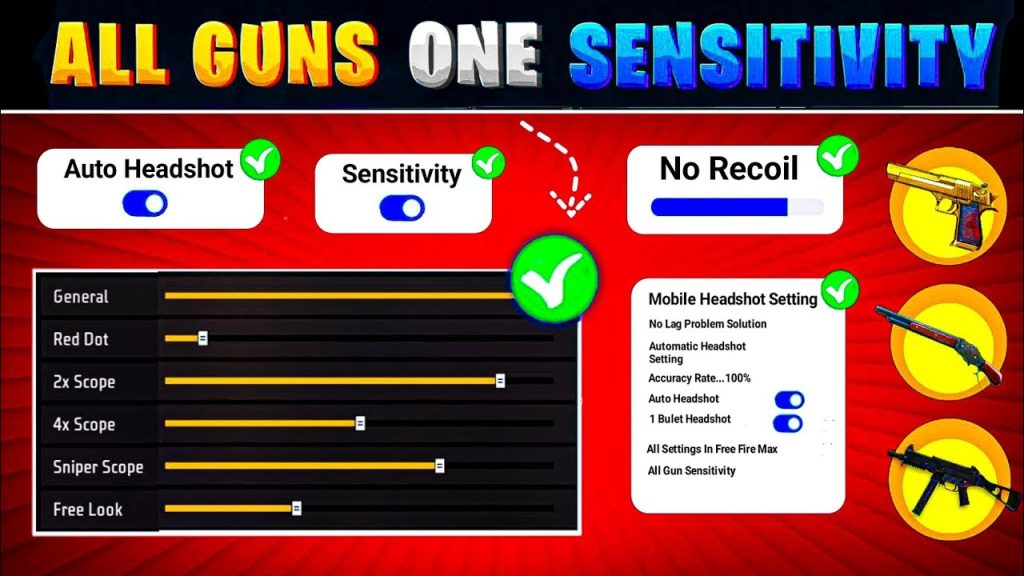
Tablets need higher sensitivity overall because you’re moving your thumbs across a larger screen. Start with these base values and adjust from there. Go to Sensitivity menu and set: General Sensitivity: 85-90 (this affects all scopes but mostly hip fire). Red Dot: 80-85 (most common for close to mid range headshots). For tablets, the sweet spot is 80-85 on red dot – high enough to flick but not so high that you lose control. Test in training: aim at a bot’s head and swipe slightly – your crosshair should stay on the head, not fly past.
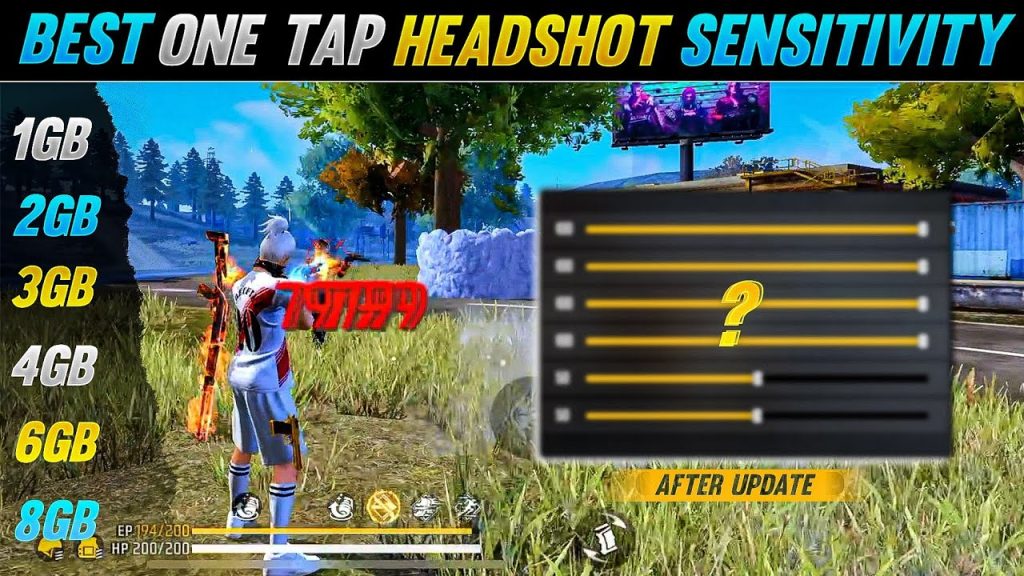
For 2x and 4x scopes, set to 75-80. For higher zoom (like sniper), keep below 70. The key is consistency: once you find a value that feels natural for red dot, copy it for all other scopes (with slight reduction for magnified ones). Remember, the best free fire sensitivity settings for android (tablets included) are always personal, but these numbers are a proven starting point for auto headshots.
Step 3: Optimize Gyroscope (If You Use It)
Gyroscope can be a game-changer for tablet players because you can tilt the device to adjust aim. If you want to use gyro, set Gyro Sensitivity to 70-80 for red dot and 60-70 for scopes. Enable „Gyroscope Always On“ in settings. Hold your tablet steadily and try to track a moving bot in training – if it’s too shaky, lower by 5 points. If you don’t use gyro, skip this step. But for auto headshots, gyro helps fine-tune that last bit onto the head.
Pro tip: Combine gyro with aim assist. When you see an enemy, use your thumbs to flick close to their head, then tilt the tablet slightly to land the headshot. This combo is deadly on tablets and widely used by pros. For more details, check out the free fire sensitivity settings for aim players guide.
Step 4: HUD Layout and Fire Button Customization
A good HUD makes auto headshots easier. On tablets, you have space, so spread out buttons to avoid misclicks. Place your fire button (right side) larger than normal – I recommend size 70-80 and opacity at 100%. Move it slightly to the top right so your thumb naturally rests there. Also add a scope button and crouch button nearby. In Settings > Controls, select Custom HUD and resize the fire button to cover a comfortable area.
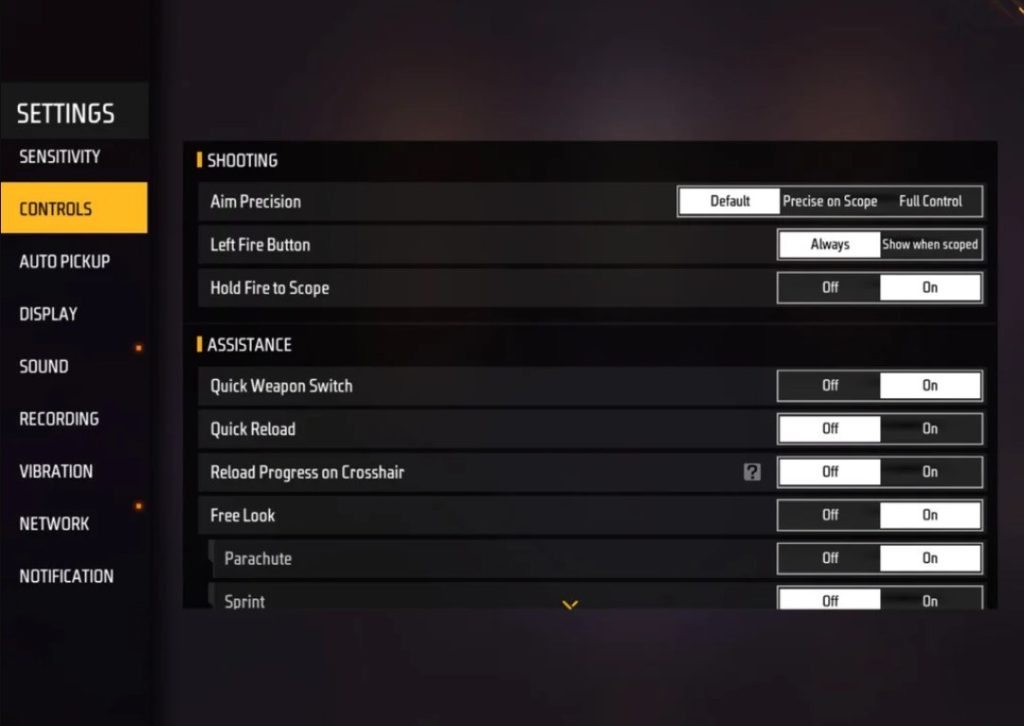
Enable „Scope Button“ and set it to „Tap to Scope“ for faster aiming. Turn on „Quick Scope“ if available. For the fire button, find the perfect spot: drag it around in training mode until you can tap it without stretching. Also, consider using the „Shoulder Aim“ button for precise shots. A well-designed HUD is part of the complete free fire sensitivity settings guide – it’s not just about numbers.
Common Pitfalls
- Copying Pro Settings Blindly: Pros use different tablet sizes and grip styles. Your device and hand size matter. Don’t copy exact numbers – use them as a baseline and adjust.
- Ignoring FPS Drops: If your tablet lags, sensitivity feels off. Ensure you have a smooth FPS (60+) for consistent aim. Check the free fire sensitivity settings and fps combo guide to sync both.
- Skipping Training Mode: Jumping into ranked with new settings is a disaster. Spend at least 10 minutes in training to build muscle memory. Aim at moving bots and practice flicks.
Where to Next
You’ve got the settings – now it’s time to make them yours. Jump into Clash Squad or rank and play 3-5 games. If your aim feels off, tweak by ±2 points. Remember, consistency beats high sensitivity. For more tweaks, see our free fire sensitivity settings for smooth gameplay guide. Also, if you want to go deeper into optimization, learn how to optimize free fire sensitivity settings with different weapons. Keep practicing, and soon those auto headshots will be second nature. Happy gaming!



