
Hey there, Free Fire player! If you’re tired of your shots going everywhere but the enemy, you’ve come to the right place. This guide is for anyone who wants to lock in their sensitivity settings and pair them with Gaming Mode for a buttery-smooth experience. By the end, you’ll have a custom sensitivity setup that helps you control recoil, flick faster, and win more gunfights.
Gaming Mode (sometimes called Game Booster or performance mode) is a system-level feature on many Android phones that prioritizes your game’s performance by freeing up RAM, blocking notifications, and boosting CPU/GPU. Combine that with the right sensitivity, and you’ll feel the difference immediately. Let’s dive in!
What You’ll Need
- An Android phone with Free Fire installed (the steps work for most brands like Xiaomi, Samsung, Oppo, etc.)
- Gaming Mode or Game Booster enabled in your phone settings (check your manufacturer’s settings app)
- 5–10 minutes of free time and a stable internet connection
- Access to Free Fire‘s training mode (or a quiet match to test settings)
Step 1: Enable Gaming Mode
First, open your phone’s settings and search for “Game Mode” or “Gaming Mode.” On Xiaomi devices, it’s under Settings > Special Features > Game Turbo. On Samsung, look for Game Launcher in your app drawer. If you can’t find it, try searching your phone’s settings for “Game Booster” or “Performance Mode.” Enable it, then add Free Fire to the list of games that use Gaming Mode. This will stop background apps and notifications from eating your resources.
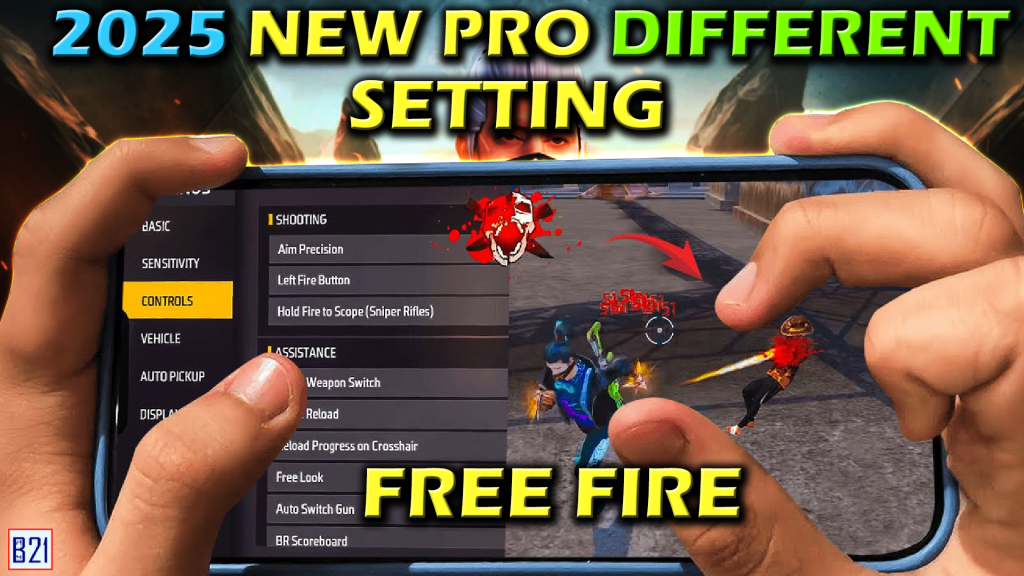
Step 2: Adjust Sensitivity Sliders in Free Fire
Now open Free Fire and go to Settings > Sensitivity. You’ll see sliders for General, Red Dot, 2x Scope, 4x Scope, Sniper Scope, and Free Look. Start with the following baseline and tweak from there: General – 90, Red Dot – 85, 2x Scope – 82, 4x Scope – 76, Sniper Scope – 50, Free Look – 70. These are good for most mid-range phones. If you have a high-end device, you can push them higher. If your phone lags, lower them by 5-10 points. Remember to save after each change.
Step 3: Fine-Tune with Practice
Head to Free Fire’s Training Mode (or jump into a Clash Squad match with bots). Test your aim by spraying at the wall to see how the recoil pattern moves. Adjust the General sensitivity until you can keep the crosshair steady while shooting. Also, practice flicking between two targets to see if your Red Dot sensitivity feels too fast or too slow. Don’t rush – spend at least 5 minutes adjusting. For a deeper dive, check out our guide on best sensitivity for Android.
Common Pitfalls
- Copying a pro’s sensitivity blindly – every phone and grip is different. Always start from a baseline and tweak for your own feel.
- Forgetting to enable Gaming Mode every time – some phones reset performance settings after a reboot. Double-check before a ranked match.
- Over-adjusting mid-game – stick to one set of settings for at least a few matches. Changing too often makes it impossible to build muscle memory.
Where to Next
Now that you’ve got your sensitivity dialed in with Gaming Mode, you’re ready to climb the ranks. For more tips, check out our guides on competitive sensitivity and sensitivity after updates to stay on top of the meta. Also, don’t miss our smooth gameplay settings for extra tricks to reduce lag. Happy hunting!



