If your Free Fire crosshair feels sluggish or your shots don’t register as fast as you tap, you’re probably dealing with input lag. This delay between your finger movement and the game’s response can kill your gameplay — especially in close fights. This guide is for players who want to reduce that lag by tweaking their sensitivity settings, without needing a new phone or expensive accessories.
By the end of this post, you’ll have a clear, step-by-step plan to adjust your Free Fire sensitivity settings specifically to minimize input lag. You’ll also learn a few tricks to optimize your device and game settings for the snappiest aim possible. Let’s jump in.
What You’ll Need
- A smartphone capable of running Free Fire at 30 FPS or higher (60 FPS recommended).
- Free Fire app installed and updated to the latest version.
- A stable internet connection (preferably 4G/5G or WiFi with low ping).
- 10–15 minutes of free time to test and adjust settings.
- Optional: a friend to help you test reaction times in a custom room.
Step 1: Understand How Input Lag Relates to Sensitivity
Input lag isn’t always about your device or network. Sometimes the sensitivity settings themselves can make your aim feel delayed. If your sensitivity is too low, you’ll need larger finger movement to turn, which adds a tiny delay. If it’s too high, the game might not process every micro-move correctly. The goal is to find the sweet spot where your touch input translates instantly to screen movement.
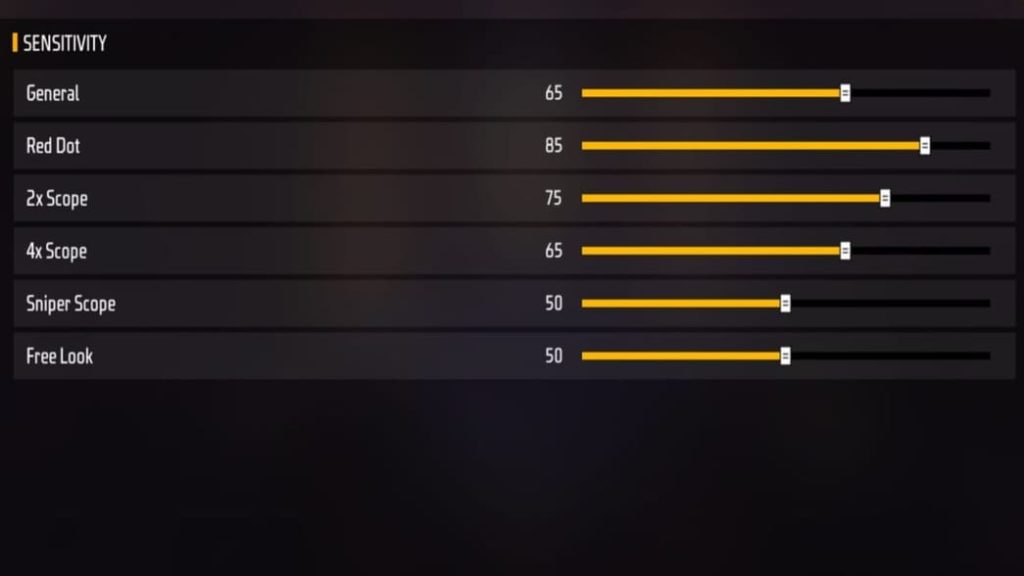
Before tweaking anything, go to Free Fire’s settings > Sensitivity. You’ll see sliders for General, Red Dot, 2x Scope, 4x Scope, Sniper Scope, and Free Look. Each affects how quickly your aim moves when you swipe. Make a note of your current values so you can revert if things go wrong.
Step 2: Set Your General Sensitivity as High as Possible Without Overshooting
High sensitivity reduces the distance your finger needs to travel for a 180° turn, which cuts down input lag. But too high leads to shaky aim. Start by setting General sensitivity to 80–90 (out of 100). Then go to the training ground and try to track a moving target. If you overshoot, lower by 5. Keep doing this until you can smoothly follow the target.

This step directly tackles lag because you’re minimizing the physical swipe distance. Once you find a value that feels responsive but controllable, write it down.
Step 3: Adjust Red Dot and 2x Scope for Close-Quarter Reactions
Input lag hurts most in close fights where split-second reactions matter. Set your Red Dot sensitivity to roughly the same as General (or a bit higher). For 2x scope, keep it 5–10 points lower to avoid overflicking. Test by entering a close-range fight with bots — if your aim feels heavy, increase by 5. If you’re snapping too far, decrease.
Step 4: Enable High FPS Mode and Reduce Graphics for Better Response
Game performance directly affects input lag. Go to Settings > Graphics and set Frame Rate to as high as your device allows (preferably 60+ FPS). Lower your Graphics Quality to Smooth and turn off Shadows, Anti-aliasing, and other eye candy. This reduces the frame render time, so your touches appear on screen faster. Combine this with your new sensitivity — you’ll feel a big difference.
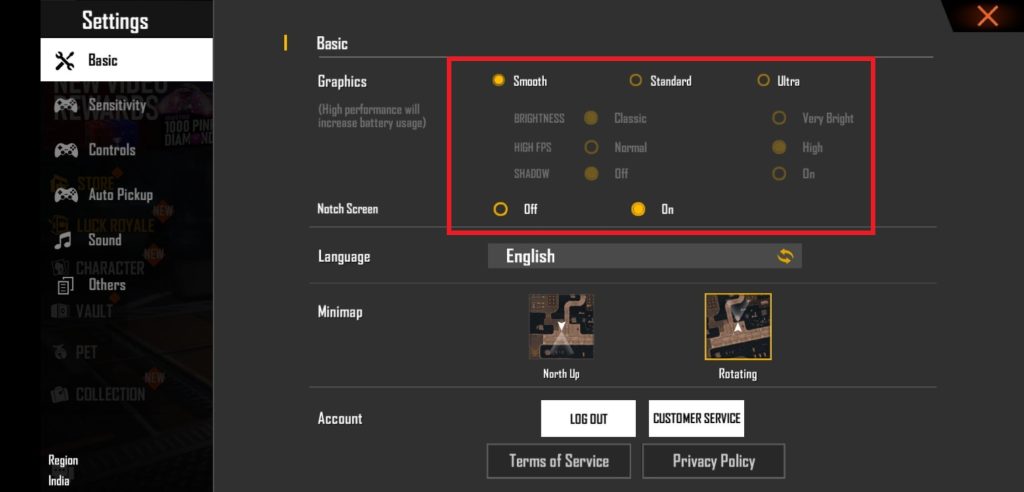
Also, enable the ‘High FPS’ option in the game’s graphics settings if available. This is a key factor; check out our dedicated post on free fire sensitivity settings with high fps for more details.
Step 5: Tweak the Aim Assist and Fire Button Size
Aim Assist can sometimes cause a slight delay if it fights your movement. Set it to Medium or Low. Also, increase your fire button size and place it in a comfortable spot — a larger button reduces the chance of mis-taps that feel like lag. You can adjust button layout in the HUD settings.
For a baseline, try the simple free fire sensitivity settings guide, which gives a solid starting point you can then fine-tune.
Step 6: Test in Ranked Conditions and Adjust Further
Training ground is one thing, but real matches have network latency and stress. Play a couple of Classic Ranked matches and note if you feel any lag. If you still feel a slight delay, try decreasing your sensitivity by 5–10 points—surprisingly, sometimes lower sensitivity feels snappier because the game doesn’t have to process as many incremental inputs. Keep tweaking until it feels instant.
Once you find the perfect combo, save it as a preset or export your settings code. For consistency, refer to our export guide if you need help sharing or backing up.
Common Pitfalls
- 1. Maxing out sensitivity too fast — you’ll overshoot and think the game is laggy. Increase gradually by 5s.
- 2. Ignoring graphics settings — high graphics increase frame time, which adds to input lag. Set to Smooth.
- 3. Forgetting to test in real matches — what feels good in training may not work under network pressure. Always play a few ranked games to confirm.
Where to Next
You’ve now got a responsive setup that minimizes input lag. For even more edge, try our free fire sensitivity settings ranked season to dominate the climb, or if you’re on iOS, check out the free fire sensitivity settings tested on iphone. Also, stay updated with trending free fire sensitivity settings for new tweaks. Happy fragging!



