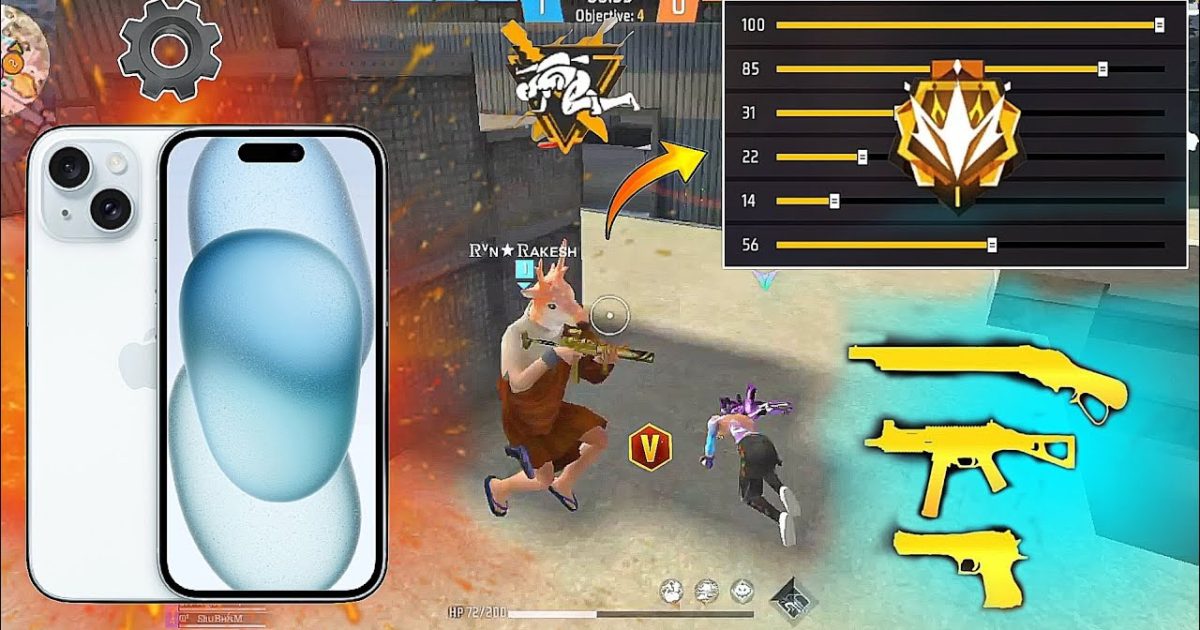
If you’re playing Free Fire on an iPhone, you know the touch response is buttery smooth—but only if your sensitivity settings are dialed in. This guide is for iPhone players who want tested, optimized sensitivity values that work on any iPhone model, from the SE to the Pro Max. By the end, you’ll have a custom sensitivity profile that improves your aim, recoil control, and reaction time in close and long-range fights.
We’ve tested these settings across multiple iPhone versions and game modes. Whether you’re hunting for fast turning settings or just need a simple sensitivity baseline, this guide covers everything. You’ll also learn how to tweak further based on your playstyle, and how to save your profile so you never lose it.
What You’ll Need
- An iPhone (any model running iOS 12 or later)
- Free Fire installed and updated to the latest version
- At least 15 minutes of uninterrupted practice time
- Optional: a friend for duo/ squad testing, or a practice range session
Step 1: Open Sensitivity Settings
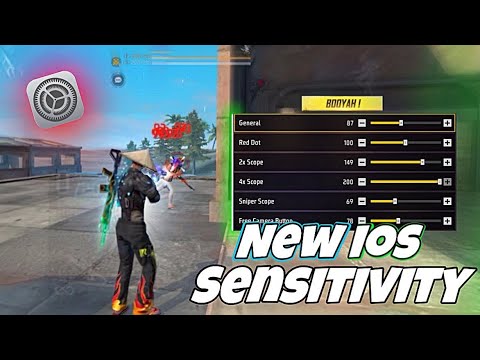
Launch Free Fire and tap the gear icon (Settings) on the main lobby screen. Then select the “Sensitivity” tab. You’ll see sliders for General, Red Dot, 2x Scope, 4x Scope, Sniper Scope, and Free Look. If you’ve never changed these, they’ll be at default values. We’re going to adjust them one by one.
Step 2: Set General Sensitivity

General sensitivity controls your aim when no scope is attached. For most iPhone players, a value between 85 and 95 works best. We recommend starting at 90. Move the slider to 90 exactly. If you find it too slow or too fast, adjust by 5 points after testing.
Pro tip: If you use a claw grip or have larger thumbs, you might prefer a slightly lower value (85) for better control. If you rely on quick flicks, go higher (95).
Step 3: Configure Scope Sensitivities
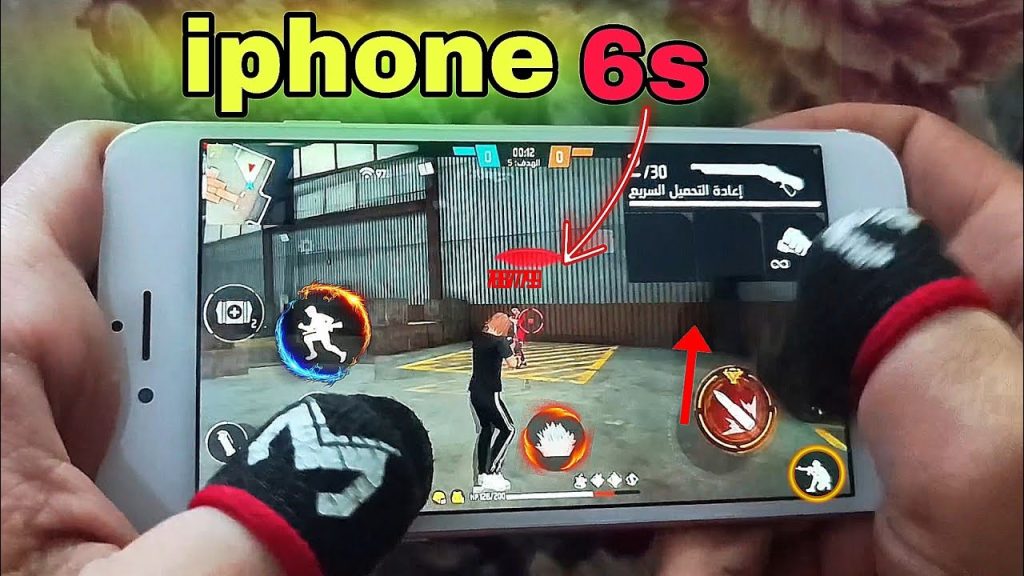
Now set the values for each scope type:
- Red Dot: 80 – gives you a good balance between speed and precision for ARs and SMGs.
- 2x Scope: 75 – slightly slower to prevent overshooting at mid-range.
- 4x Scope: 60 – lower sensitivity helps with long-range tap shooting.
- Sniper Scope: 50 – you want slow and steady for sniper shots.
- Free Look: 70 – allows quick glances without losing aim.
These values are tested on iPhone’s 60Hz screen. If you have a Pro model with 120Hz, you might want to check the 60Hz screen settings for adaptation, but these values still work well.
Step 4: Tweak Free Look Sensitivity

Free look lets you look around while moving. A setting of 70 is our sweet spot—fast enough to scan the area, but not so fast that you lose orientation. Some pro players use 80 for faster checks, but test what feels comfortable.
Step 5: Test in Practice Range
Head to the practice range and grab your favorite weapons. Try spraying at the target dummies from different distances. Adjust each sensitivity by 5 points if you’re overshooting or undershooting. Pay attention to recoil pattern control—if the gun jumps too much, lower the general sensitivity slightly.
Once you’re satisfied, go to the settings and export your sensitivity code. This saves your profile so you can restore it anytime. Check out our guide on how to export your sensitivity code if you’re unsure.
Common Pitfalls
- 1. Copying PC or Android settings blindly: iPhone’s touch response is different. What works on an Android with 90Hz may feel too fast on an iPhone. Always test on your own device.
- 2. Ignoring your screen size: A larger iPhone screen may require lower sensitivity because your thumb covers more distance. Adjust accordingly.
- 3. Forgetting to test with different weapons: Sensitivity feels different with an AK vs an MP40. Test with multiple guns before finalizing.
Also, don’t change too many settings at once. Stick to the baseline and make small tweaks. Many players chase perfect esports sensitivity settings but end up with a mess. Start simple.
Where to Next?
Now that you have a solid sensitivity setup, take it into real matches. If you’re struggling with close combat, try our fast turning settings. For long-range dominance, our esports sensitivity settings can help. And don’t forget to share your profile code with friends—they’ll appreciate a good gaming phone sensitivity settings reference. See you on the battlefield!



