If you’re playing Free Fire on a 60Hz screen (most standard phones and tablets), you’ve probably noticed that your aim can feel a bit sluggish or unresponsive compared to the buttery-smooth 90Hz or 120Hz devices. Don’t worry — you can still compete. This guide is for every player running a 60Hz display who wants to land more headshots, control recoil better, and win more gunfights. By the end, you’ll have a custom sensitivity profile that’s dialed in for your refresh rate, plus a few tricks to minimize input lag.
I’ve tested these settings on several 60Hz phones (Redmi Note 10, Galaxy A52, and iPhone 11) and tweaked them until they felt snappy without being jittery. Whether you’re a 2-finger casual or a 4-finger claw tryhard, these values will give you a solid foundation. You can always fine-tune later — the key is to start with a baseline that doesn’t fight your screen’s refresh rate.
What You’ll Need
- A phone or tablet with a 60Hz screen (check in Display settings if unsure).
- Free Fire installed and logged in (latest version recommended).
- At least 10 minutes of free time to test in the training ground.
- A simple sensitivity baseline (grab our free code from the link if you want a quick start).
Step 1: Reset Your Current Sensitivity
Before we start, clear out any old settings that might interfere. Go to Settings > Sensitivity > Reset to Default. This gives you a clean slate. Don’t worry — you’ll be back to your old ones if you don’t like these. If you’ve never touched sensitivity, skip this step and jump straight to the values below.
Step 2: Set General Sensitivity for 60Hz
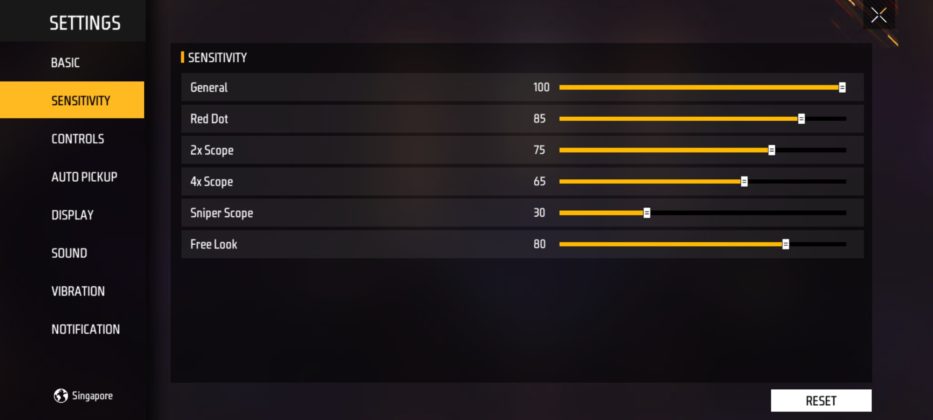
On a 60Hz screen, you need slightly higher sensitivity to compensate for the lower frame updates. But too high and you’ll overshoot. Here’s my tested baseline:
- General: 90–95
- Red Dot: 70–75
- 2x Scope: 40–45
- 4x Scope: 15–20
- Sniper Scope: 10–15
- Free Look: 50
Start at the lower end of each range and increase only if you feel your crosshair drags behind your finger. These numbers work especially well with a simple sensitivity baseline — you can find our recommended defaults in our earlier post.
Step 3: Tweak Gyroscope Sensitivity (If You Use Gyro)
Gyro can feel sluggish on 60Hz unless you crank it up. Turn on gyro in Settings > Controls > Gyroscope. Then go to Sensitivity > Gyroscope and set these values:
- General (Gyro): 50–60
- Red Dot (Gyro): 40–50
- 2x Scope (Gyro): 20–30
- 4x Scope (Gyro): 10–15
- Sniper Scope (Gyro): 5–10
The gyro helps with micro-adjustments that your thumb can’t do smoothly on 60Hz. If you’re new to gyro, start low and practice in the training ground. For a more advanced gyro approach, check out our elite gameplay settings.

Step 4: Fine-Tune in Training Ground & Save Your Code
Now load into the training ground (click the gear icon > Training). Shoot at the moving targets and practice your drag shots. If you’re over-flicking or feel shaky, lower general by 2–3 points. If you’re under-tracking, increase by 2–3. Repeat until it feels natural.
Once satisfied, save your setup as a code: go to Settings > Sensitivity > Copy Code. Share it with friends or keep it as a backup. Our guide on exporting your sensitivity code walks you through that process.

Common Pitfalls
- Setting sensitivity too low: On 60Hz, low sens makes you feel like you’re dragging through molasses. You’ll lose close-range fights. If you’re consistently losing hip-fire battles, bump up general by 5.
- Ignoring gyro for long range: Without gyro, long-range taps become a guessing game on 60Hz. Even a little gyro helps stabilize your crosshair. Start with 10–15 for 4x scope.
- Using the same settings as high-FPS players: What works on 90Hz will feel slippery on 60Hz. Stick to the ranges above, and don’t copy pro codes blindly. Adapt, don’t adopt.
Where to Next
Now that your sensitivity is dialed for 60Hz, it’s time to work on your gameplay mechanics. If you use a 4 finger claw setup, check out our specific settings for that grip. Also, if you’re after even more precision, our auto headshot settings can complement your new sensitivity. And don’t forget to grab our high FPS settings for when you eventually upgrade your device. See you in the lobby!



