If you’ve spent hours fine-tuning your Free Fire sensitivity settings for the perfect aim, the last thing you want is to lose them after a reinstall or switch to a new phone. That’s where the export code feature comes in. With a single tap, you can generate a code that stores your entire sensitivity profile — and then paste it back anytime. This guide is for any Free Fire player who wants to back up their settings or share them with the squad.
By the end of this tutorial, you’ll have your own export code saved somewhere safe. You’ll also know how to import a code, whether it’s your old one or a pro’s settings. This is the same method used by esports players to keep their configurations consistent across devices. Let’s jump in.
What You’ll Need
- Free Fire installed on your phone (any version, iOS or Android)
- Your current sensitivity settings already configured (or you can use a baseline from our simple Free Fire sensitivity settings guide)
- A way to save a short text code (notes app, clipboard manager, or a message to yourself)
- Stable internet connection (the code is generated on Garena’s servers)
Step 1: Open the Sensitivity Settings Menu
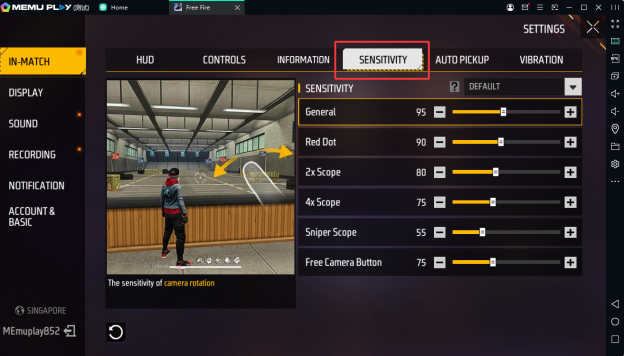
Launch Free Fire and go to the main lobby. Tap the ‘Settings’ gear icon in the top-right corner. Then, tap the ‘Sensitivity’ tab (it looks like a crosshair icon). You’ll see your current sensitivity sliders for General, Red Dot, 2x Scope, 4x Scope, Sniper Scope, and Free Look.
Make sure these settings are exactly what you want to save. If you haven’t adjusted them yet, check out our Free Fire sensitivity settings for esports players to get a pro setup.
Step 2: Tap the ‘Copy Code’ Button
In the Sensitivity tab, look for a small button that says ‘Copy Code’ or ‘Export Code’ (the exact text may vary by version). It’s usually located near the bottom of the screen, below the sliders. Tap it. A pop-up will appear with a long alphanumeric code — that’s your export code.
Tap ‘Copy’ to copy the code to your clipboard. The game may show a toast message confirming it’s copied. If you miss it, don’t worry — you can tap the button again to regenerate the same code (as long as your settings haven’t changed).
Step 3: Save the Code Somewhere Safe
Once copied, open a notes app, a messaging app, or any text editor and paste the code there. Give it a label like ‘My Free Fire Sens – [Date]’. This way you can find it later. I also recommend emailing it to yourself or saving it in a cloud drive for safekeeping.
If you’re sharing it with a friend, just send them the code via WhatsApp or Discord. They can import it the same way. You now have a portable backup of your settings!
Step 4: How to Import an Export Code (Optional)
To restore or apply a saved code, go back to the Sensitivity tab and tap the ‘Import’ or ‘Paste Code’ button (usually next to the copy button). A text field appears — paste the code and tap ‘Confirm’. All your sliders will automatically adjust to match the saved profile.
You’ll see the values update instantly. If you’re switching phones, this is the fastest way to transfer your settings without manually dragging each slider. For more details, check our guide on how to save Free Fire sensitivity settings.
Common Pitfalls
- The code doesn’t work after a game update: Garena sometimes changes the code format. If your saved code fails, you’ll need to create a new one from your current settings. Always keep a backup of your slider values as a screenshot as well.
- You accidentally changed settings after copying: The code is a snapshot of your settings at the moment you tapped ‘Copy Code’. If you tweak a slider afterward, the old code won’t reflect those changes. Re-copy the code after any adjustments.
- Code contains characters that look similar: The code uses letters and numbers like O and 0 or I and 1. When pasting, check for mistakes. If your friend’s import fails, ask them to paste it carefully or use a code-sharing feature within the game.
Where to Next
Now that you know how to export your code, you can experiment with different sensitivity presets without the fear of losing your perfect setup. Try out our recommended Free Fire sensitivity settings profile code for a ready-to-use pro configuration. Or, if you want to fine-tune for specific weapons, check out our Free Fire sensitivity settings for AK47 guide. Happy headshots!



