If you’ve spent hours tweaking your sensitivity settings in Free Fire to get that perfect drag headshot sensitivity or smooth hip-fire, you know how painful it is to lose them after a reinstall or device change. This guide is for every player who has found their sweet spot—whether you use sensitivity settings for Snapdragon phones, custom values for 2GB RAM sensitivity settings, or anything in between—and wants to lock it in forever. By the end, you’ll know multiple ways to save, backup, and restore your settings in under 5 minutes.
We’ll cover the in-game copy code method, manual screenshot backups, and even cloud synchronization for those regions that support it. No more guessing or starting from scratch. Let’s get your perfect aim preserved.
What You’ll Need
- Free Fire installed and updated (latest version recommended)
- Stable internet connection (for cloud sync option)
- A note-taking app or clipboard manager (for saving codes)
- Screen capture tool (built-in or third-party, for screenshot method)
- Your Garena account credentials (if using cloud sync)
Step 1: Access the Sensitivity Settings
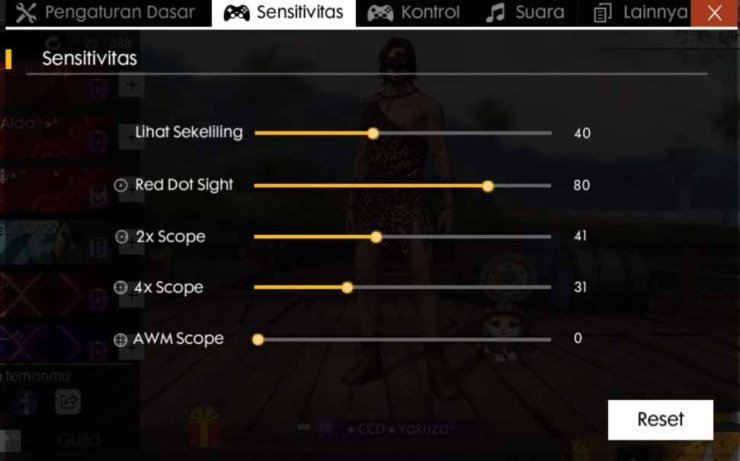
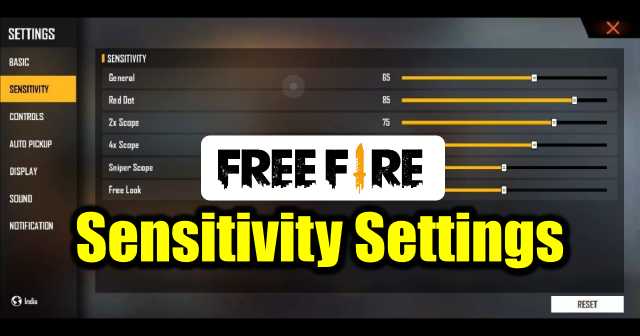
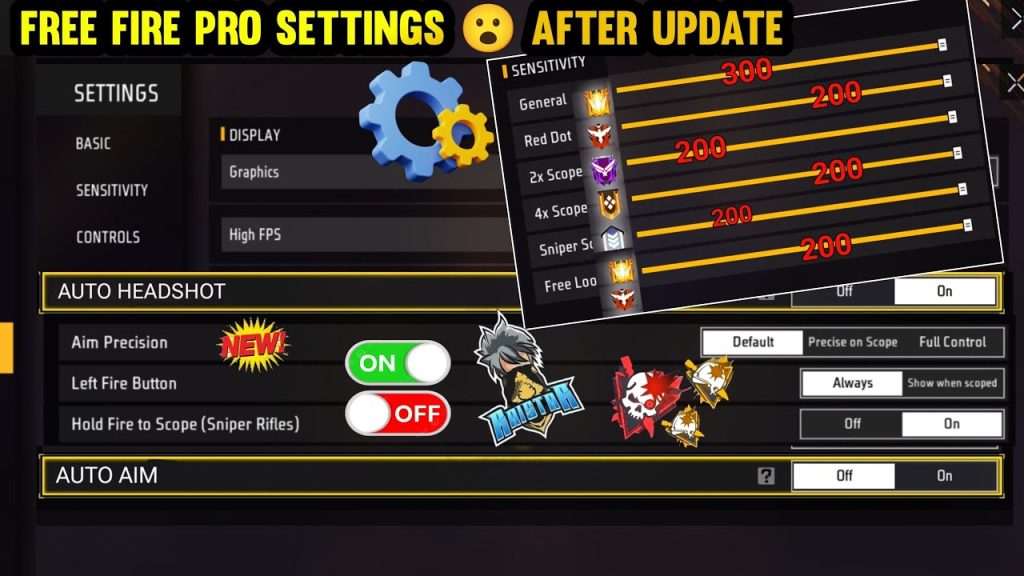
Open Free Fire and tap the gear icon on the main lobby to enter Settings. Then navigate to the ‘Sensitivity’ tab. Here you’ll see all your slider categories: General, Red Dot, 2x Scope, 4x Scope, Sniper Scope, and Free Look. Take a moment to confirm these are the values you want to save.

Step 2: Use the Copy Code Method
On the Sensitivity screen, look for a ‘Copy Code’ button (usually near the top). Tap it, and your entire sensitivity profile is instantly copied to your clipboard as a text code. This code is your save file—a portable backup that works across devices. This is the easiest copy code method.
Step 3: Save the Code Safely
Open any text editor (Google Keep, Samsung Notes, Notepad) and paste the code. Name it something like ‘Free Fire Sens – April 2026’ and save. You can also email it to yourself or upload to a cloud drive. This is essentially how to export your sensitivity settings—once saved, you can restore them anytime.
Step 4: Manual Screenshot Backup (Alternative)
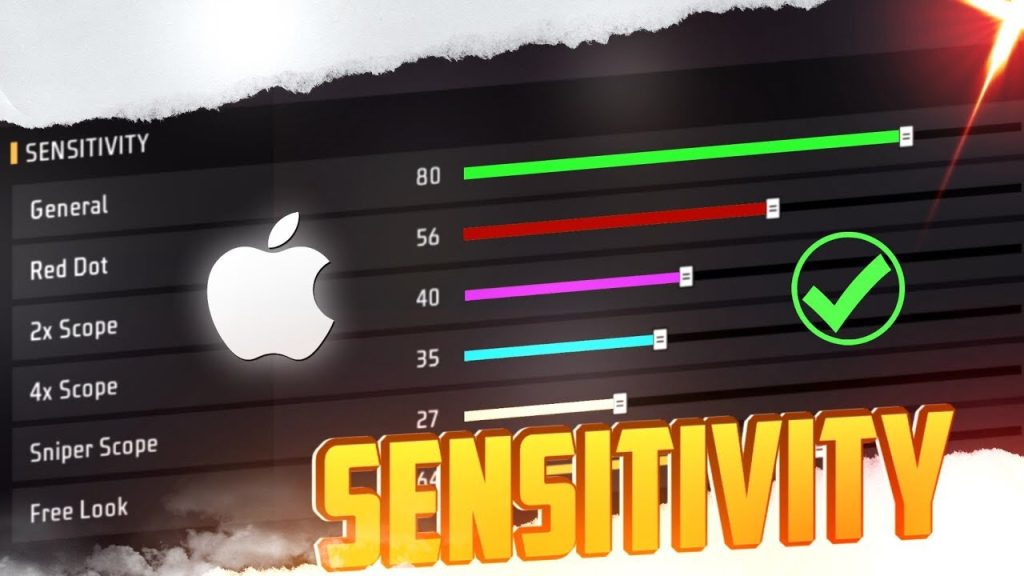
If your game version lacks the Copy Code feature, use screenshots. Capture each sensitivity category (General, Red Dot, 2x Scope, etc.) ensuring the slider values are clear. Organize these screenshots into a dedicated album on your device or cloud storage.
Step 5: Restore Your Settings
To restore, go back to the Sensitivity screen and tap ‘Paste Code’ (or ‘Import’). Enter the saved code. If using screenshots, manually adjust each slider to match the images. Double-check by testing in the training ground.
Step 6: Enable Cloud Sync (If Available)
Some servers offer cloud sync for settings. Go to Settings > Account > Sync Settings and enable it. This automatically backs up your sensitivity to Garena’s cloud, allowing you to sync settings across devices without manual work.

Common Pitfalls
- The copy code is account-bound. You cannot use it on a different account – it will give an error. Always restore on the same account.
- Screenshots can be misleading if your screen resolution changes. Always note numeric values if possible, or use a second device for comparison.
- Cloud sync may not be available in all regions. If you don’t see the option, rely on the code or screenshot method.
Where to Next?
Now that your settings are saved forever, you can focus on improving your gameplay. Check out our guides on sensitivity settings for Snapdragon phones or drag headshot sensitivity to see if you can tweak further. Happy hunting!